
How to Add Links and Images in Markdown
A link is [text](url). An image is the same thing with an exclamation mark in front: . That is the whole syntax, and it is the same in every Markdown app. The interesting part is everything around it: which bare URLs turn into links on their own, why a filename with a space silently breaks, and what happens to a picture when the file leaves your machine.
Everything below was measured against QuickMark's actual renderer while writing this post, not recalled. The screenshots come from an iPhone 17 Pro and an iPad (A16) simulator running the current build.
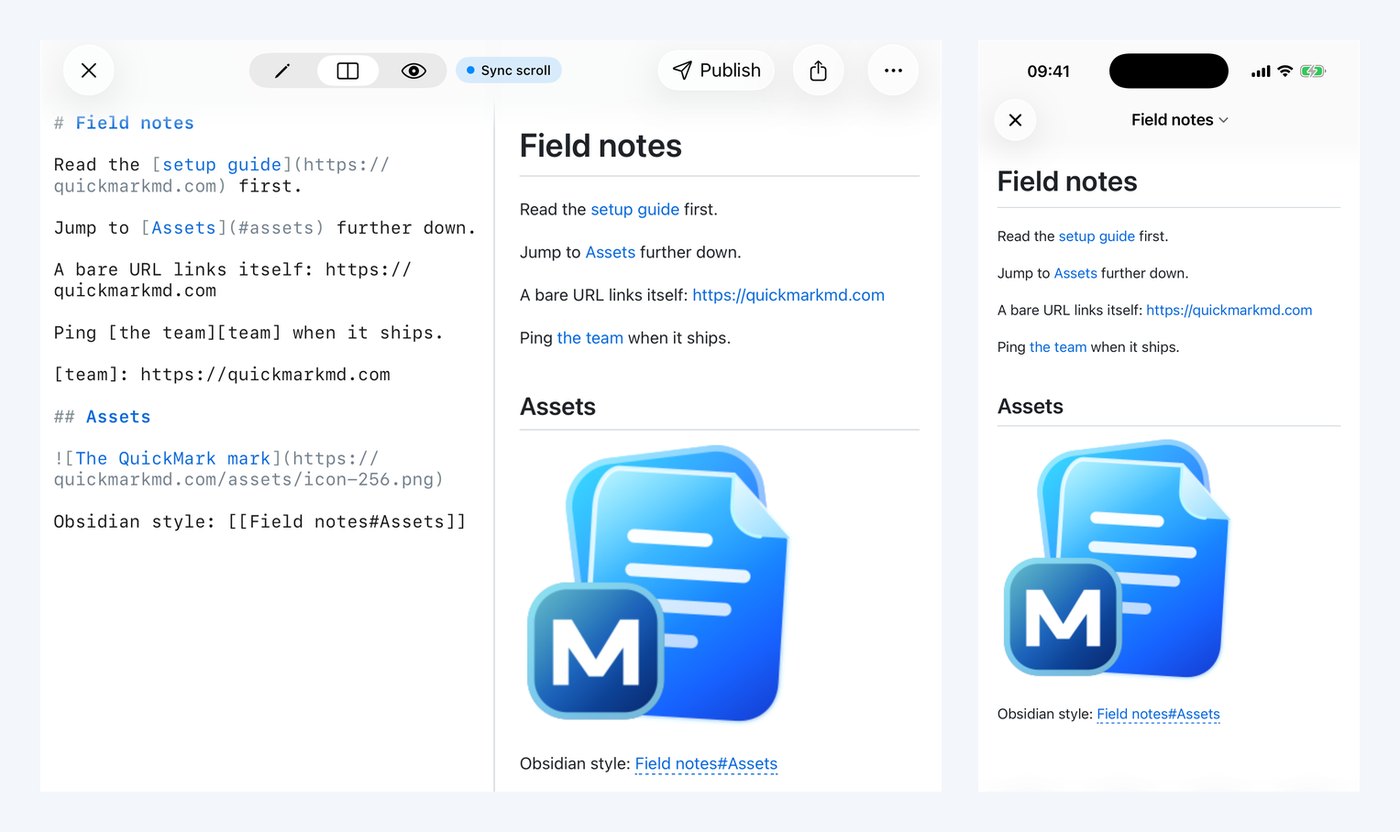
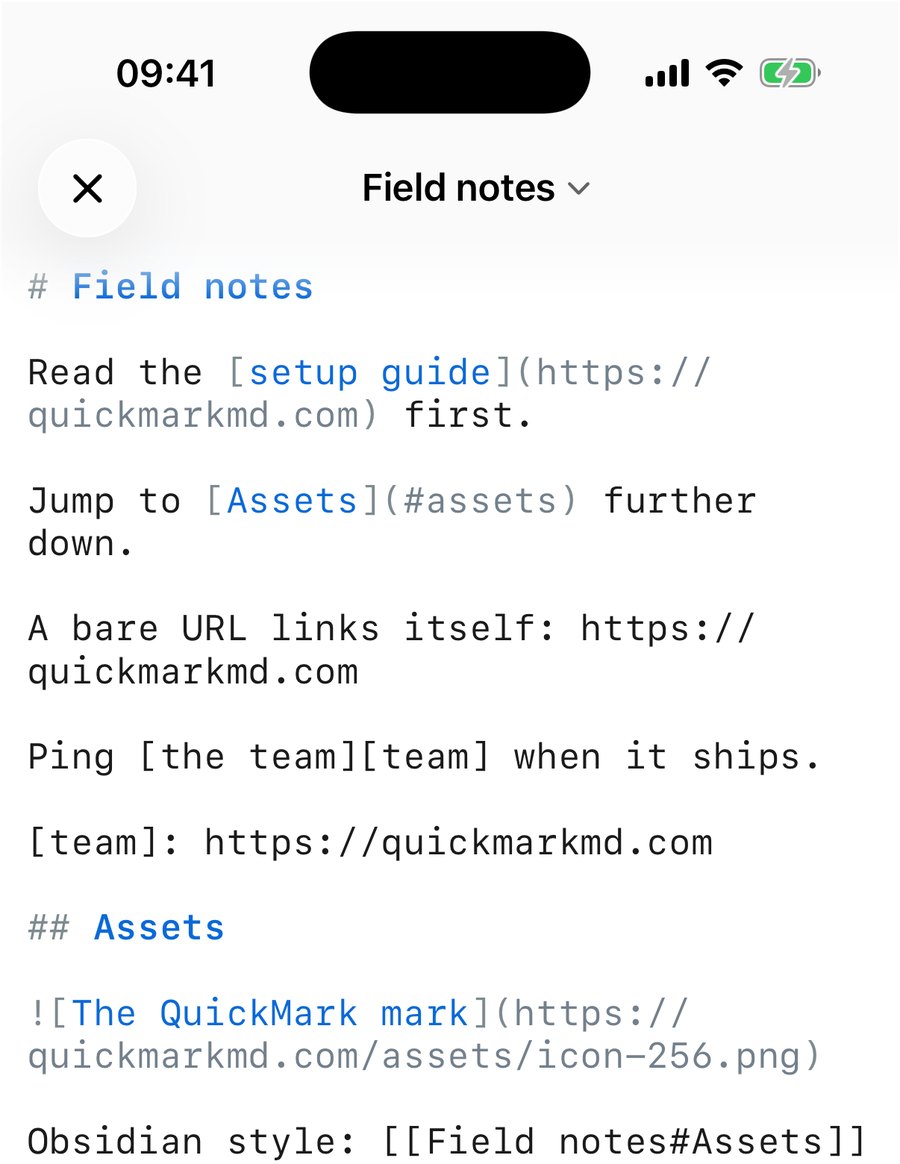
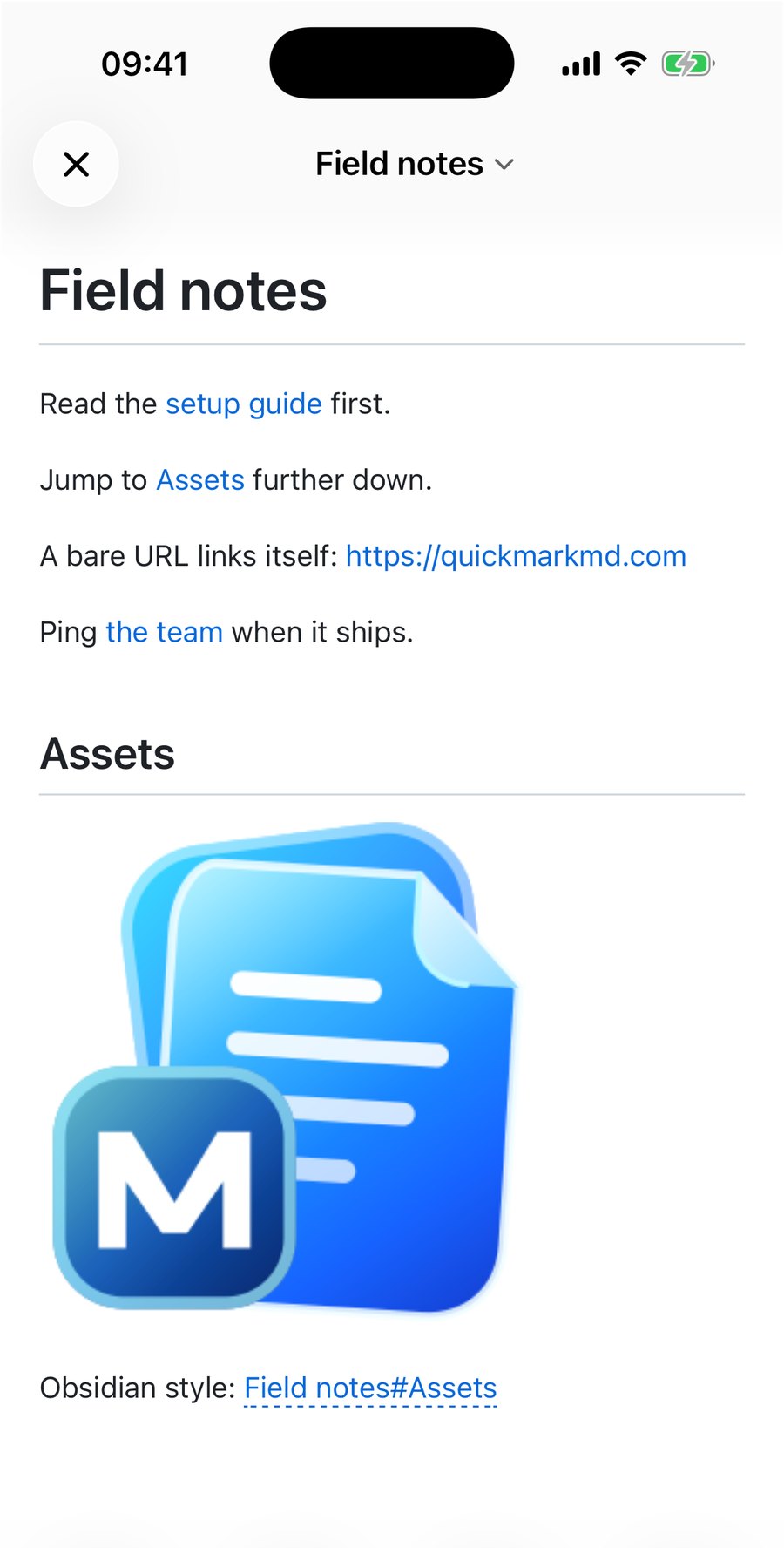
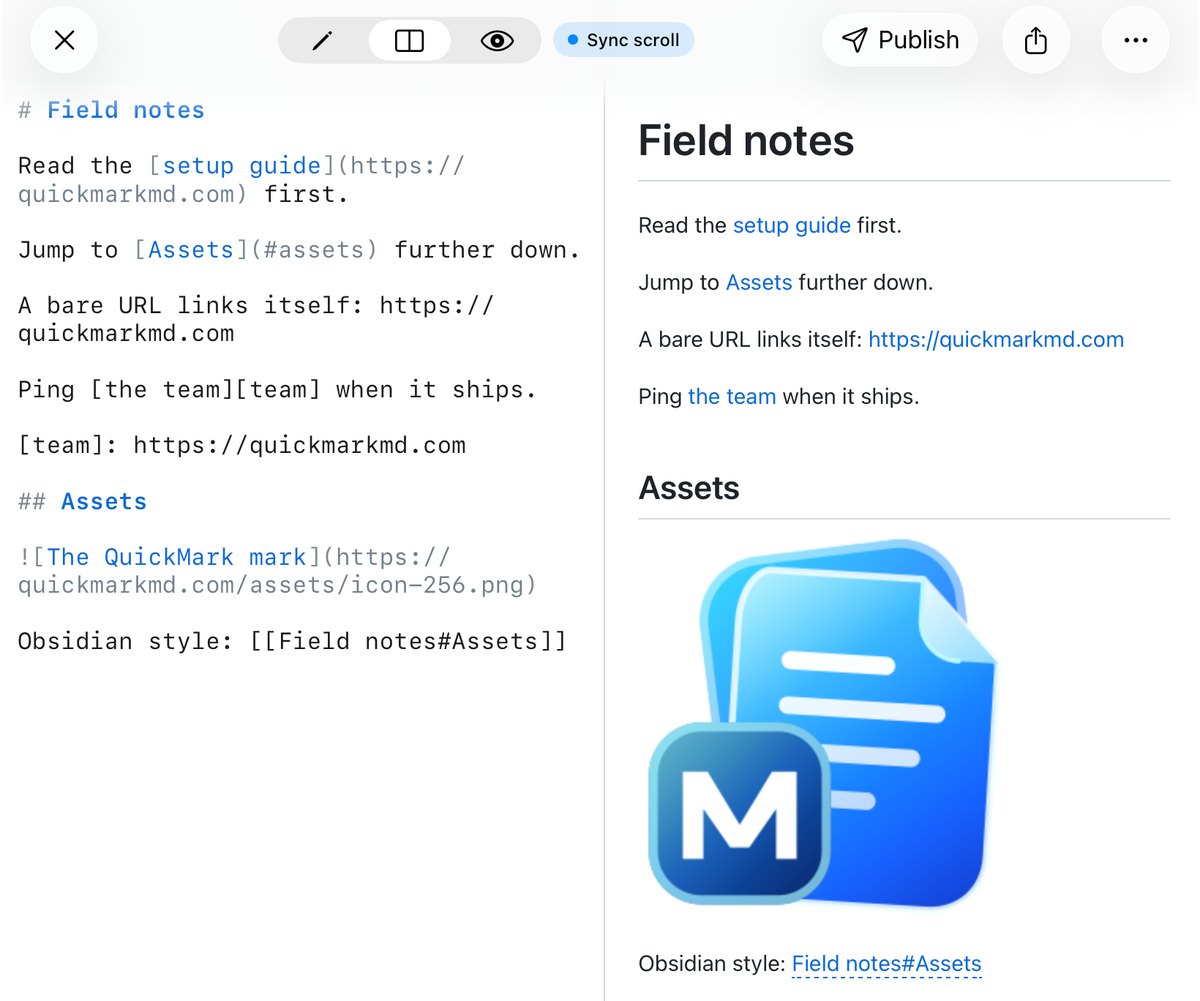
Read the [setup guide](https://quickmarkmd.com) first.
Adding a title
Both forms take an optional title in quotes after the URL. On a Mac it becomes the tooltip you see when the pointer rests on the link or picture. On iPhone and iPad there is no pointer, so it does nothing visible.
[QuickMark](https://quickmarkmd.com "The site")
QuickMark with a tooltip, and an image carrying title="A red square".
Reference links, for when the URL is long
If a paragraph is full of URLs it stops being readable in the editor. Reference links move the address to the bottom of the file. Three forms work, and I checked all three:
Ping [the team][team] when it ships.
Or just [team][] or even [team].

[team]: https://quickmarkmd.comThe definition line never renders. Labels are not case sensitive, and the same label can be reused as many times as you like. Images take references too: ![Red][r] with [r]: red.png at the bottom.
Linking to a heading in the same file
Write [Assets](#assets) and the preview scrolls down to your ## Assets heading instead of opening a browser. The anchor is the heading text lowercased, with spaces turned into hyphens and punctuation dropped. I ran a handful of real headings through the slug function to pin the rule:
| Heading | Anchor |
|---|---|
Setup guide | #setup-guide |
Step 2: install | #step-2-install |
What's new? | #whats-new |
API (v2) | #api-v2 |
Café & crème | #caf-crme |
That last row is a rough edge worth knowing about rather than glossing over. Accented and non-Latin letters are stripped, not kept, so a Vietnamese heading like Đường dẫn becomes the anchor #ng-dn. GitHub keeps those letters in its anchors; QuickMark does not. The link still works as long as you use the stripped form, but it is ugly, and if you are porting a document from GitHub the accented anchors will not match.
Which bare URLs become links on their own
Paste a full address with its scheme and it links itself. Paste anything shorter and it stays plain text. Measured:
| You type | Result |
|---|---|
https://quickmarkmd.com | becomes a link |
<https://quickmarkmd.com> | becomes a link |
www.quickmarkmd.com | stays plain text |
quickmarkmd.com | stays plain text |
<hi@example.com> | becomes a mailto: link |
hi@example.com | stays plain text |
This is deliberate. The loose matching that would catch www. and bare domains also catches things that are not addresses at all, so package.json, version 2.0.1 and a filename like notes.md would all come out as broken blue links in the middle of a sentence. Turning it off costs you the occasional www. and buys back every filename you write. If you want the short form to link, wrap it: [quickmarkmd.com](https://quickmarkmd.com).
mailto: and tel: both work as explicit link targets. Two schemes are refused outright and render as literal text rather than as a link: javascript:, which is the obvious one, and file://, which surprises people. If you want to point at something on disk, use a relative path.
The mistake that silently breaks a link
A space in the URL. [a](my file.png) does not render as a broken link, it does not render as a link at all: the whole thing comes out as the literal characters [a](my file.png) in your paragraph. I confirmed that on the real renderer because it is the single most common report behind "my image is not showing".
Two fixes, both measured working. Percent-encode the space, my%20file.png. Or wrap the path in angle brackets, [a](<my file.png>), which the renderer converts to the encoded form for you. Renaming the file to my-file.png is the version you will not have to remember.
https://.Where a link actually goes when you tap it
Three different behaviours, depending on what the link points at.
An external address opens in your default browser. The preview itself never navigates, so you cannot get lost inside a rendered document and lose your place. Every external link is emitted with rel="noopener noreferrer" as well, which is the standard protection against a page you opened being able to reach back into the one you opened it from.
An anchor scrolls the preview to that heading. No browser, no new window.
A relative link to another Markdown file, like [spec](docs/spec.md), is where the platforms differ, and it is worth being plain about it. On a Mac, clicking it opens that file in a new tab, resolved against the folder your current document sits in. Nine extensions count as Markdown for this: md, markdown, mdown, mkd, mkdn, mdwn, mdtext, text and txt. On iPhone and iPad, the same tap does nothing at all. The link is recognised as internal and then swallowed. If you keep a set of cross-linked notes, that navigation is a Mac feature today.
Relative links to something that is not Markdown, a PDF or an image, are left alone on both platforms rather than opened as text.
Images that live next to your file
Write  and QuickMark looks for diagram.png in the same folder as the document. Subfolders work, assets/diagram.png, and so does stepping up a level, ../attachments/diagram.png, which is what Obsidian vaults tend to produce.
The first time you open a document with a local image, you may see a slim banner instead of the picture: "Images in this document's folder need permission to display." That is the sandbox doing its job. Opening a file grants the app that one file, not the folder around it, so the image next to it is invisible until you say otherwise. The banner carries an Allow Folder Access… button on the Mac (Allow… on iPhone and iPad); grant the folder once and it is remembered.
One detail I liked finding in the code: the banner reads the failure before it decides what to offer. If the folder is already readable and the file genuinely is not there, the message names the file instead, "Can't find 'diagram.png' in this document's folder.", and there is no Allow button at all. Offering a permission button for a typo would send you round a loop where you grant access and nothing changes.
Thirteen image types are served off that folder: png, jpg, jpeg, gif, webp, svg, avif, bmp, tiff, tif, heic, heif and ico. Anything else is refused, on purpose: a document you were sent should not be able to pull arbitrary files off your disk just because you previewed it.
Remote images work with no ceremony at all.  is fetched over the network, which is what the icon in the screenshots above is.
Sizing an image
Standard Markdown has no width syntax. There is nowhere in  to say "300 pixels wide", which is the single most asked-for thing that plain Markdown cannot do. QuickMark gives you two ways round it.
The Obsidian embed form, if that is where your notes come from:
![[diagram.png]]
![[diagram.png|300]]
![[diagram.png|300x200]]
![[diagram.png|A wiring diagram]]Full size. Then 300 wide. Then 300×200. The fourth is not a number, so it becomes the alt text instead.
Or plain HTML, which the renderer passes through after sanitising it: <img src="diagram.png" alt="Diagram" width="200">. Both end up as an ordinary <img> with a width attribute, so pick whichever reads better in your source.
Obsidian wikilinks
Since the embeds came up: the plain [[…]] link form works too, with one honest caveat. QuickMark opens single files, it does not index a vault, so there is nothing to resolve a note title against. A wikilink is turned into a link to the matching heading inside the current document.
| You write | What you get |
|---|---|
[[Setup guide]] | link reading "Setup guide", pointing at #setup-guide |
[[Setup guide|the setup]] | link reading "the setup", same target |
[[Notes#Setup guide]] | points at #setup-guide, but the visible text is the whole Notes#Setup guide |
![[Some note]] | not an image, so it degrades to a plain wikilink rather than leaking the brackets |
If the heading exists, the link jumps to it. If it does not, the tap does nothing. That third row is a small wart: Obsidian would show just "Setup guide" there, QuickMark shows the file name too.
Typing them faster
On the Mac, ⌘K (also Format ▸ Link…) wraps your selection in [selection](url) and leaves the word url selected, so the address you have on the clipboard pastes straight over it. With nothing selected you get [text](url). On iPhone and iPad the same action sits in the bar above the keyboard, the link icon between Heading and Bullet List.
There is no image button on either platform. You type the exclamation mark yourself.
What survives when the document leaves
Links are just text, so they travel everywhere: PDF, HTML, EPUB, the published web page, all of it. Images are a different story, and two cases are worth stating plainly.
Word export drops every picture. I checked the converter rather than guessing: an image becomes an italic placeholder made from its alt text, [Diagram], or [image] if you left the alt empty. This is exactly why alt text is worth writing even when nobody is using a screen reader. More on that path in converting Markdown to Word.
Local images do not travel. A file sitting in your folder exists only on your device. Publish a document as a web link and the text arrives perfectly while a local image does not, because the server has no access to your disk. Same for an HTML file you email to someone. If a picture has to survive the trip, host it somewhere and use its https:// address.
The short version
[text](url)for a link,for an image, plus an optional"title"after the URL.- Full addresses link themselves.
www.and bare domains do not, so that filenames stay filenames. - A space in the path kills the link completely. Use
%20, angle brackets, or a hyphen in the filename. [Text](#heading-slug)jumps inside the document. Accents are dropped from the slug.- Local images need a one-time folder permission. Relative links to other
.mdfiles open a new tab on Mac, and do nothing on iPhone and iPad. - Word export replaces images with their alt text. Anything you publish or send needs a hosted image.
Related reading: the Markdown cheat sheet for every syntax on one page, and how to make a table for the other block that trips people up on spacing.
Get rendered Markdown previews everywhere
QuickMark is a free, native Markdown app for Mac, iPhone and iPad. Live preview, export and publish built in.