
Copy Markdown as Rich Text (paste into email, Word, Notion)
To paste Markdown into an email, a Word document or a Pages file with the formatting intact, open the file in QuickMark on a Mac and choose File ▸ Copy ▸ Copy as Rich Text, or press ⌥⇧⌘C. Then paste. Your headings stay headings, bold stays bold, the table stays a table. Nothing is saved to disk and no dialog appears, which is the whole point: this is the one export that goes straight to the clipboard.
Why not just copy the Markdown
Because the person reading it did not ask for Markdown. Paste raw source into an email and your colleague gets ## Release plan and a row of pipe characters. Paste rich text and they get a heading and a table.
The other five formats in QuickMark produce a file you then have to attach or upload. Rich text skips that entirely. Copy, switch to Mail, paste, send.
Three formats go on the clipboard, not one
This is the detail that makes it work in apps that disagree about what "paste" means. One copy writes the same content three ways, and the receiving app picks whichever it understands best:
- RTF, which is what Word, Pages, TextEdit and Slack reach for first.
- HTML, which is what Gmail, Notion and browser-based editors prefer.
- Plain text, the fallback for a terminal or any field that refuses formatting.
You do not choose. Every target gets the best thing it can handle from a single ⌥⇧⌘C.
What actually survives the paste
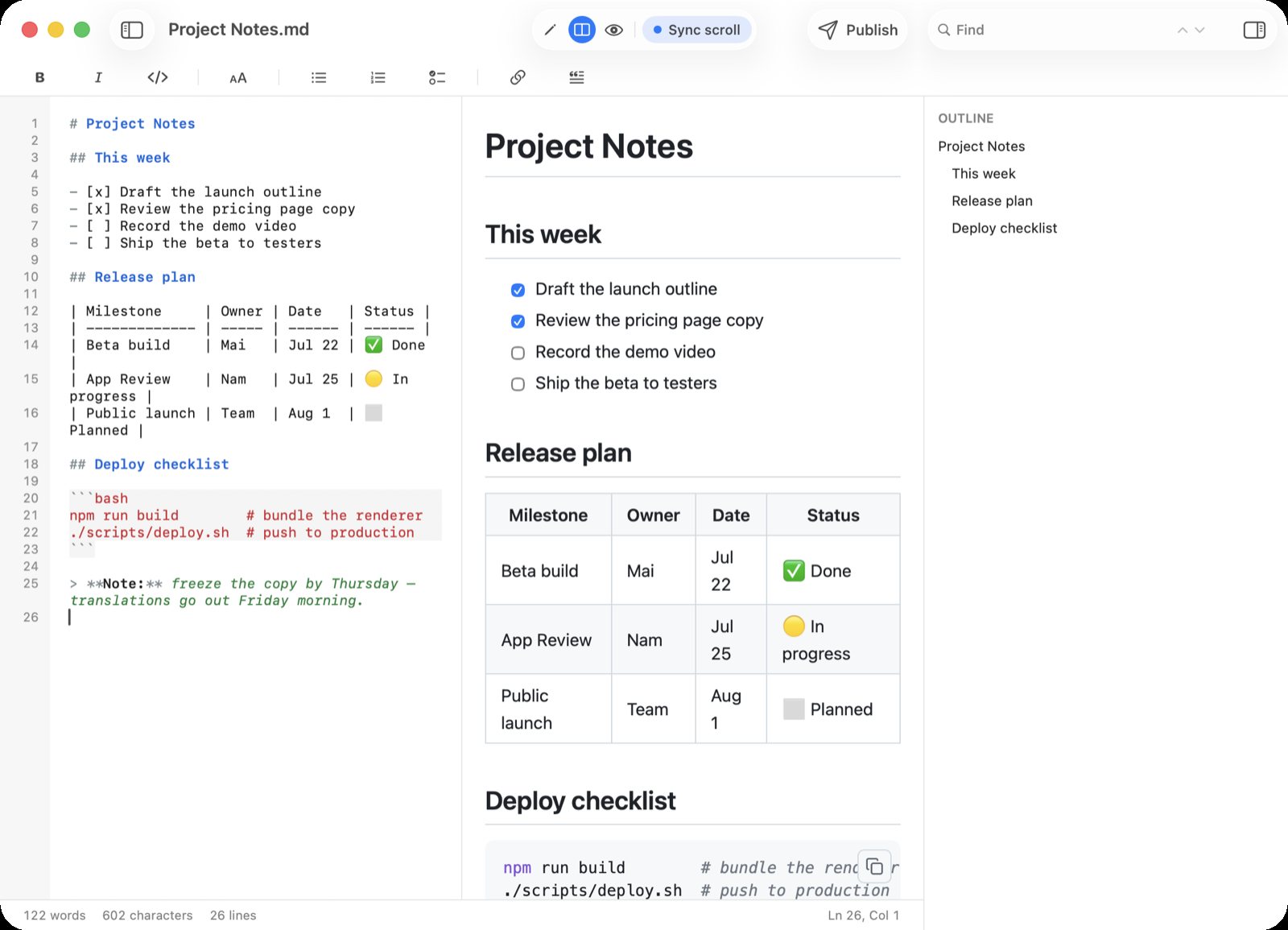
I did not want to describe this from memory, so I ran the app's own conversion on the document above and inspected the result rather than eyeballing a paste. For the four-column note in the screenshot, the clipboard carries 456 characters of styled text, which comes to 6,961 bytes once written as RTF.
Here is that clipboard content, laid out exactly as a rich-text app draws it:
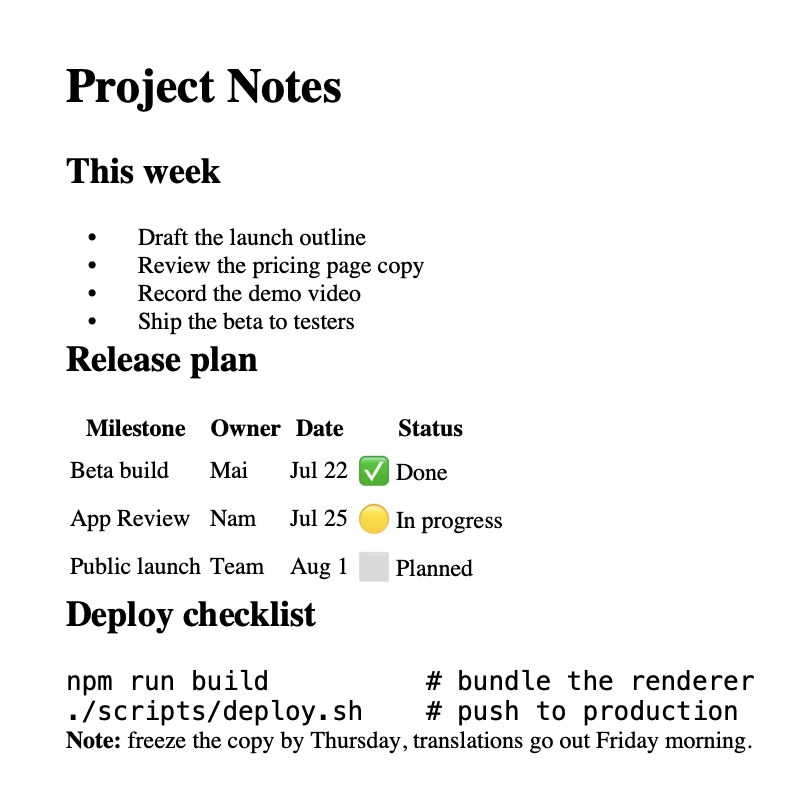
Kept: the heading hierarchy (the title lands at 24pt, section headings at 18pt, body text at 13pt), bold, italic, strikethrough, links as real clickable links, bulleted and numbered lists as real lists, footnotes as a numbered list with a return arrow, emoji, and code in a monospaced face.
The table is a real table. Not tab-separated text pretending to be one. The RTF I generated contains three table rows with proper column definitions and nine styled cells, so pasting into Word gives you something you can click into and edit as a table. One catch: every cell border comes through at zero width, so you get a borderless table and have to apply your own style if you want rules. That is what you see in the image above.
Two things do not survive, and it is worth knowing why
Syntax colours are gone. The shell snippet in the first screenshot has a purple npm and green comments. In the paste it is uniformly black. The reason is mechanical: the copied markup is your document's structure only, with no stylesheet attached, because QuickMark loads its colours from separate CSS files. The twelve colour-carrying spans I counted in the source markup arrive with no colour information at all, so the receiving app applies its own defaults.
That is also why the typography changes. The fonts that come out the other side are the system's default serif and monospace, not the reading theme you were looking at. If you want the document to look like QuickMark rendered it, export a PNG or export HTML instead, both of which carry the full stylesheet.
Checkbox state is lost. The four-item checklist in the screenshot has two ticked boxes and two empty ones. After pasting, all four are identical plain bullets. If the checked and unchecked distinction is the information you are trying to convey, this is not the export to use.
A dark reading theme does not paste dark
Worth checking, because it is a real trap in other formats. I ran the copy twice on the same document: once in the light theme, once with the dark reading theme and a dark code theme active. The resulting RTF was byte-for-byte identical, 6,421 bytes both times. Nobody ever receives white-on-black text from you by accident.
This is the opposite of what the PNG export does, where a dark reading theme genuinely produces a dark image. Both behaviours are right for their format: a screenshot should look like your screen, an email paste should look like an email.
Images ride along, sometimes
I tested this with a live URL. An image that the Mac can actually fetch is embedded in the copy, all 27,749 bytes of it, matching the source file byte for byte. A URL that is broken produces a 16 by 16 placeholder instead, so a typo in an image path shows up as a tiny empty box rather than a silent omission.
The caveat is the receiving app. Apps that take the plain RTF flavour get the text without the picture; apps that take HTML or the richer attachment-carrying flavour get the picture too. Mail and Pages keep it. If an image absolutely must arrive, attach a PDF and stop guessing.
Skip it for Mermaid diagrams
This one surprised me enough that I measured it twice. A document with a single Mermaid diagram in it pastes badly: the diagram's own generated stylesheet arrives as visible text. A fourteen-line document turned into 4,634 bytes of plain text, nearly all of it CSS rules, with the actual diagram reduced to the two words "A" and "B".
Maths has a milder version of the same problem. Each equation pastes about three times over, because the rendered form, the accessible form and the original LaTeX all come through as text.
For either of those, export a PNG and paste the image. That is what the PNG export is for.
Where to find it
The item lives at the bottom of the File menu, under Copy ▸, next to Copy Markdown Source (⌥⌘C) which does the opposite job: it puts the raw Markdown on the clipboard for pasting into a code editor or a chat window that speaks Markdown.
Two ways in, and only two: the menu item, or ⌥⇧⌘C. Right-clicking the preview does not offer it, deliberately, because a right-click "Copy" there should mean the text you have selected, not the whole document.
This one is Mac only
Being straight about it: Copy as Rich Text is not available on iPhone or iPad. The Export menu on iOS lists five formats, PDF, HTML, PNG, Word and EPUB, and the rich-text item is not among them. The plumbing for it exists in the iOS code but nothing in the interface reaches it yet.
On iPhone or iPad today, the closest equivalents are HTML export when you want formatting preserved, or Word export when the destination is a document someone else will edit.
Which format for which job
- Rich text when the destination is an email, a chat message or a document you are pasting into right now.
- Word when someone else needs to edit it and will send it back with comments.
- PDF when the layout must not move.
- PNG when the document contains diagrams or maths, or when you want it to look exactly like your screen.
Rich text is the fastest of the four and the one that loses the most. That trade is usually the right one for an email.
Get rendered Markdown previews everywhere
QuickMark is a free, native Markdown app for Mac, iPhone and iPad. Live preview, export and publish built in.