
Working Across Many Files with Tabs
To work across several Markdown files at once in QuickMark, open them as tabs in one window. On a Mac press ⌘T and pick a file. On an iPad the tabs appear as a row of pills under the top bar. On an iPhone they live behind the numbered button in the bottom-left corner. There is no cap on how many you can have open.
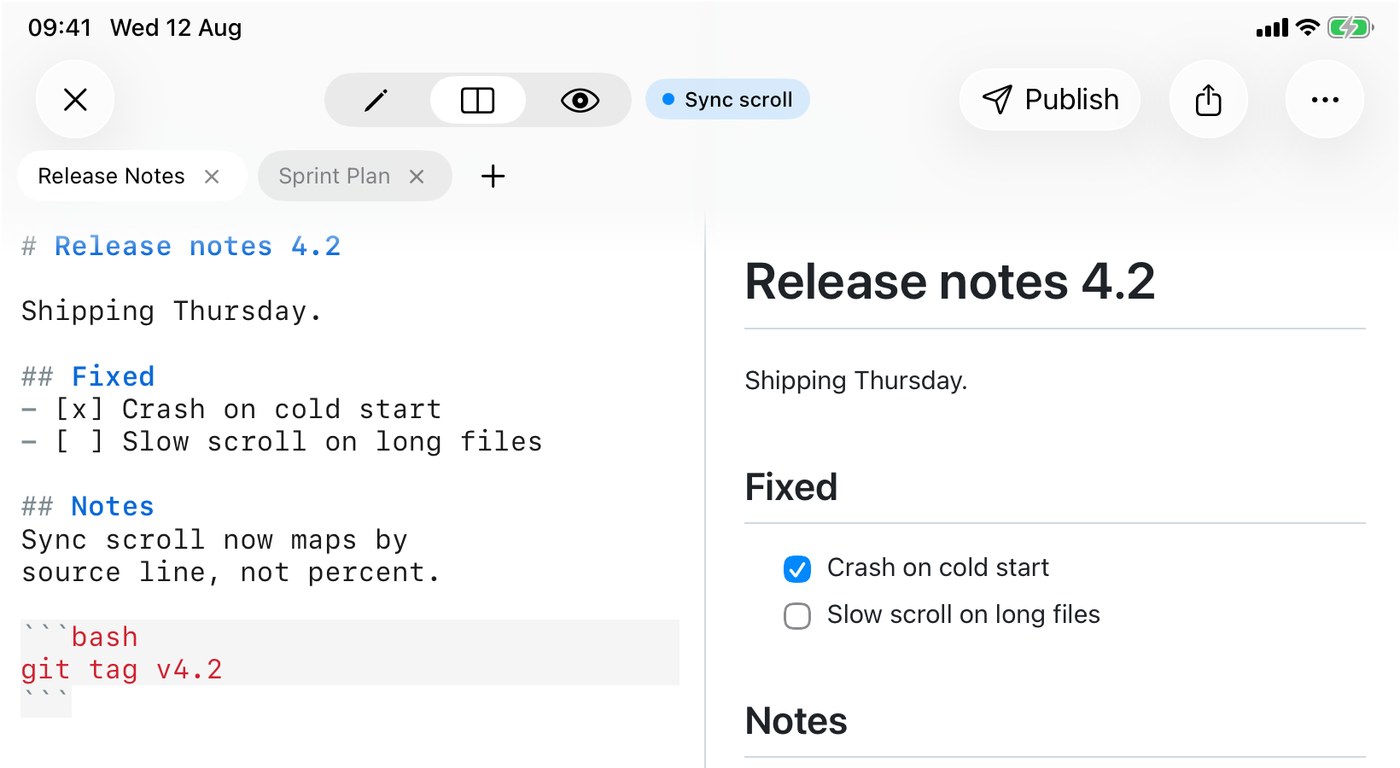
The three platforms genuinely differ here, so this post is split by device. The short version: the Mac has the full set, including pinning, reopen-closed-tab and session restore across a quit. iPhone and iPad have the switching but not the memory, and I will be specific about what that costs you.
iPad: a strip of pills
The tab strip sits directly under the header, and it only appears once you have two or more documents open. One file, no strip, no wasted row of chrome.
Each tab is a rounded pill with the file name and an ✕. The active one is filled solid, the inactive ones sit on a faint gray. At the end of the row there is a + that opens the file picker. If you have enough tabs that the row scrolls, switching tabs scrolls the new one to the centre so you never lose the active pill off the edge.
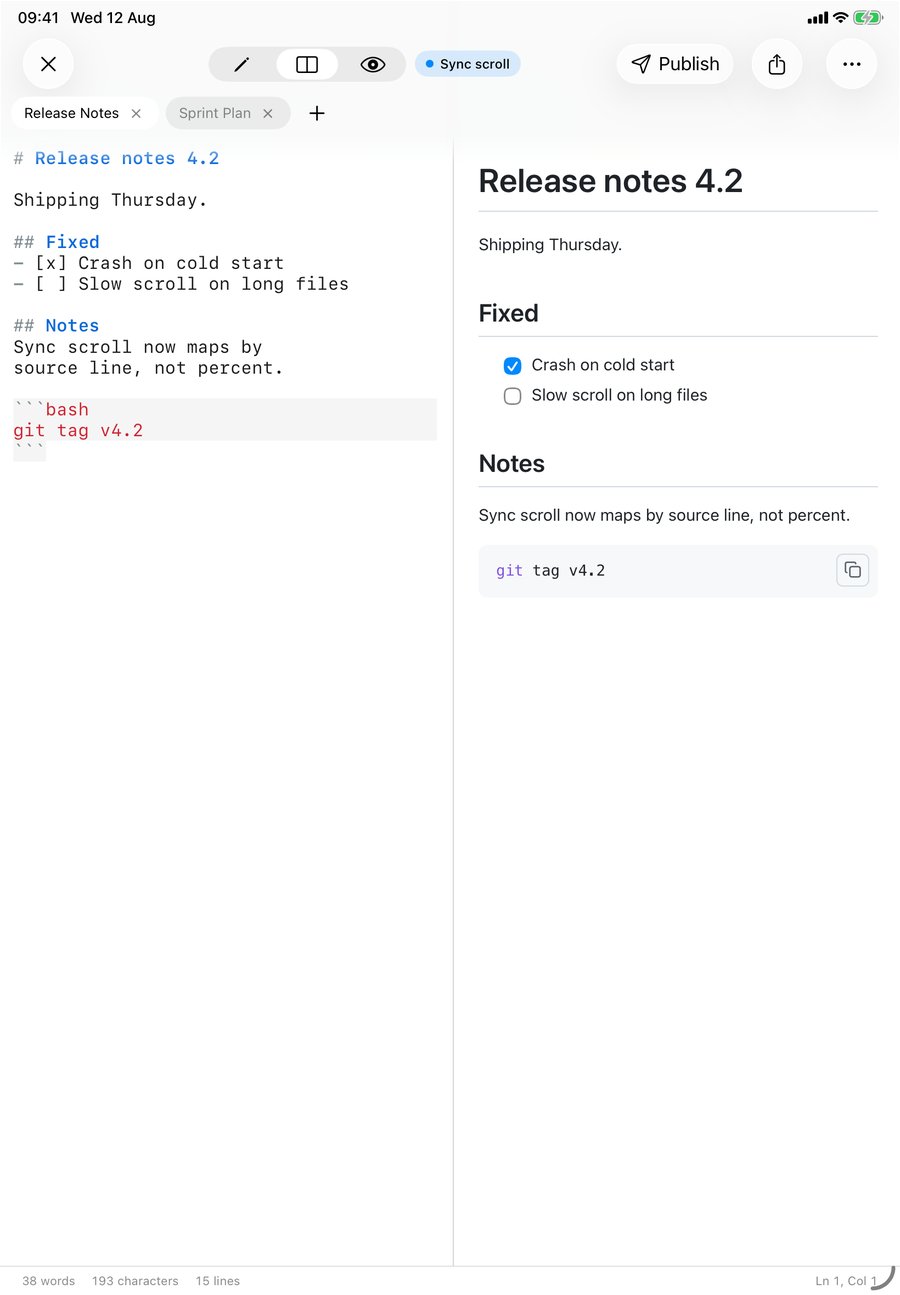
The strip stacks with everything else on the iPad: each tab keeps its own view mode, so one document can be sitting in split view while the next is in preview only.
iPhone: a card grid
There is no room for a pill strip on a phone, so the phone gets a switcher instead. The button at the bottom-left is a rounded square with a number in it, and the number is the count of open documents. Tap it and a sheet slides up titled Tabs.
Each document is a card: the file name, a short snippet of what is inside, and an ✕ in the corner. The active document has a blue border. Tap a card to switch and the sheet closes itself. The + in the top right opens another file. Swipe down or tap the dimmed area to dismiss, and the sheet stops at half height first so you can peek at the grid without covering the document.
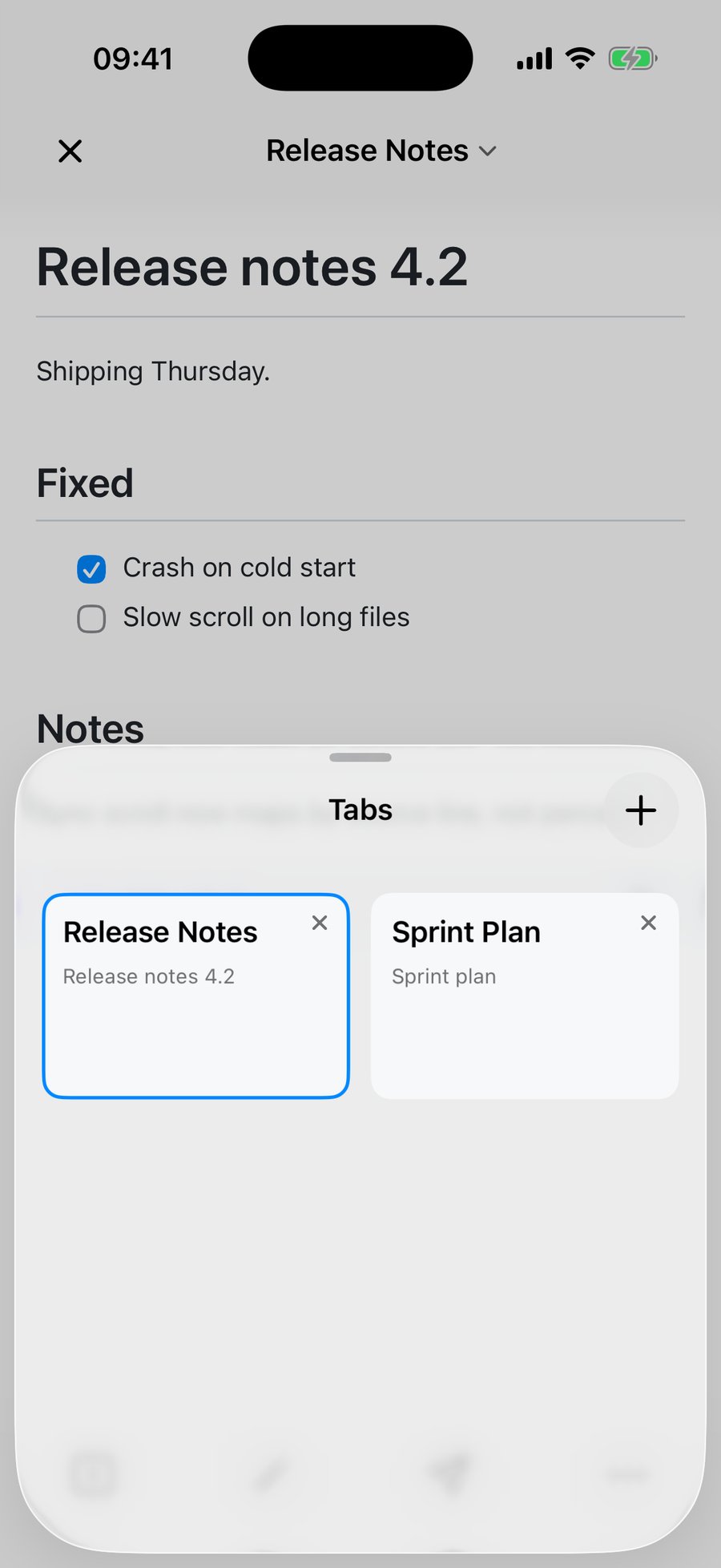
The snippet is not the first line of the file. The app looks for the first heading, strips the # markers off it, and shows that. Only if there is no heading does it fall back to the first couple of non-empty lines, and an empty document says "Empty document". You can see it working in the screenshot above: the card for Release Notes reads "Release notes 4.2", which is the # heading inside the file, not the file name and not the raw Markdown.
The dot, and what happens when you close a tab
A small gray dot next to a tab name means unsaved. It shows up in two situations: a file whose latest edits have not been flushed to disk yet, or a brand-new untitled document that you have typed into but never saved anywhere.
Closing behaves differently for those two:
- A tab backed by a real file closes silently. Edits are saved automatically as you type, and any pending write is flushed before the tab goes away, so there is nothing to ask you about.
- A tab that is untitled and has content stops and asks: save, discard, or cancel. This is the only case that can lose work, so it is the only case that interrupts you.
An untitled tab you never typed into closes without a word, because there is nothing in it.
Mac: the parts iPhone and iPad do not have
Same tab bar rule as the iPad: it appears at two documents and hides at one. From there the Mac keeps going.
Keyboard
- ⌘T opens a file as a new tab in the current window. ⌘O deliberately does the other thing and gives each file its own window, and there is an Open in New Window… item too, for when you want that behaviour as a named command.
- ⌘W closes the current tab. When the window has no tabs left the same menu item relabels itself to Close Window. ⇧⌘W closes the whole window, prompting once for every unsaved untitled tab in it rather than just the front one.
- ⇧⌘T reopens the tab you just closed.
- ⌘1 to ⌘8 jump to a tab by position. ⌘9 jumps to the last tab whatever the count, the way Safari and Chrome do it, so with fourteen files open ⌘9 lands on the fourteenth rather than doing nothing.
- ⌥⌘→ and ⌥⌘← step to the next and previous tab, and they wrap: from the last tab, next takes you back to the first. The Safari-style aliases ⇧⌘] / ⇧⌘[ and ⌃Tab / ⌃⇧Tab work too, they are just not listed twice in the menu.
Reopen Closed Tab, precisely
⇧⌘T is worth describing exactly, because "undo close" varies a lot between apps. QuickMark remembers the last 10 closed tabs per window, most recent first. Two details fall out of that:
- Only tabs backed by a file are remembered. An untitled scratch buffer has no address to reopen, so it is gone for good once you discard it.
- Closing the same file twice does not put it in the list twice. It moves back to the top instead, so pressing ⇧⌘T repeatedly walks back through ten different documents rather than getting stuck on one you keep reopening.
Right-click a tab
The context menu on a tab carries: Pin Tab / Unpin Tab, Move Tab to New Window, then Share…, Show in Finder, Copy File and Copy Path, then Close Tab, Close Other Tabs and Close Tabs to the Right. The four file commands are greyed out on an untitled document, for the obvious reason that there is no file yet. Close Tabs to the Right greys out when you are already on the last one.
Pinned tabs render compact, in their own section at the left of the bar, and they stay pinned across a quit.
Windows, and the Tabs menu
The Tabs menu has Show Next Tab and Show Previous Tab, plus two window commands. Move Tab to New Window tears the current document out into its own window, and is disabled when there is only one tab, since that would just be moving a window. Merge All Windows (⌃⌘M) does the reverse and pulls every other window's tabs into the one you invoked it from. It is disabled unless you actually have two windows open.
One behaviour that surprises people, so it is worth stating plainly: opening a .md file from Finder gives you a new window, not a new tab in the window you already have. That is on purpose. If you want the file as a tab, use ⌘T from inside the window, or open the files however you like and then hit ⌃⌘M to collect them.
Session restore
Quit the Mac app with five files open and reopen it, and the five come back. The app stores a security-scoped bookmark per file rather than a path, which is what makes this survive the sandbox, and it remembers which tab was active and which were pinned.
Two honest limits. Untitled tabs are not restored, because a bookmark needs a file to point at. And if a file was moved to the trash or deleted while the app was closed, that tab is quietly dropped from the restore rather than coming back as an error.
What iPhone and iPad do not do
This is the part a feature list would skip. Tabs on iOS and iPadOS are a switcher, not a workspace that persists.
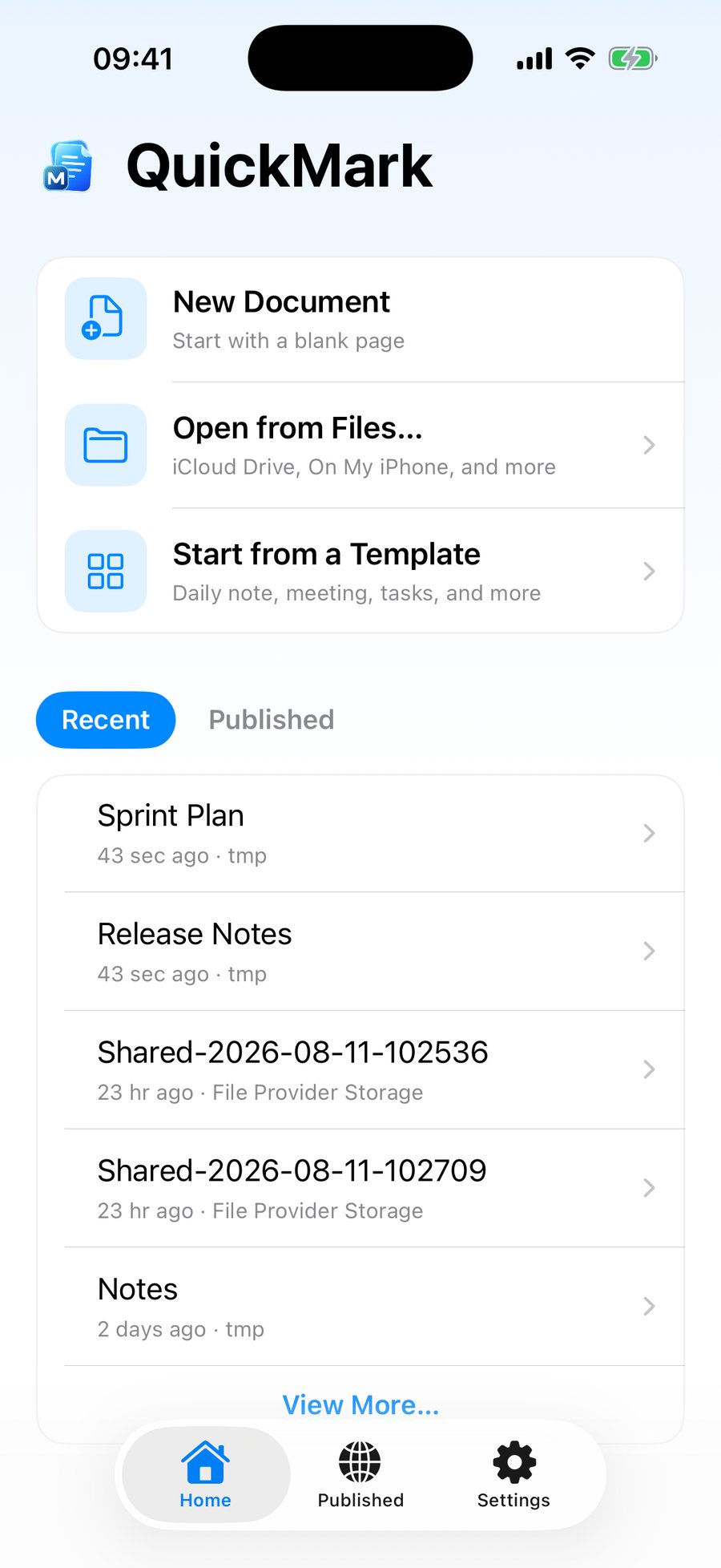
They do not survive a relaunch. I tested it rather than assuming: two documents open on an iPhone, force the app to quit, launch it again. Both tabs were gone and the app came up on its home screen. The documents were not lost, they were sitting at the top of Recent, one tap away each. But you are rebuilding the set by hand, not finding it where you left it.
The rest of the gaps, in one list:
- No pinning. The concept exists in the shared code, but no iOS surface exposes it.
- No reopen closed tab. Close one by accident and you go back through Recent to get it.
- No keyboard shortcuts. Even with a Magic Keyboard attached to an iPad, there is no ⌘1 or ⌘T in this app. Tabs are touch-only there.
- No moving tabs between windows and no merge, since the app runs one document scene.
If your habit is a five-file working set you come back to every morning, that habit lives on the Mac today. On the phone and tablet, tabs are for the files you are juggling right now.
The short version
- Mac: ⌘T to add, ⌘W to close, ⇧⌘T to undo the close, ⌘1 to ⌘8 and ⌘9 to jump, ⌥⌘→ / ⌥⌘← to step through, ⌃⌘M to gather stray windows into one. Pinning and session restore included.
- iPad: pills under the header, visible from two documents up, + at the end of the row.
- iPhone: the numbered button bottom-left opens a card grid.
- Everywhere: no limit on open tabs, a dot for unsaved work, and a prompt only when closing would actually lose something.
Related reading: editing Markdown on iPad with split view and opening .md files on iPhone and iPad.
Get rendered Markdown previews everywhere
QuickMark is a free, native Markdown app for Mac, iPhone and iPad. Live preview, export and publish built in.