
How to Convert Markdown to HTML
To convert a Markdown file to HTML on a Mac, open it in QuickMark and choose File ▸ Export ▸ Export as HTML…, or press ⌥⇧⌘H. On an iPhone or iPad, open the export menu and pick HTML, then save it to Files. You get one .html file with the stylesheet baked into it, so it looks the same wherever you open it.
Why "convert to HTML" is usually harder than it sounds
Most converters hand you a body fragment: a pile of <h1> and <p> tags with no styling. Open it in a browser and you get Times New Roman, tables without borders, and code blocks that look like ordinary paragraphs. Technically it is HTML. It is not something you can send to anyone.
The other common answer is a converter that links to a stylesheet you also have to host. That works right up until the file is emailed, dropped in Slack, or opened from a USB stick.
QuickMark takes the page you are already looking at in the preview pane and saves that. Everything the browser needed to draw it gets written into the file.
What is actually inside the exported file
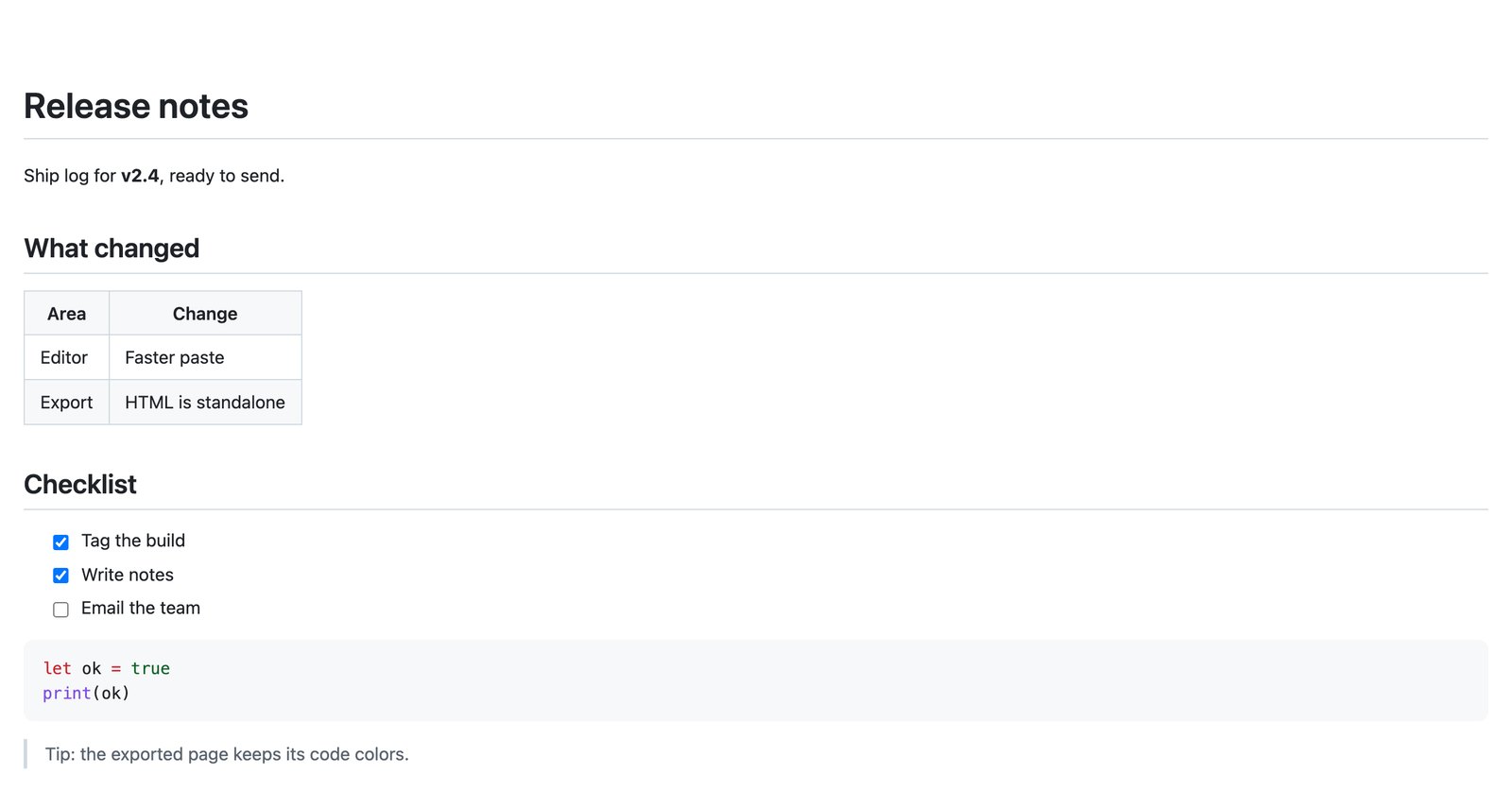
I exported the document in the screenshots above and read the result. It is 46,720 bytes, and it contains:
- A complete document. It starts with
<!DOCTYPE html>and carries a<meta charset="utf-8">, so accented characters and CJK text stay intact. - Exactly one
<style>block and zero<link>tags. Every rule the page used is copied in, including the syntax-highlighting theme and the KaTeX maths stylesheet. - Zero
<script>tags. Nothing executes. It is a static page you can hand to anyone, including people whose mail gateway strips JavaScript. - Rendered maths and rendered diagrams. KaTeX formulas arrive as laid-out markup, not as LaTeX source. Mermaid diagrams arrive as inline SVG, because they were already drawn on screen before you exported.
- Real task-list checkboxes and a real
<table>, not images of them. The text stays selectable and searchable. - The syntax colours as
<span class="token …">markup, matching whichever of the 36 code themes you had set.
What it does not contain is the app's own furniture. The copy-to-clipboard buttons that hover over code blocks are stripped out during export, along with the stylesheet links, so the page does not carry dead controls.
The size, and why it is what it is
That ten-line note came out as a 47 KB file. Nearly all of it is CSS. Inlining the stylesheet means the whole theme travels with the document, including the maths font metrics, whether or not your document has any maths in it.
It is a fair trade for a file that renders identically offline, but it is worth knowing: HTML export has a floor of roughly 45 KB. A one-line document and a fifty-page document are not far apart in size.
Doing it on Mac
The whole export menu lives under File ▸ Export. HTML is the second item, with ⌥⇧⌘H on it.
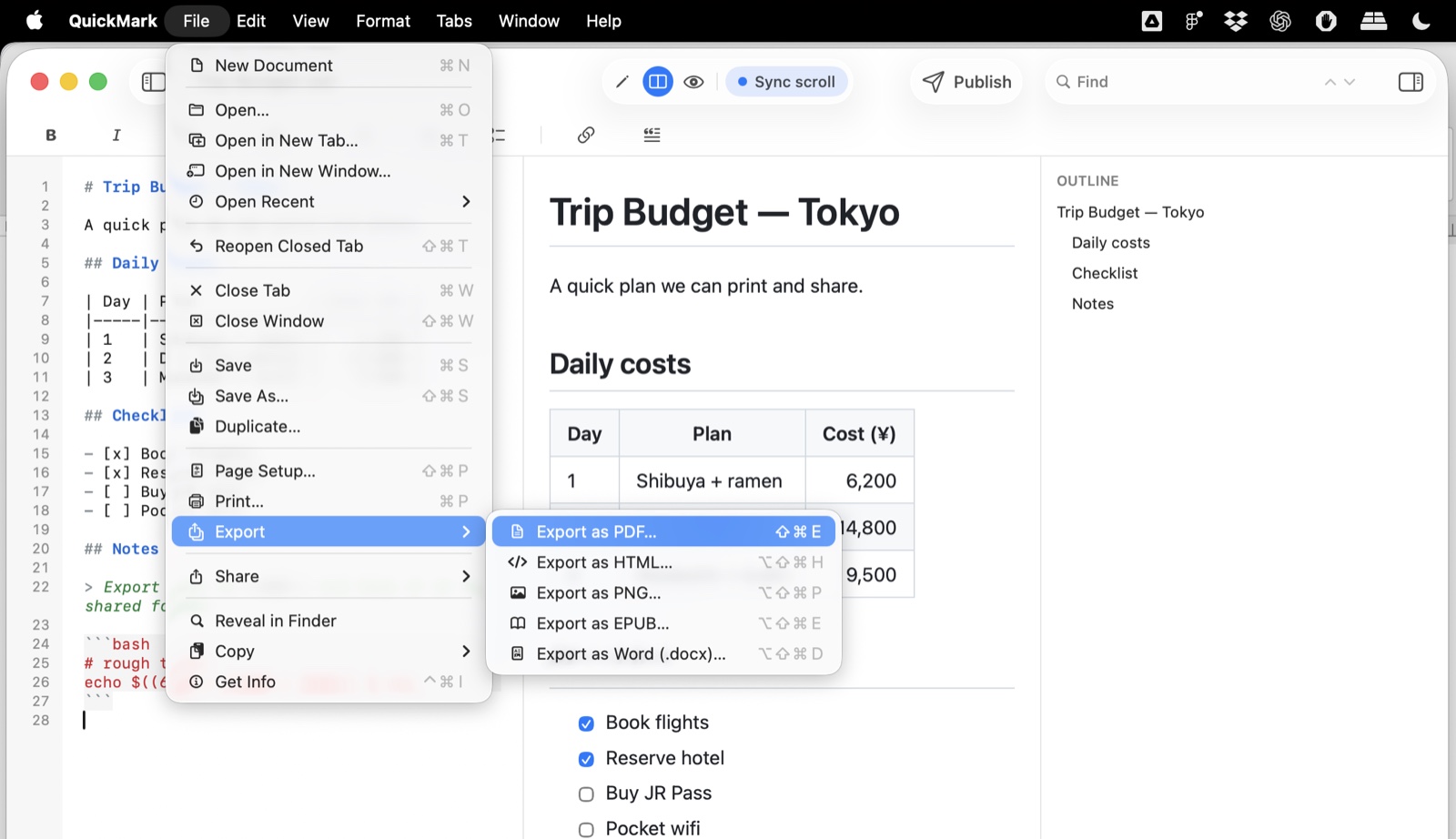
You get a normal save panel, so you choose the folder and the filename yourself. The document is saved with a .html extension and double-clicking it opens your browser.
Doing it on iPhone and iPad
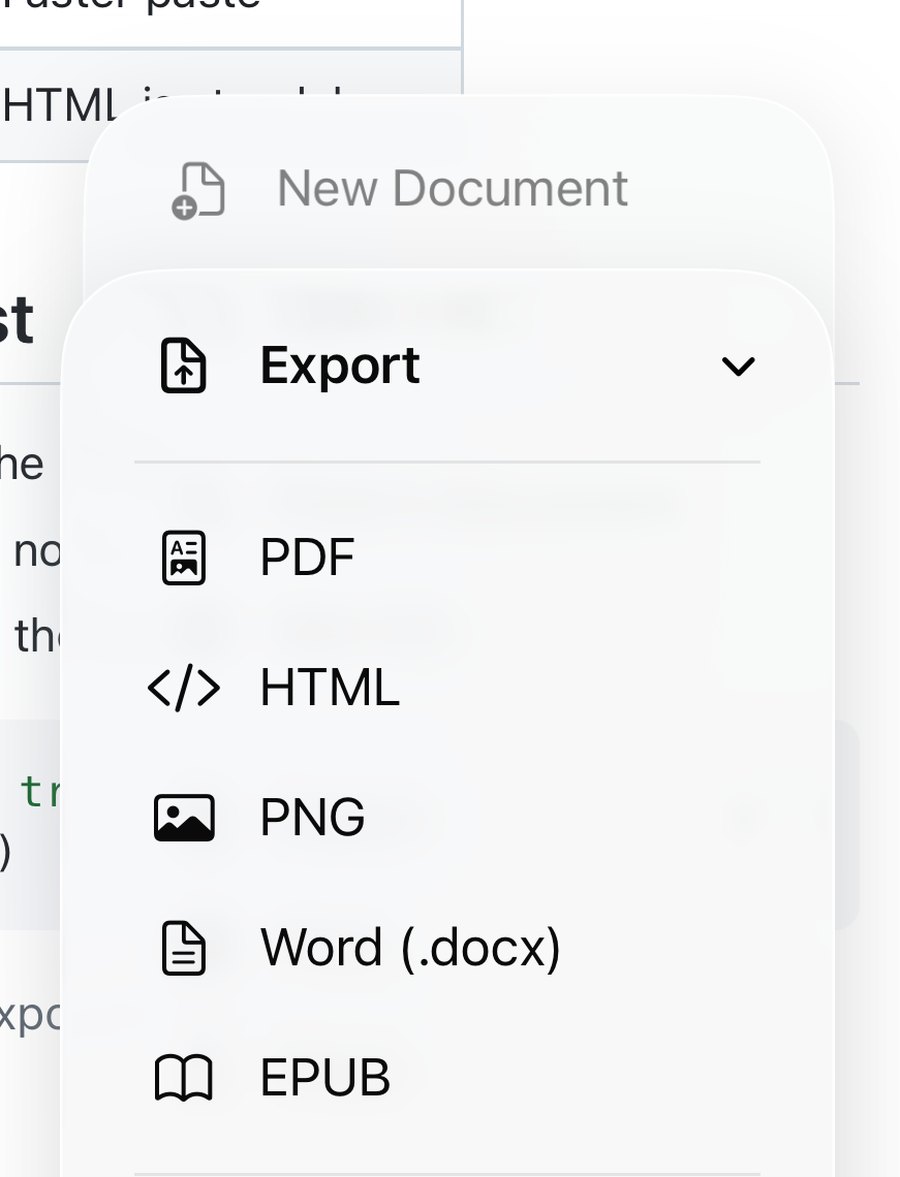
Same five file formats, different plumbing. On iPhone the export menu is inside the … button in the bottom toolbar, under Export. On iPad it has its own share-style button in the top bar.
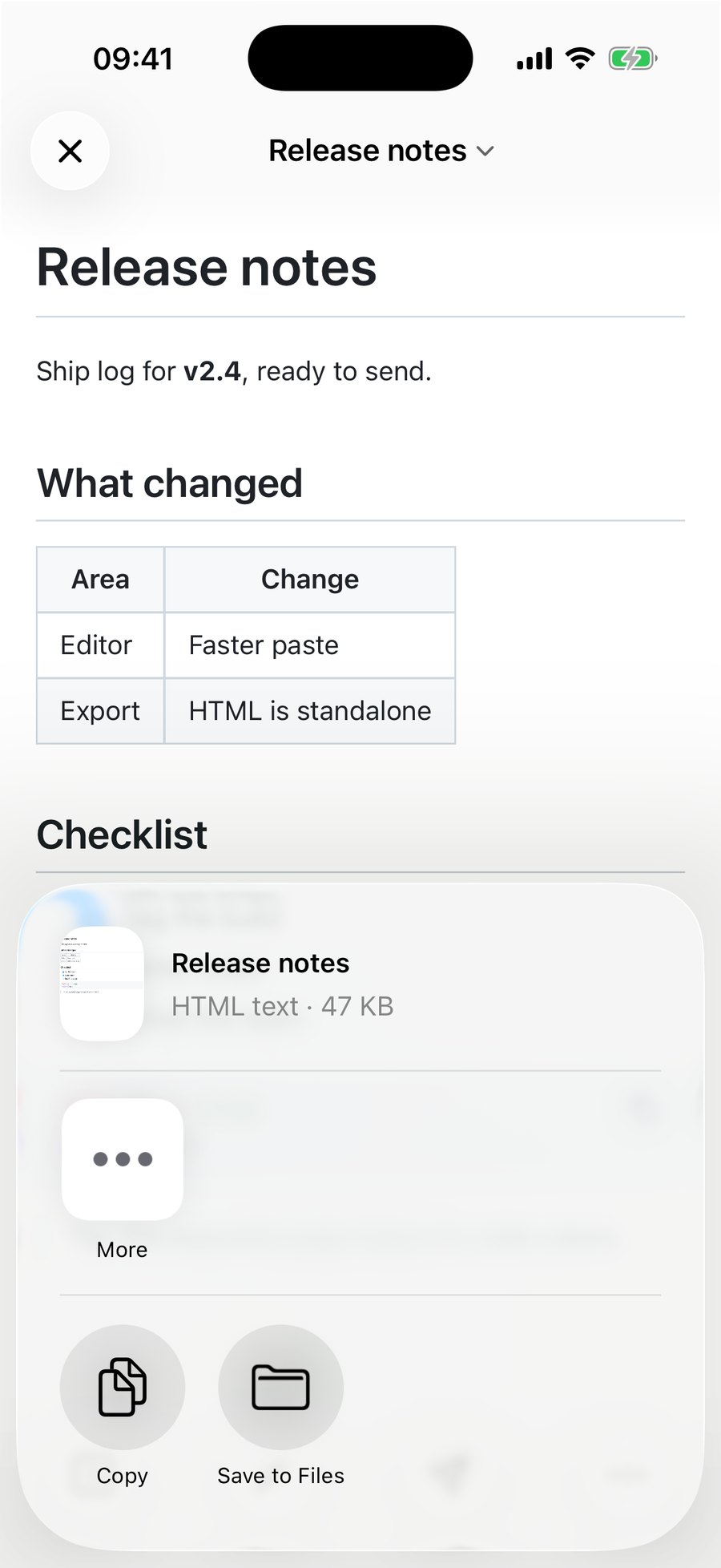
iOS has no save panel, so the finished file goes to the share sheet instead. From there it is Save to Files, AirDrop, Mail, or straight into another app.
One thing to note: the export menu is disabled while you are in the pure editor view, because the export is made from the rendered page. Switch to preview or split view first and it lights up.
Three limits worth knowing before you rely on it
- Remote images stay remote. An image you pasted in as a
data:URI is already part of the file and travels with it. An image referenced by anhttpsURL is still just a URL in the exported HTML, so the reader needs a network connection for that one picture to appear. There is no step that downloads and embeds it. - The export is always light. Read in dark mode all you like; the exported page pins itself to the light theme, and sets
color-scheme: lightso a dark-mode browser does not repaint the text white on white. There is no setting for this. Your reading theme does carry over, and so does your code theme. - The browser tab says "QuickMark Preview". The
<title>element is not set from your document's heading, so the tab label is generic even though the file itself is named after your document. If the page is going on a website, that is one line to fix by hand. The EPUB export does pull the title out properly; HTML does not, yet.
What this export is good for
Sending a formatted document to somebody who should not need an app to read it. Release notes, a spec, a handover doc, a recipe. It opens in any browser, on any platform, offline, and looks the way it looked when you wrote it.
What it is not is website HTML. It is a self-contained page with the theme baked in, not a clean fragment you would drop into a template or a static site generator. If that is the job, keep the Markdown and let your site build it.
And if you just want a link to send rather than a file to attach, PDF export is the other common answer, and the app can also publish a document straight to a web link.
Related: converting Markdown to Word, and code blocks with syntax highlighting, which is what the inlined theme is preserving.
Want to see how your own Markdown renders before installing anything? Paste it into the live preview in your browser.
Get rendered Markdown previews everywhere
QuickMark is a free, native Markdown app for Mac, iPhone and iPad. Live preview, export and publish built in.