
How to Take Meeting Notes in Markdown
To take meeting notes in Markdown, start a plain .md file with a small block for the date and attendees, then four headings: Agenda, Notes, Decisions and Action items. Write notes as short bullets, put each decision in a callout so it stands out, and write every action item as a checkbox with an owner and a due date: - [ ] **Ana**: send the deck (due 10-15). That's the whole method. The rest of this post is a template you can copy, and the few formatting rules that decide whether your notes stay readable.
Why Markdown works for meeting notes
Meeting notes have an odd life. You write them in a hurry, then you need them weeks later, often in a different app. Markdown suits both halves:
- It's fast to type. A dash is a bullet, a pound sign is a heading. You never reach for the mouse mid-sentence.
- It's a plain text file. It opens in any editor, it searches with any tool, and it still works if you switch note apps next year.
- It still looks like a document. Rendered, the same file has real headings, checkboxes and tables, which is what you want when you send it to the people who were in the room.
A meeting notes template you can copy
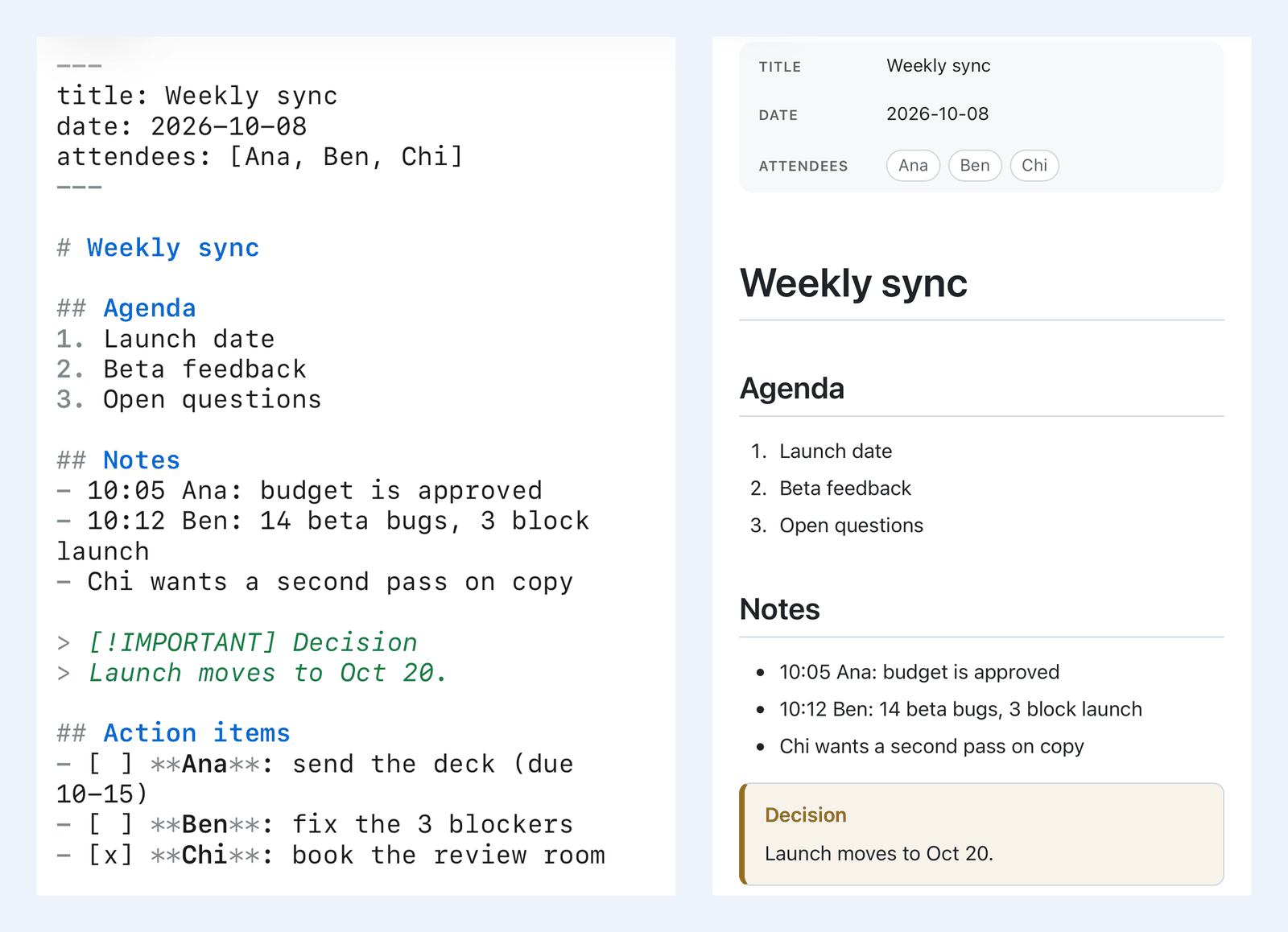
Paste this into a new file and fill it in:
---
title: Weekly sync
date: 2026-10-08
attendees: [Ana, Ben, Chi]
---

# Weekly sync

## Agenda
1. Launch date
2. Beta feedback
3. Open questions

## Notes
- 10:05 Ana: budget is approved
- 10:12 Ben: 14 beta bugs, 3 block launch
- Chi wants a second pass on copy

## Decisions
> [!IMPORTANT] Decision
> Launch moves to Oct 20.

## Action items
- [ ] **Ana**: send the deck (due 10-15)
- [ ] **Ben**: fix the 3 blockers
- [x] **Chi**: book the review room
A few choices in there are deliberate:
- The block between the
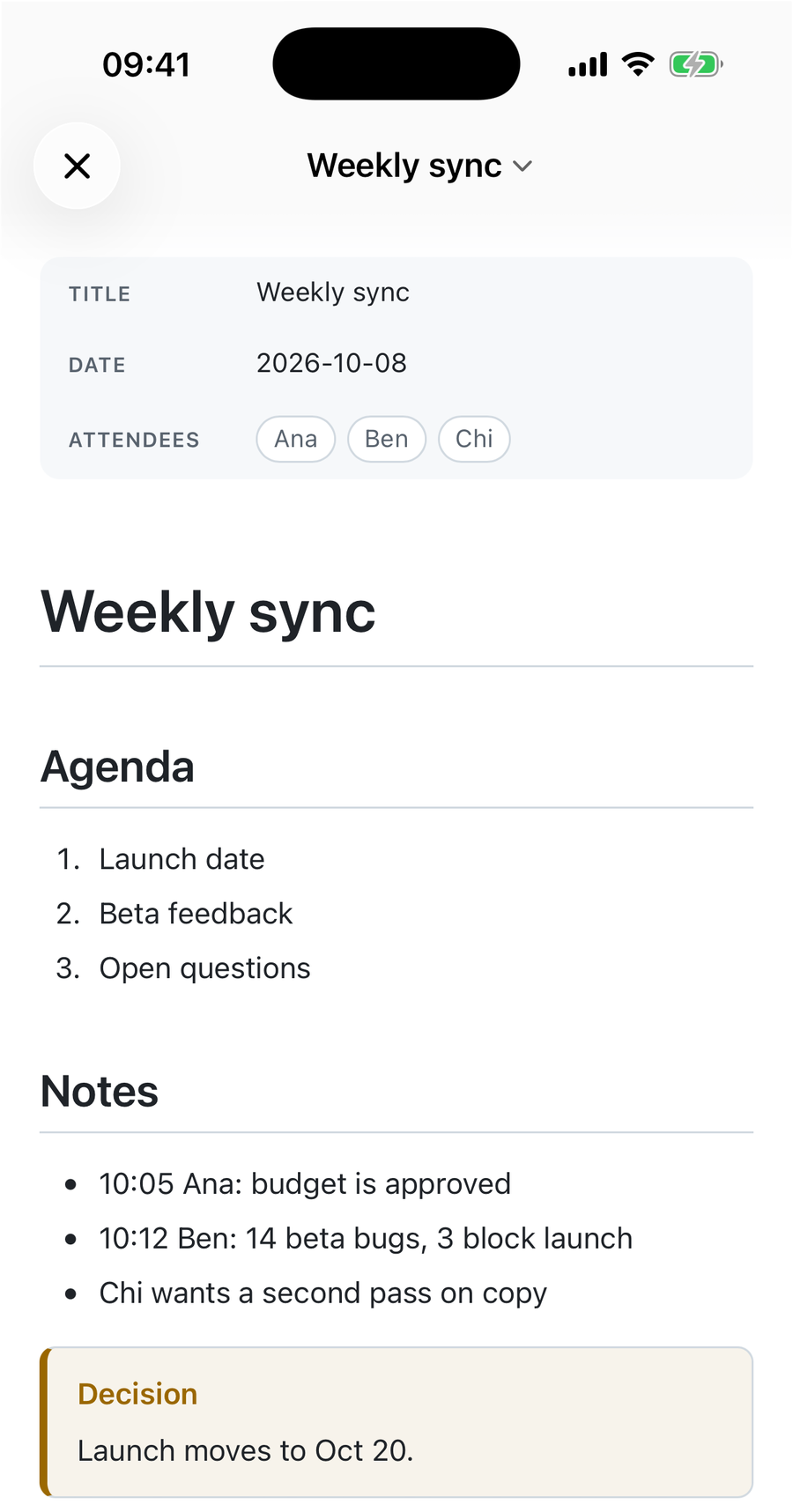
---lines is YAML front matter. It keeps the date and attendees out of the body. QuickMark shows it as a small table at the top of the preview, and a list in square brackets turns into tags (the Ana, Ben, Chi pills in the screenshot below). If you'd rather not see it, turn off Show document metadata in Settings ▸ Preview. - Timestamps are just text. A time at the start of a bullet makes the notes easy to scan later and costs four keystrokes.
- The Agenda is a numbered list because the order matters. Notes are bullets because it doesn't.
Or start from the built-in template
QuickMark ships a Meeting Notes template with the same four sections plus Topic, Attendees and Duration fields, and it fills in today's date for you (as YYYY-MM-DD) when you create it.
- Mac: File ▸ New from Template ▸ Meeting Notes, or the Templates row on the start window.
- iPhone and iPad: on the home screen, tap Start from a Template, then Meeting Notes.
The new document starts untitled, so the first save asks where to put it. Two limits to know about. There are five built-in templates (Daily Note, Meeting Notes, Task List, Structured Note, Project Brief) and you can't edit them or add your own. The date is filled in once, when the note is created. There is no command that inserts the current time as you go. If you have a house format for meetings, the copy-paste template above is the better start: keep it in a file, star it as a favorite, and duplicate it before each meeting.
The one rule that breaks most meeting notes
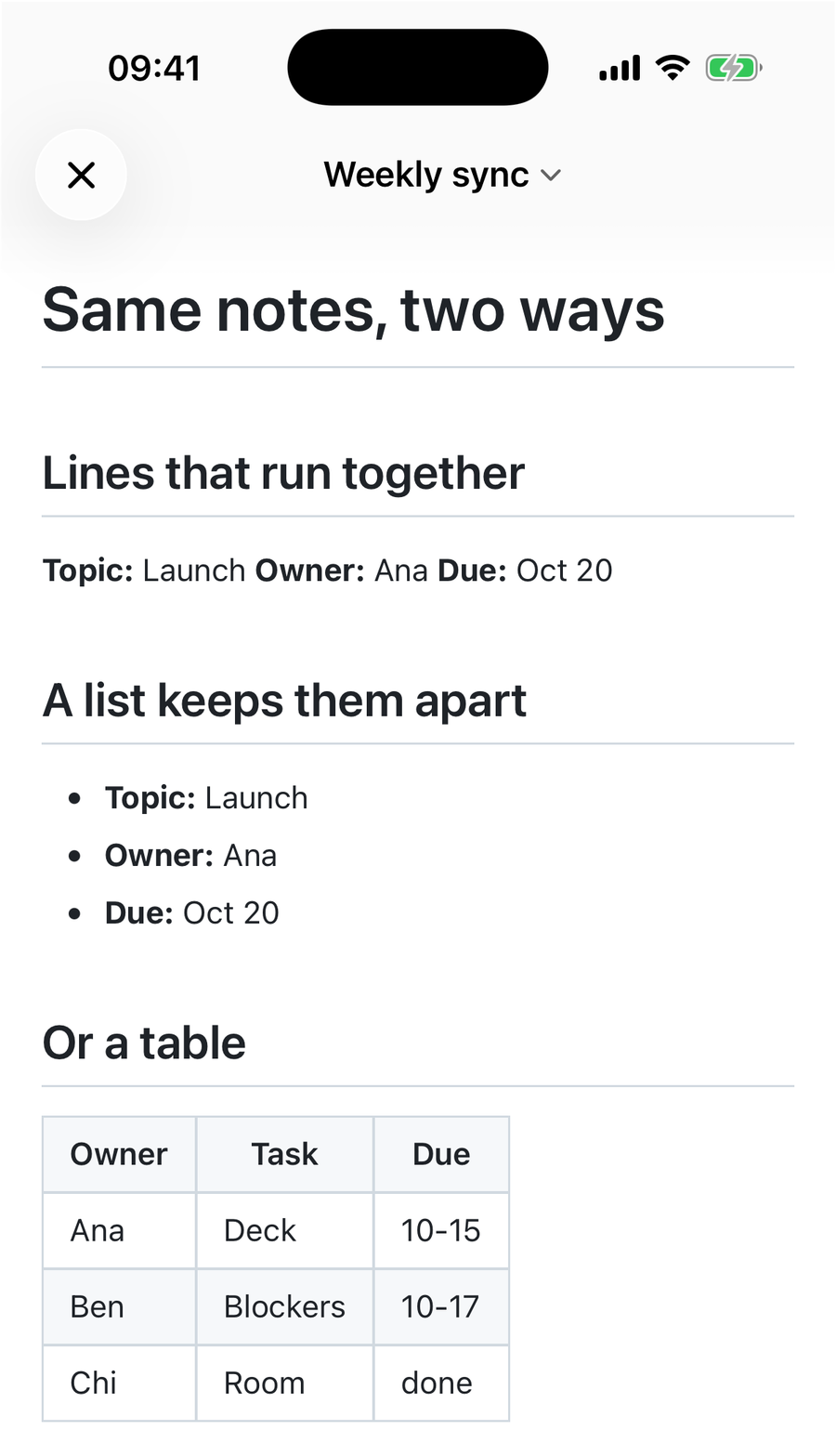
In Markdown, a single line break is not a line break. Lines that touch each other are joined into one paragraph. So this header, which looks tidy while you type it:
**Topic:** Launch
**Owner:** Ana
**Due:** Oct 20
renders as one run-on line: Topic: Launch Owner: Ana Due: Oct 20. That's standard CommonMark behavior, not a quirk of one app. You have three ways out:
- Make it a list. Put
-in front of each line. This is the most readable fix and works everywhere. - End each line with a backslash (
Launch\). That forces a line break inside the paragraph. Two trailing spaces do the same thing, but you can't see them, so they tend to get lost. - Move it into front matter like the template above, or into a table.
Decisions and action items
These are the two sections people come back for, so make them impossible to miss.
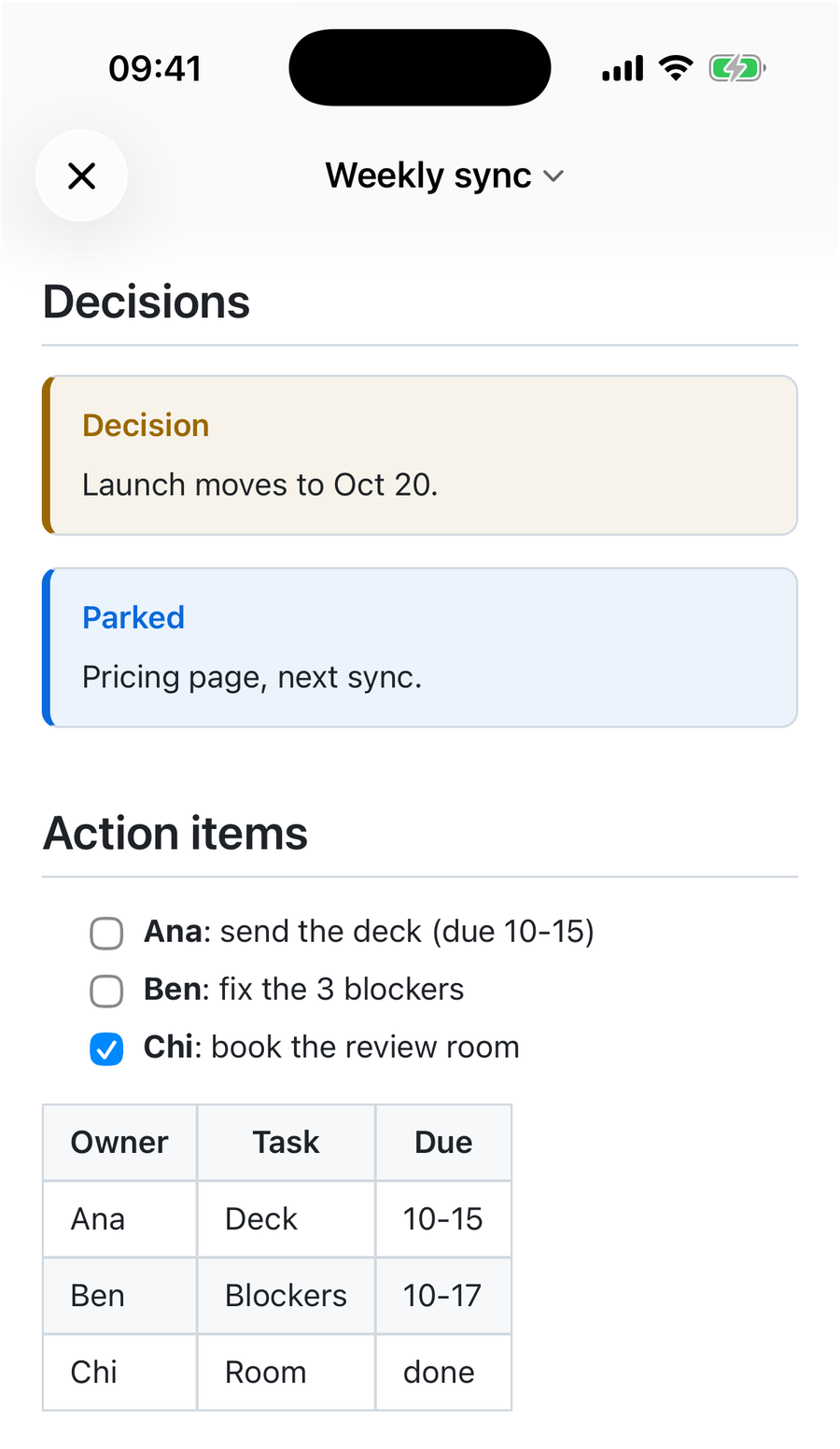
Decisions go in callouts. > [!IMPORTANT] Decision on the first line gives you a colored box with your own title. > [!NOTE] Parked works well for things the group agreed to come back to. All five GitHub types work (NOTE, TIP, IMPORTANT, WARNING, CAUTION), and the full list is in Blockquotes and callouts in Markdown.
Action items go in a checklist, one line each, owner first:
- [ ] **Ana**: send the deck (due 10-15)
- [ ] **Ben**: fix the 3 blockers
- [x] **Chi**: book the review room- ☐ Ana: send the deck (due 10-15)
- ☐ Ben: fix the 3 blockers
- ☑ Chi: book the review room
Bold names read better than @Ana. In most Markdown apps, QuickMark included, @name is plain text: mentions only mean something inside a service like GitHub that knows who your teammates are. If you'd rather see owners and dates in columns, a table works too, and it's easier to sort by eye when the list gets long.
One honest note about ticking boxes. In QuickMark you tick an item by changing [ ] to [x] in the text. Clicking a checkbox in the preview doesn't write back to the file. If you want to tick items by clicking, Obsidian's Reading view and GitHub issues both do that. More checklist details are in Markdown checklists.
Typing fast while people talk
You don't need to remember the syntax mid-meeting.
- Mac: the Format menu has shortcuts for the common ones: ⌘B bold, ⇧⌘8 bullet list, ⇧⌘7 numbered list, ⌥⌘1 to ⌥⌘6 for headings. Checklist has no shortcut, but it's a button on the editor's format bar.
- iPhone and iPad: a formatting bar sits above the keyboard with Bold, Heading, Bullet List, Numbered List, Checklist and Quote. There are no hardware keyboard shortcuts for formatting on iPad yet.
All the Mac shortcuts are in Keyboard shortcuts for Markdown on Mac.
Naming and finding notes later
Put the date first in the file name: 2026-10-08 Weekly sync.md. Files then sort by date in any folder view, on any system, with no app involved. One folder per team or project is plenty.
For the note you reopen every week, add it to Favorites. On the Mac it's File ▸ Favorites, or right-click the tab. On iPhone and iPad it's … ▸ Favorites inside the document. A favorite stays listed until you remove it, unlike Recent, which rolls over.
On the Mac, the Folder Files sidebar shows every note in the folder next to the one you're reading, and Find (⌘F) ignores accents, so "resume" also finds "résumé". Both are Mac-only. On iPhone and iPad, Find in Document from the … menu uses the system find bar, which matches text exactly.
Sending the notes afterwards
People who weren't taking notes don't want a .md file. Three ways to hand it over:
- Paste into an email or chat. On the Mac, File ▸ Copy ▸ Copy as Rich Text puts the formatted version on the clipboard, headings and lists included. See Copy rich text from Markdown. This one is Mac-only.
- Share a link. The Publish button in the toolbar turns the note into a web page anyone can open, on Mac, iPhone and iPad. See Publish a Markdown doc as a web link.
- Attach a file. Export as PDF or Word (.docx) from the Export menu on any of the three. Checkboxes come out fine in PDF. Word drops the checkbox itself, a known gap covered in How to convert Markdown to Word.
Whatever you send, the original stays a plain text file you own. That's the part that makes Markdown worth it for meeting notes: next year's notes app can still read this year's meetings.
Get rendered Markdown previews everywhere
QuickMark is a free, native Markdown app for Mac, iPhone and iPad. Live preview, export and publish built in.