
How to Make a Table in Markdown (with examples)
To make a table in Markdown, separate your columns with pipe characters (|) and put a row of dashes (---) under the header. That divider row is what turns three lines of text into a real table:
| Task  | Owner | Status |
|-------|-------|--------|
| Draft | Mai   | Done   |
| Edit | Nam | Todo || Task | Owner | Status |
|---|---|---|
| Draft | Mai | Done |
| Edit | Nam | Todo |
That's the whole idea. The rest of this post is the details that make tables reliable: the three rules that must be true, how to align columns, and how to handle awkward content like pipes and line breaks inside a cell.
The three rules that matter
A Markdown table has exactly three parts, top to bottom:
- The header row: your column titles, wrapped in pipes.
- The divider row: one cell of dashes per column (
---). This row is required. Without it, Markdown treats everything as ordinary paragraph text. - The body rows: one line per row, same number of columns.
Two things people worry about but don't need to:
- The pipes don't have to line up.
| A | B |and|A|B|render identically. Lining them up in your source just makes the raw text easier to read. - The outer pipes are optional.
A | Bworks too, but keeping the leading and trailing|is clearer and avoids surprises, so it's the habit worth building.
One rule that does bite people: leave a blank line before the table. If the line directly above your header is regular text, some renderers glue them together and the table never forms.
Aligning columns
Add a colon to the divider row to control alignment. The colon marks the side the text hugs:
:---→ left (the default):---:→ center---:→ right
Right-aligning numbers is the classic use. It lines up the digits so columns of prices or counts are easy to scan:
| Item  | Qty | Price |
|:------|:---:|------:|
| Pens  |  12 |  $3.50 |
| Paper | 200 | $12.00 |
| Ink | 1 | $28.00 || Item | Qty | Price |
|---|---|---|
| Pens | 12 | $3.50 |
| Paper | 200 | $12.00 |
| Ink | 1 | $28.00 |
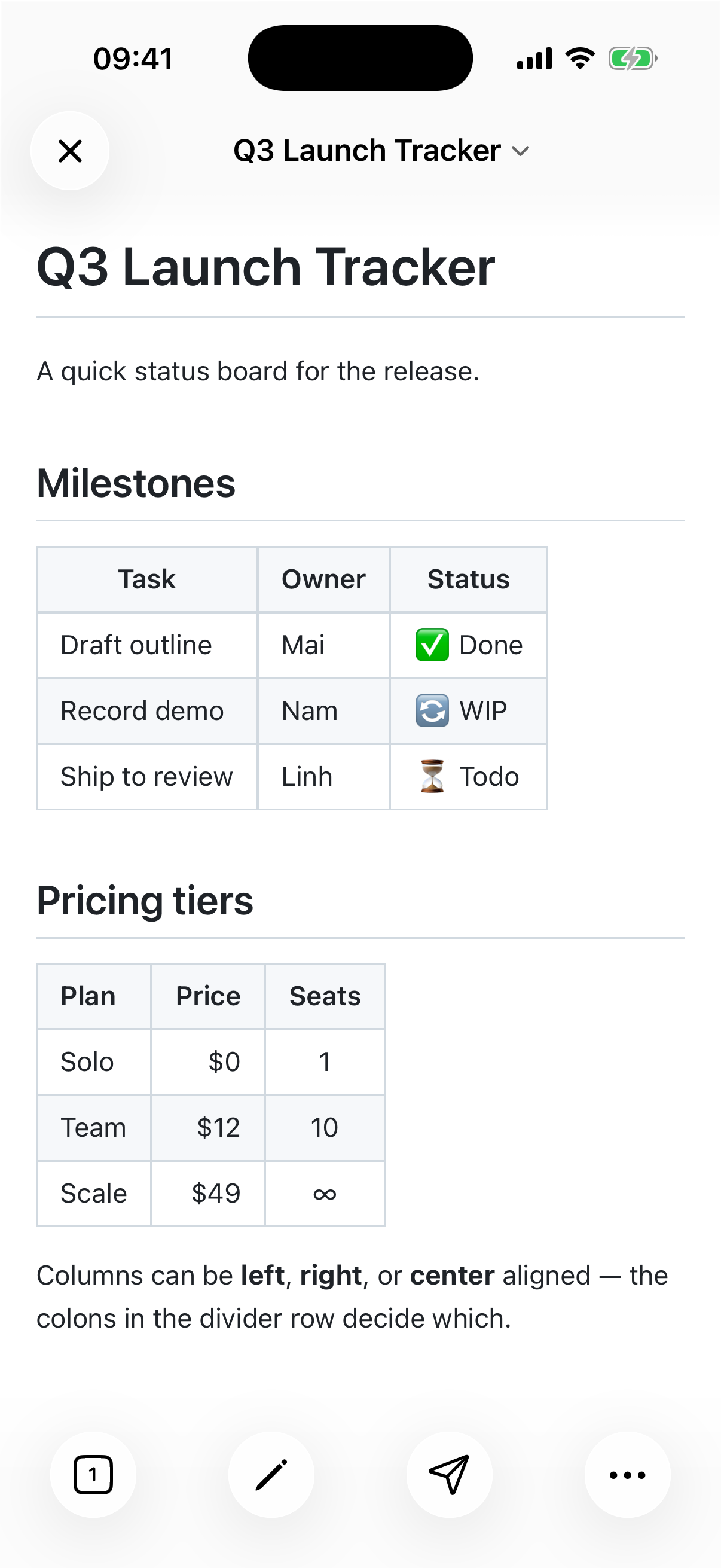
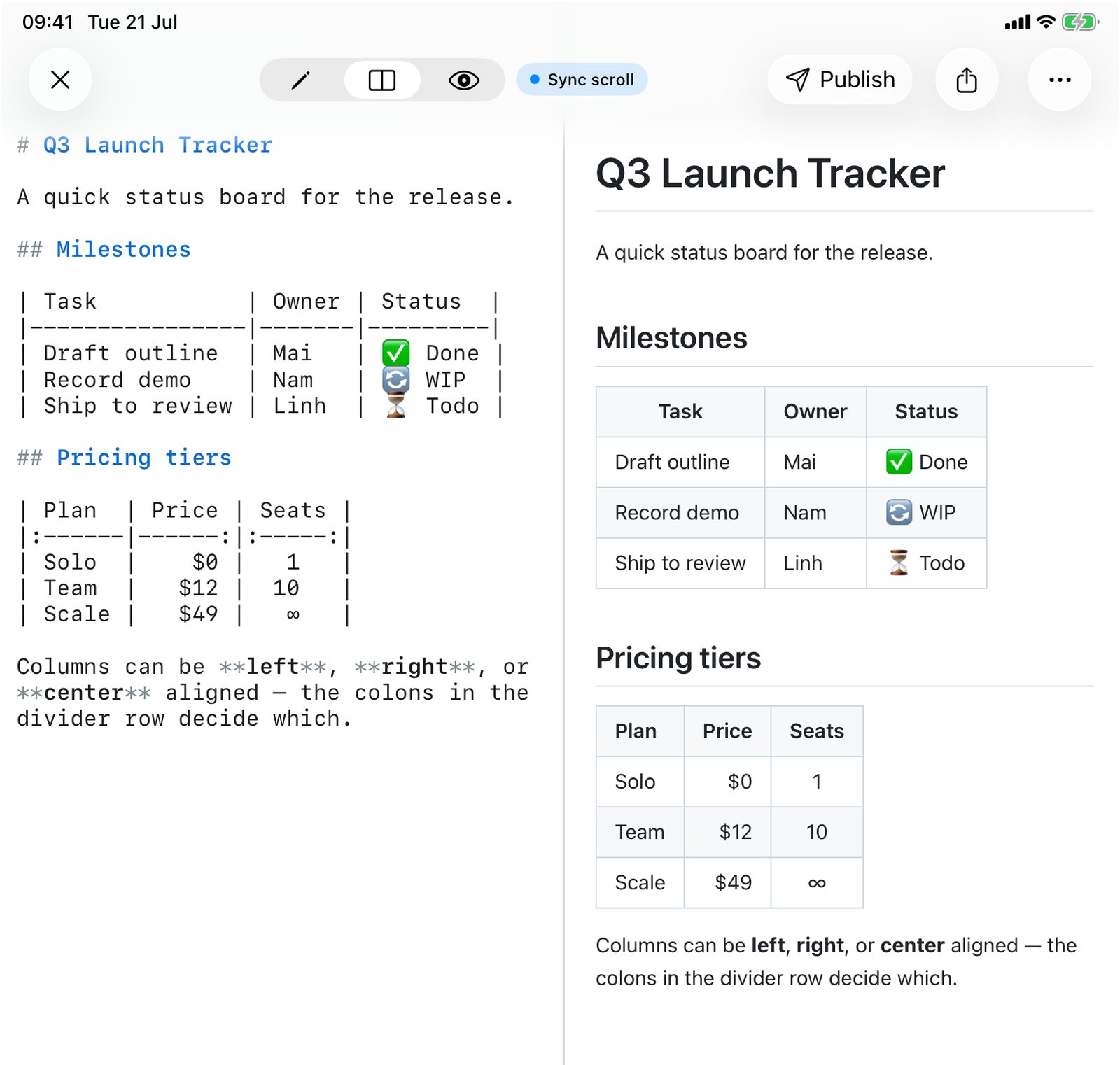
Here's the same idea on the phone and the tablet: a status board and a price list with mixed alignment, rendered live in QuickMark:
Handling tricky content
Cells hold more than plain words. A few situations trip people up:
A pipe inside a cell
Since | separates columns, a literal pipe in your text would start a new column. Escape it with a backslash, \|:
| Command | Meaning        |
|---------|----------------|
| `a \| b`| a OR b || Command | Meaning |
|---|---|
a | b | a OR b |
Formatting inside cells
Bold, italic, inline code, and links all work inside a cell. Just write them normally:
| Feature | Note                    |
|---------|-------------------------|
| Export  | **PDF**, Word, HTML     |
| Docs | [Read more](/blog/) || Feature | Note |
|---|---|
| Export | PDF, Word, HTML |
| Docs | Read more |
Line breaks and empty cells
Markdown tables can't contain a real multi-line cell, but you can force a break with <br>. And an empty cell is just… empty. Leave the space between two pipes blank. You don't need a placeholder.
You don't have to count spaces
Getting a table right in a plain text editor means squinting at columns that never quite line up. The fix is to see it rendered as you type. In QuickMark, the live preview updates on every keystroke, so a table that looks like a jumble of pipes on the left becomes a clean grid on the right, exactly what you saw in the screenshots above.
On the Mac it's even faster to check an existing file: select any .md in Finder and press Space to see its tables fully rendered, no app to open. We wrote a whole post on that: how to preview Markdown on Mac with the space bar.
Tables are one of the most useful pieces of Markdown and one of the easiest to get slightly wrong. Remember the three parts (header, dashes, rows), add colons when you want alignment, and let a live preview catch the rest.

Get rendered Markdown previews everywhere
QuickMark is a free, native Markdown app for Mac, iPhone and iPad. Live preview, export and publish built in.