
How to Convert Markdown to PDF on Mac & iPhone
To turn a Markdown file into a PDF on a Mac, open it in QuickMark and choose File ▸ Export ▸ Export as PDF… (or press ⇧⌘E). On an iPhone or iPad, tap the export menu and pick Export as PDF, then save it to Files. That's the whole job. The rest of this post shows what you get and the couple of settings worth knowing.
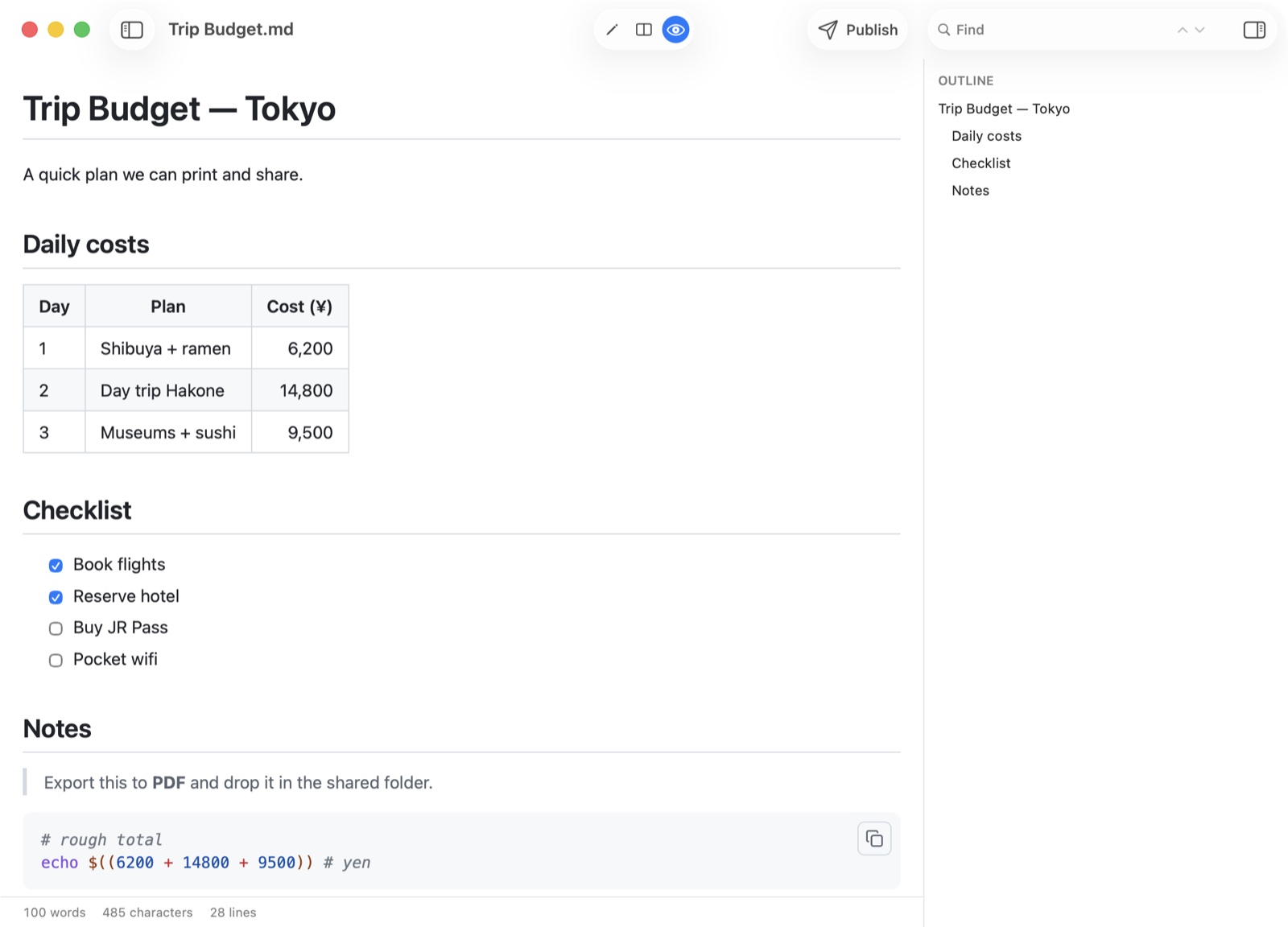
The starting point is any Markdown document, rendered. Here's the file we'll export: a trip budget with a heading, a table, a checklist, and a code block:
On a Mac
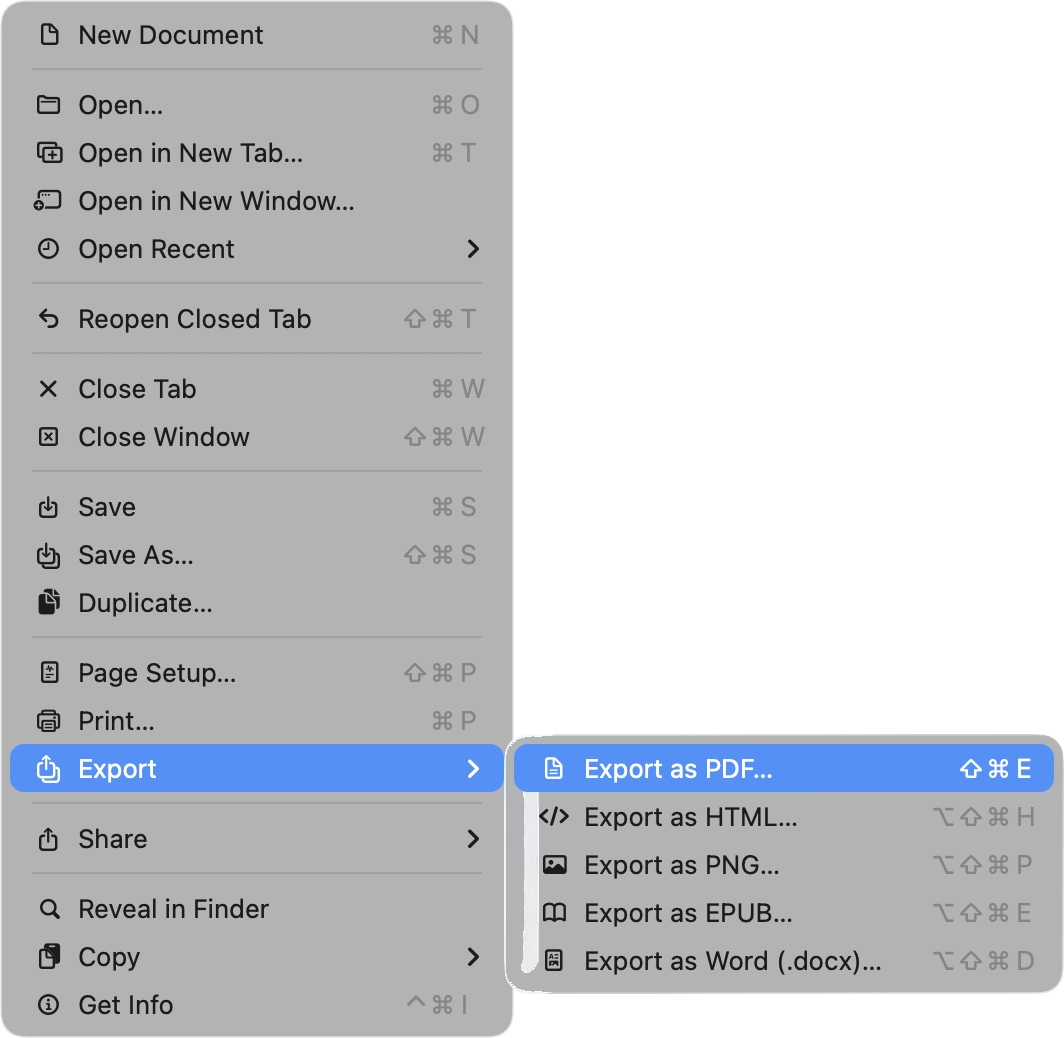
Everything lives in the File ▸ Export menu. PDF is the first item, on ⇧⌘E:
- Open your
.mdfile and switch to Preview or Split so you can see the rendered version. - Choose File ▸ Export ▸ Export as PDF… (⇧⌘E).
- Pick a name and location, and save.
Because the Mac export runs through the print pipeline, the PDF is paginated, with proper Letter or A4 pages that honour File ▸ Page Setup. If you'd rather use the system dialog, ⌘P and then Save as PDF works too; the Export command just skips a step.
On iPhone & iPad
Open the document, tap the export button (the menu in the toolbar), and choose Export as PDF. QuickMark builds the PDF and hands it to the system share sheet, so you can Save to Files, AirDrop it, or send it straight into Mail or Messages.
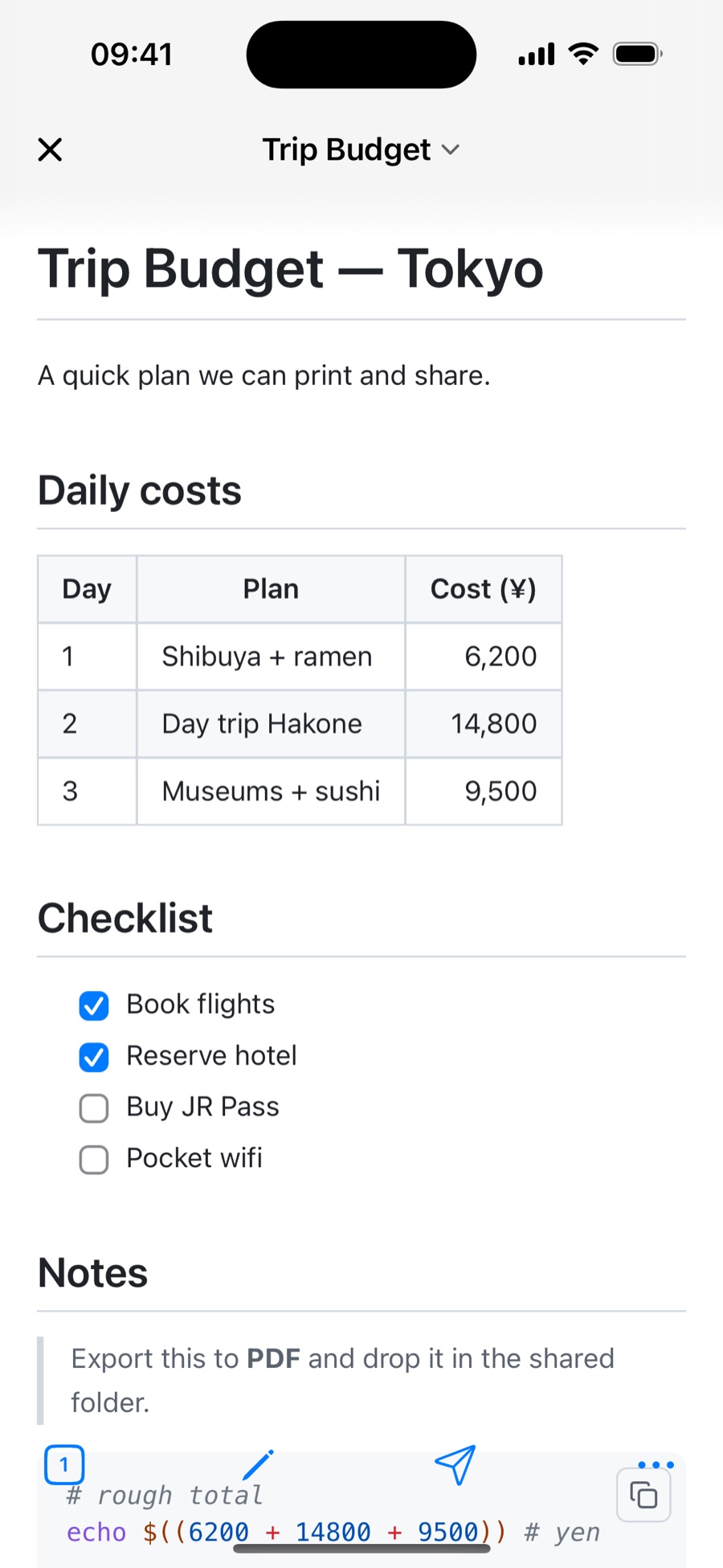
The iOS PDF comes out as one continuous page rather than sliced into sheets, with a navigable heading outline baked in so readers can jump around it in Files or Books. It scrolls just like any PDF.
What carries over
The PDF matches what you see in the preview, with a couple of deliberate choices:
- Your reading theme and font size come along, so the document looks the way you set it up.
- Exports always use a light background, even if you read in dark mode, so the PDF prints and shares cleanly instead of coming out with a black page.
- Tables keep their column alignment, code blocks keep their syntax colours, and math and diagrams render exactly as they do on screen.
Beyond PDF
PDF is the one people reach for most, but the same Export menu also gives you Word (.docx), HTML, EPUB, and PNG image, handy when you need to hand a document to someone who lives in Word, or drop a rendered snippet into a slide. They all work the same way: pick the format, choose where it goes, done.
New to previewing Markdown on a Mac? Start with how to preview Markdown on Mac by pressing Space, then export whatever you're reading straight to PDF.
Get rendered Markdown previews everywhere
QuickMark is a free, native Markdown app for Mac, iPhone and iPad. Live preview, export and publish built in.