
How to Convert Markdown to Word (.docx)
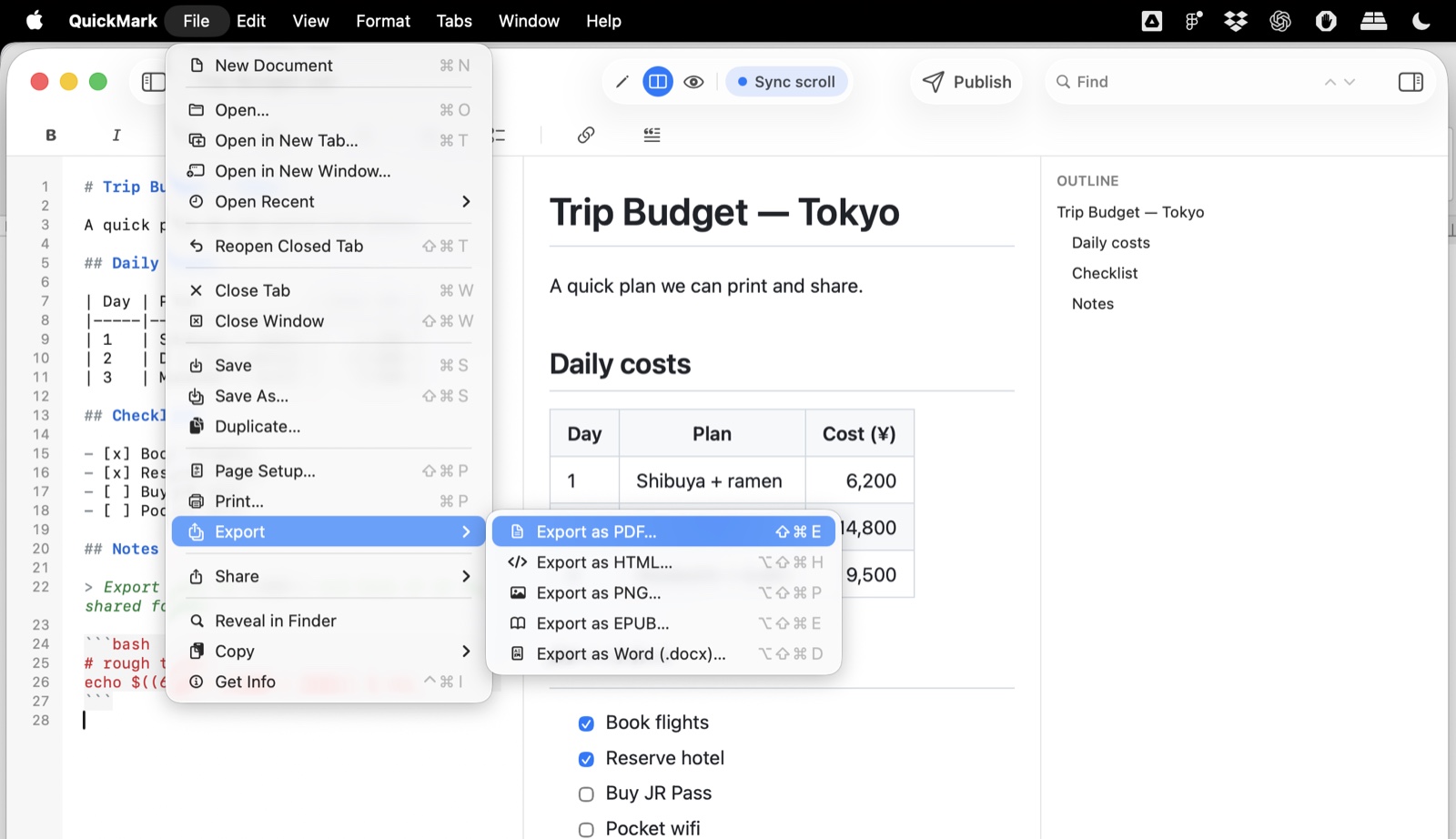
To turn a Markdown file into a Word document on a Mac, open it in QuickMark and choose File ▸ Export ▸ Export as Word (.docx)…, or press ⌥⇧⌘D. On an iPhone or iPad, open the export menu and pick Export as Word (.docx), then save it to Files. That is the whole job. The rest of this post is about what survives the trip, because that is where most Markdown-to-Word converters quietly let you down.
Why the conversion method matters
There is an easy way to build a .docx and a right way. The easy way is to render the Markdown to HTML, wrap it up, and let Word's HTML importer make sense of it. Files produced that way open fine, and then you notice the damage: tables without borders, diagrams missing, links that all jump to the top of the document.
QuickMark used to do exactly that, and it had exactly those problems. It now builds the OOXML document directly instead, which is the format Word actually speaks. The practical result is that a heading is a real Word heading, a table is a real Word table, and the file opens natively in Word, Pages and Google Docs without a conversion step.
What carries over
- Headings, mapped to Word's own heading levels, so the navigation pane and any table of contents you generate in Word both work.
- Tables, with a real border grid and a shaded, bold header row.
- Ordered and bulleted lists, nested up to six levels, as real Word list numbering rather than typed-in dashes.
- Bold, italic, strikethrough, inline code and highlighted text.
- Code blocks, with their syntax colouring. Keywords stay coloured in the Word file, not flattened to black monospace.
- Blockquotes and callouts.
- Links, including internal ones. A link to
#next-quarterlands on that heading inside the Word file, which is the detail the HTML-wrapper approach always lost. - Keyboard keys, subscript and superscript, as real formatting rather than flattened to plain text.
- Mermaid diagrams. The diagram you see in the preview is rasterised and embedded as an image, so a flowchart in your Markdown is still a flowchart in the Word file.
What does not, and you should know before you send it
Four gaps, stated plainly, because finding them after you have emailed the file is worse.
- Math is not typeset. A KaTeX formula that renders beautifully in the preview is written into the
.docxas its LaTeX source in a monospaced font. Converting to Word's native equation format (OMML) is a much bigger job and has not been done. If you write papers with real mathematics, this is not the right export for that document. - Column alignment is dropped. Borders and the header row survive; the
:---:and---:alignment you set in Markdown does not. Numbers you right-aligned come out left-aligned, and you re-align them in Word. - Footnotes are markers, not Word footnotes. They appear as a small superscript reference in the text rather than being wired into Word's own footnote section. The text is there; the plumbing is not.
- Linked images are not fetched. An image embedded in the document travels with it. One referenced by a file path or an
httpsURL is not downloaded during export, and its alt text stands in for it.
None of these bite a normal meeting note, a spec or a report. All of them bite a specific kind of document, so it is worth knowing which kind you are writing.
Starting from a document like this
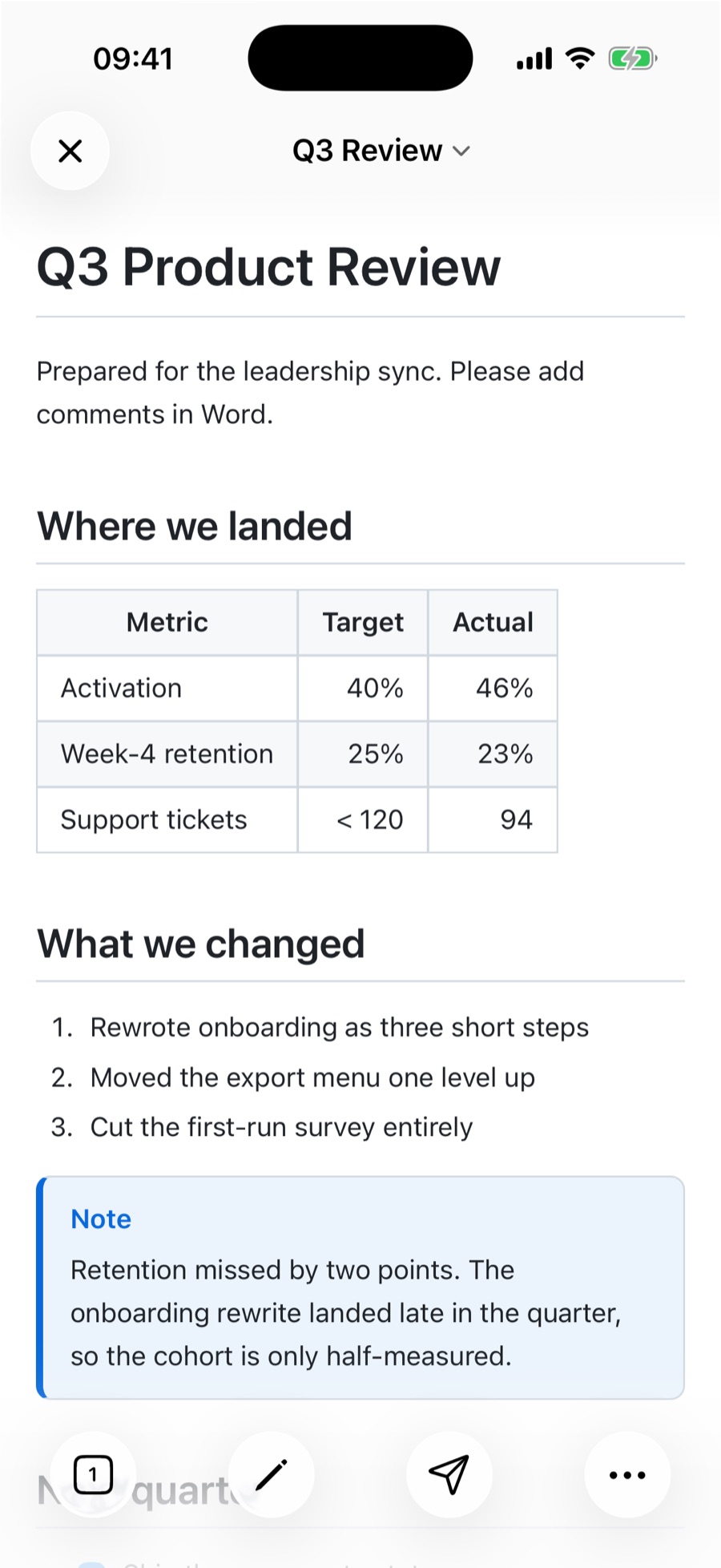
Here is the kind of file this is actually for: a review doc with a table, a numbered list and a callout, written in plain Markdown on a phone.
On iPhone and iPad
Same export, same formats. Open the export menu, choose Export as Word (.docx), and the system save sheet lets you drop it into Files, iCloud Drive, or straight into another app. Handy when the document was written on a phone and the person waiting for it works in Word all day.
A note on going the other way
QuickMark exports to Word. It does not import from it. If you have been handed a .docx and you want Markdown out of it, you need a different tool. Worth saying plainly, because "Markdown to Word" and "Word to Markdown" get searched for interchangeably and only one of them is answered here.
Why bother writing in Markdown at all
Because the source stays yours. A .md file opens in anything, diffs cleanly in Git, and will still be readable in twenty years. Word is a fine delivery format and a heavy authoring one. Writing in plain text and exporting when someone needs a document is the arrangement that keeps both sides happy.
If PDF is what you actually need, exporting to PDF works the same way from the same menu. And if you are still deciding which Markdown app to use, there is QuickMark vs iA Writer and QuickMark vs Marked.
Want to see how your own Markdown renders before installing anything? Paste it into the live preview in your browser.
Get rendered Markdown previews everywhere
QuickMark is a free, native Markdown app for Mac, iPhone and iPad. Live preview, export and publish built in.