
How to Preview Markdown on Mac: Just Press Space
You double-click a .md file, or hit Space to Quick Look it, and macOS shows you this:
# Project Notes

## This week
- [x] Draft the launch outline
- [ ] Record the demo video

| Milestone  | Owner | Status |
|------------|-------|--------|
| Beta build | Mai   | Done   |
Technically correct, but it's the raw Markdown. All the #, *, and [ ] symbols are still there, and you have to read past them. What you actually wanted was the rendered version: real headings, real checkboxes, a real table.
Good news: on a Mac you can get that with the key you already reach for: Space. You just need the right Quick Look preview installed.
The one-second method: Quick Look
Quick Look is the built-in macOS feature that previews a file when you select it in Finder and press Space. It handles images, PDFs, and videos beautifully. For Markdown, macOS falls back to showing plain text.
Install QuickMark (it's free) and that changes. QuickMark adds a Quick Look extension, so the moment it's installed:
- Click any
.mdfile in Finder. Just select it, don't open it. - Press Space.
- The file appears fully rendered, in a clean reading view, with your themes.
Here's the exact same file from above, one Space press later:
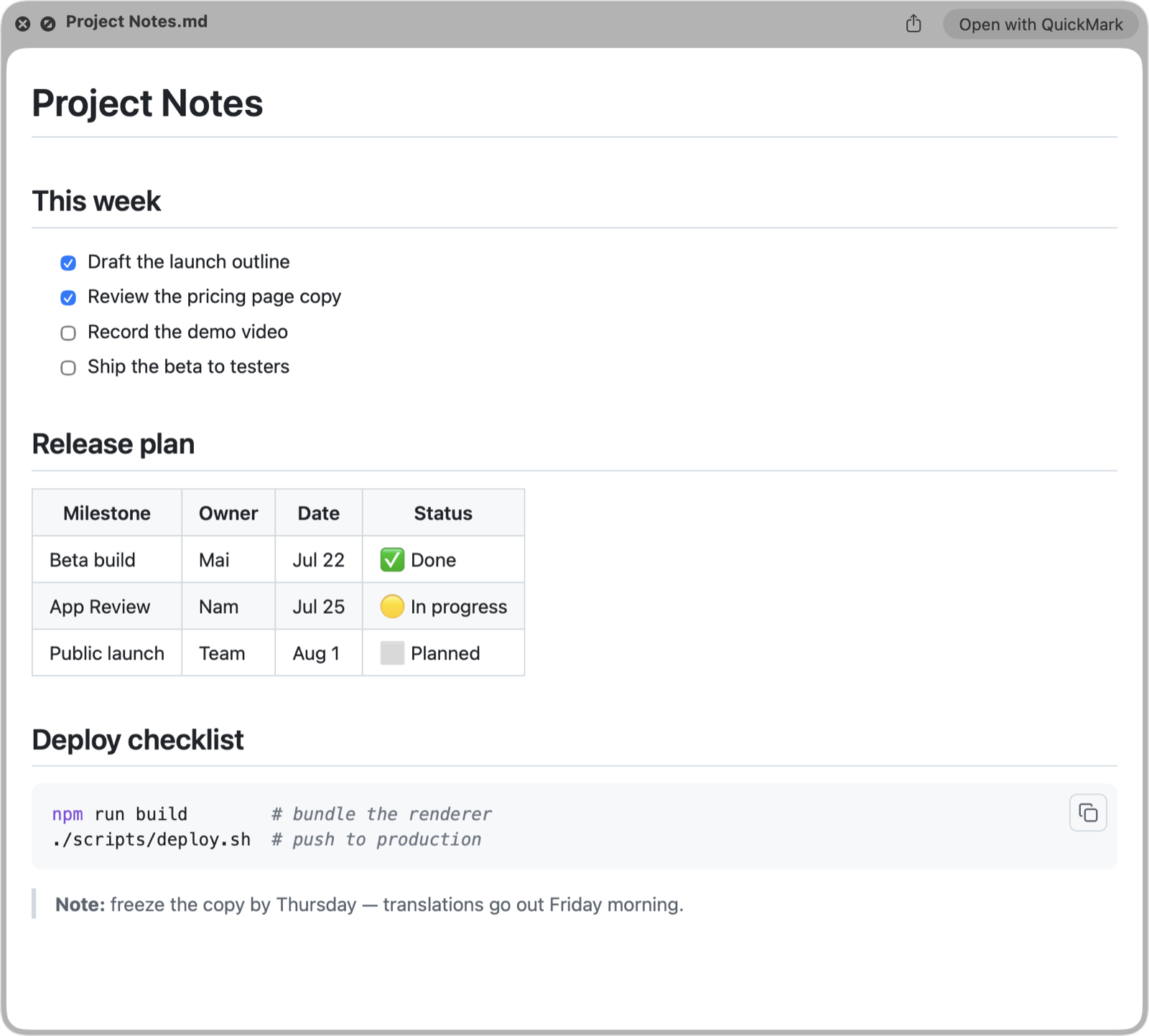
That's it. No app window, no waiting. The same gesture you use for every other file now works for Markdown.
It's not just headings
A good preview renders everything you put in a document, not only the basics. As you can see in the shot above, pressing Space also gives you:
- Tables: proper columns instead of a wall of pipe characters.
- Code blocks: syntax-highlighted, in dozens of languages, with a hover-to-copy button.
- Math: inline and display equations (KaTeX).
- Diagrams: Mermaid flowcharts and sequence diagrams, drawn.
- Task lists, footnotes, callouts and the rest of GitHub Flavored Markdown.
So the pipes-and-dashes table you can't read at a glance:
| Task  | Owner | Done |
|-------|-------|------|
| Draft | Mai   | ✓    |
| Edit | Nam | || Task | Owner | Done |
|---|---|---|
| Draft | Mai | ✓ |
| Edit | Nam |
If Space still shows plain text
macOS lets only one app "win" the Quick Look slot for Markdown. If you have another Markdown tool installed, it may be holding that slot. To hand it to QuickMark:
- Open System Settings → General → Login Items & Extensions.
- Scroll to Quick Look and click the ⓘ.
- Uncheck the competing extension, then press Space on a
.mdfile again.
One more tip: if double-clicking a .md file opens the wrong app, right-click it in Finder → Get Info → under Open with choose QuickMark → Change All… Now every Markdown file opens in QuickMark by default, and Space always previews it.
When you want more than a peek
Quick Look is for reading. When you want to write, hit that Open with QuickMark button (or just double-click the file) and the full app takes over:
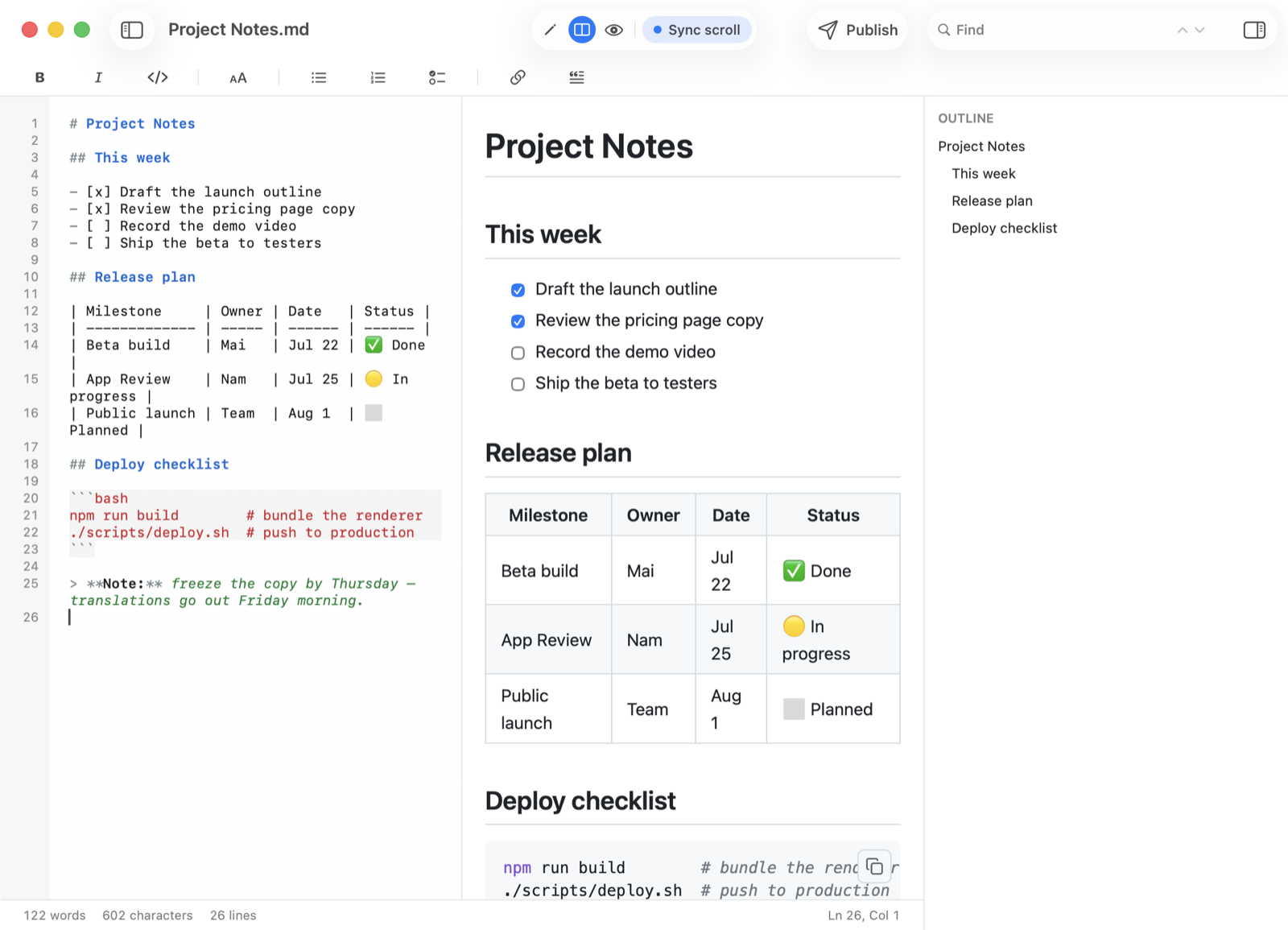
You get an editor with live preview side by side, scroll that stays in sync, an outline of your headings for long documents, and one-tap export to PDF, Word, or a shareable web link. But for the everyday "what's in this file again?" moment, nothing beats a single tap of the space bar.
Thirty seconds of it, moving
Screenshots freeze the part that matters most here, which is how little happens before the document appears. This is the same file going from Finder to Quick Look to the full editor, in real time.
Get rendered Markdown previews everywhere
QuickMark is a free, native Markdown app for Mac, iPhone and iPad. Live preview, export and publish built in.