
The Markdown Cheat Sheet: Every Syntax on One Page
Everything below is Markdown you can copy, paste and use today. Bookmark this page: it is the whole syntax on one screen, with what each line actually turns into. Every example here was rendered by QuickMark's own engine, so what you see is what you get.
The five you will use every day
# Heading 1
## Heading 2

**bold** and *italic*

- a bullet
- another

[a link](https://example.com)That is genuinely most of it. Markdown is small on purpose. The rest of this page is the long tail, roughly in the order people reach for it.
Text
**bold**
*italic*
***both***
~~strikethrough~~
==highlight==
`inline code`
H~2~O and X^2^bold
italic
both
strikethrough
highlight
inline code
H2O and X2
Underscores work too: _italic_ and __bold__. Pick one
style and stay with it. Asterisks are the safer habit because underscores inside
a word (snake_case_name) can trip some parsers.
Headings
One # per level, up to six, and always a space after the hashes.
#Heading with no space is not a heading.
# Level 1
## Level 2
### Level 3
#### Level 4Level 1
Level 2
Level 3
Level 4
Lists
- Bullet
- Another
  - Indent two spaces

1. First
2. Second

- [x] Done
- [ ] Not done- Bullet
- Another
- Indent two spaces
- First
- Second
- Done
- Not done
Numbered lists renumber themselves. You can write 1. on every line
and the output still counts 1, 2, 3, which makes reordering painless.
Links and images
[text](https://example.com)
<https://example.com>
https://example.com
text
https://example.com
https://example.com
the image, inline
An image is a link with ! in front. Bare URLs turn into links on
their own, so you rarely need the angle brackets. Links open in a new tab, and the
path in an image can be relative to the file, which is how a screenshot sitting
next to your notes shows up inline.
Tables
| Item | Qty | Price |
|:-----|:---:|------:|
| Pens |  12 | $3.50 |
| Pads | 4 | $8.00 || Item | Qty | Price |
|---|---|---|
| Pens | 12 | $3.50 |
| Pads | 4 | $8.00 |
The colons in the dashed row set alignment: left, centre, right. Your pipes do not need to line up in the source, though it is easier to read when they do. Full detail in how to make a table in Markdown.
Code
Use `git status` inline.

```swift
struct Note {
    var title: String
}
```Use git status inline.
struct Note {
    var title: String
}
The word after the opening backticks is the language, and it is what turns the
colours on. QuickMark highlights 30+ languages; swift,
js, python, bash, json and
sql all work. Leave it off and you get a plain grey block.
Quotes and callouts
> A plain quote.

> [!NOTE] Optional title
> A callout. Also [!TIP],
> [!WARNING], [!IMPORTANT].A plain quote.
Optional title
A callout. Also [!TIP], [!WARNING], [!IMPORTANT].
Everything else
---

Footnote here[^1]

[^1]: The note text.

:rocket: :tada:

\*not italic\*Footnote here1
1. The note text.
🚀 🎉
*not italic*
Three dashes on their own line is a horizontal rule. A backslash escapes any character that would otherwise be syntax, which is how you write a literal asterisk or underscore.
Math and diagrams
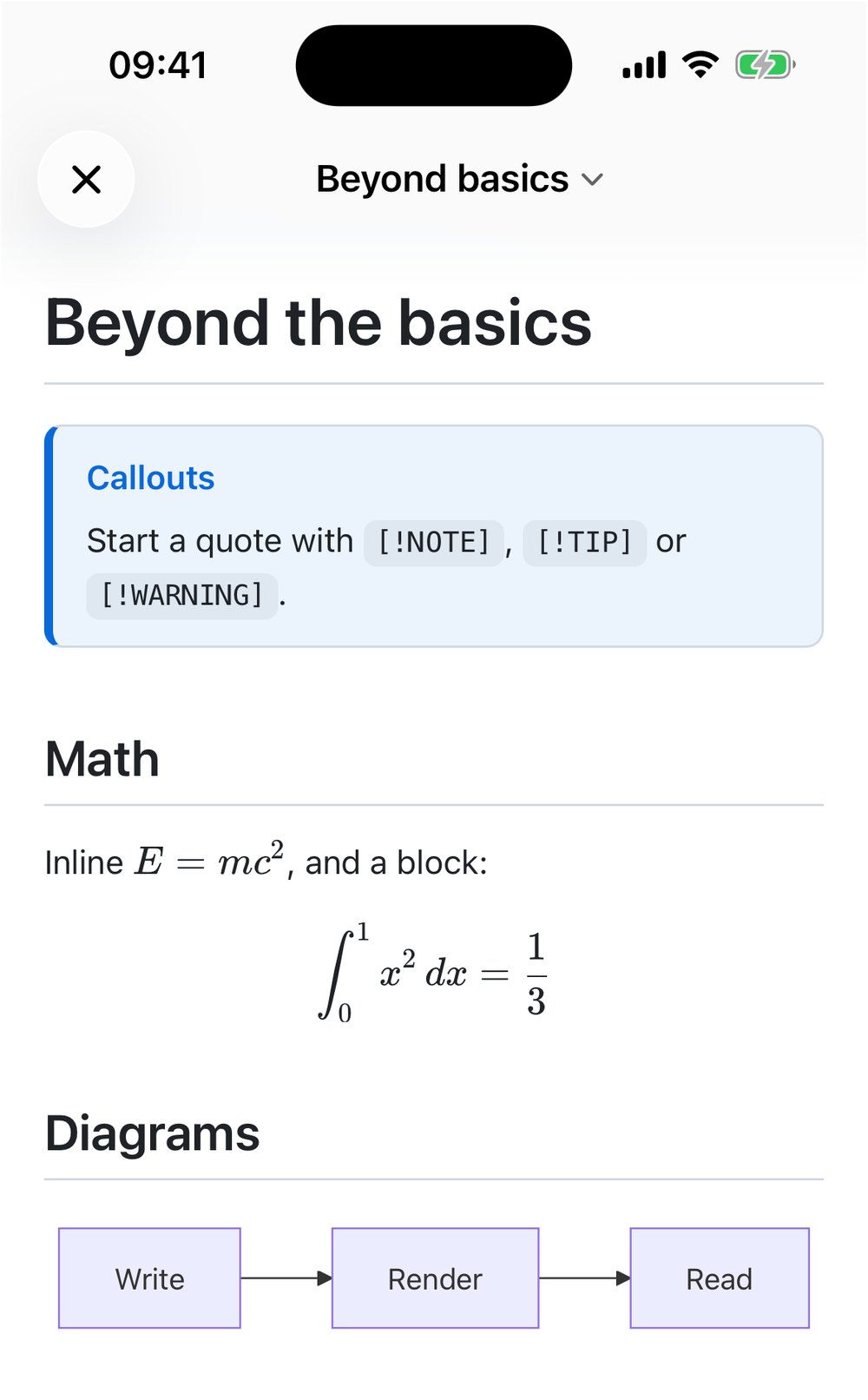
Neither is standard Markdown, but both are common enough that a cheat sheet without them is incomplete. QuickMark renders both with nothing to install.
Inline: $E = mc^2$

$$
\int_0^1 x^2 dx = \frac{1}{3}
$$

```mermaid
flowchart LR
  A --> B
```Inline: E = mc²
the integral, typeset
a left-to-right flowchart
Math uses KaTeX syntax between $ for inline and $$ for
a centred block. Diagrams use a mermaid code fence. Here is what both
look like rendered on a phone, no plugins, no setup:
Three things that surprise people
A single line break does nothing. Two lines of text with one newline between them become one paragraph. To force a line break, end the first line with two spaces, or leave a blank line to start a new paragraph.
Quotes and dashes get prettified. Straight quotes become curly
ones, -- becomes an en dash, and ... becomes a single
ellipsis character. Lovely in prose, occasionally surprising when you meant the
literal characters.
Your file stays plain text. None of this is stored as
formatting. Open the same .md in any editor on any machine in ten
years and it still reads fine. That is the entire point of Markdown, and the
reason it outlasted every rich-text format it competed with.
The whole sheet, at a glance
| Write | Get |
|---|---|
# Text | Heading, one # per level |
**text** | Bold |
*text* | Italic |
~~text~~ | Strikethrough |
==text== | Highlight |
`text` | Inline code |
- item | Bullet list |
1. item | Numbered list |
- [ ] item | Task checkbox |
[text](url) | Link |
 | Image |
> text | Blockquote |
> [!NOTE] | Callout |
| a | b | | Table row |
```lang | Code block with highlighting |
--- | Horizontal rule |
text[^1] | Footnote |
$x^2$ | Inline math |
```mermaid | Diagram |
:rocket: | Emoji |
H~2~O / X^2^ | Subscript / superscript |
\*text\* | Literal asterisk, escaped |
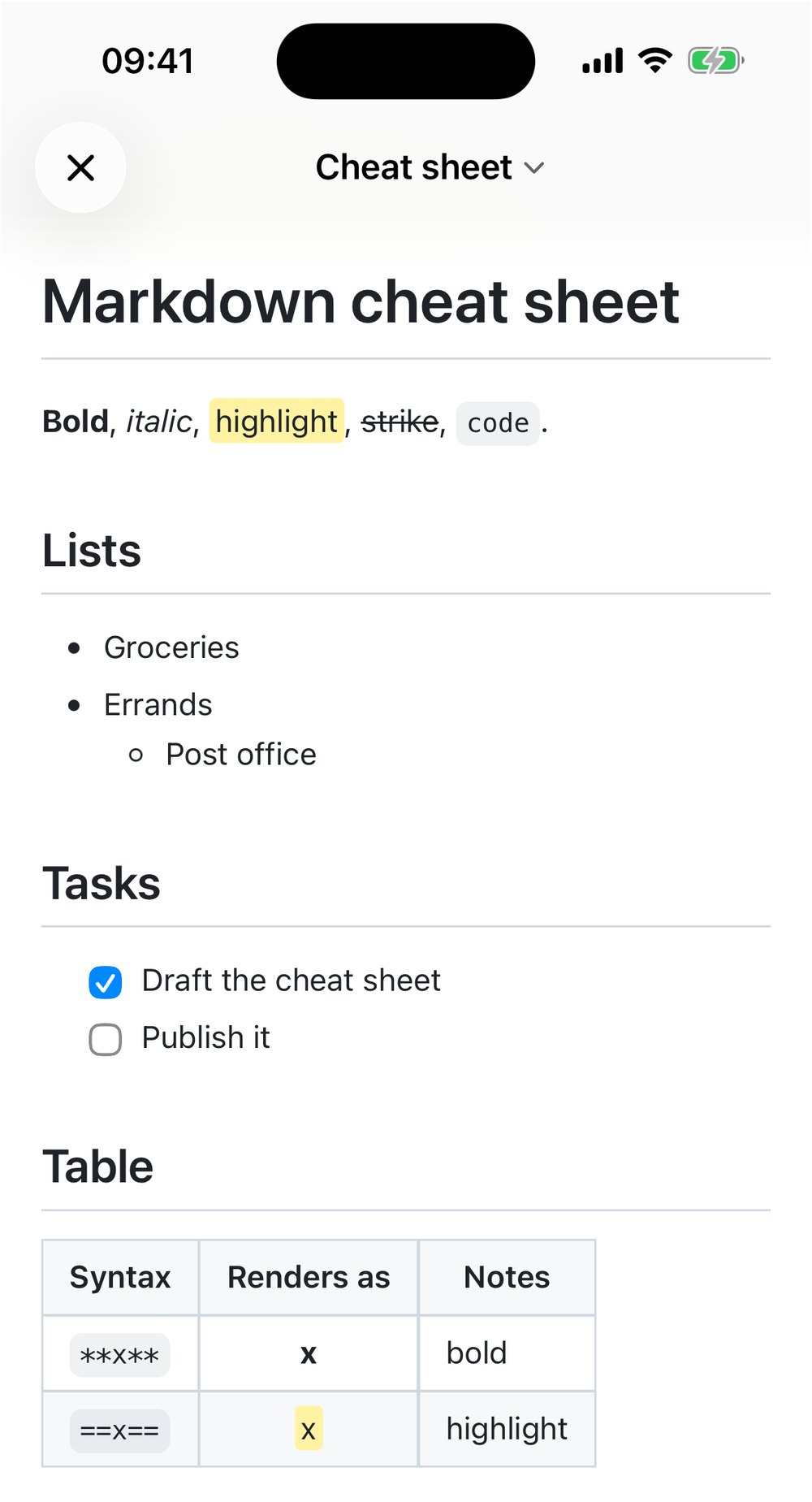
The fastest way to learn any of this is to type it and watch it change. Paste
the table above into the live preview in your browser, or
open a .md file on your Mac and press Space in Finder to
see it rendered instantly.

Get rendered Markdown previews everywhere
QuickMark is a free, native Markdown app for Mac, iPhone and iPad. Live preview, export and publish built in.