
Make QuickMark Your Default Markdown App on Mac
To make QuickMark the app that opens every .md file on your Mac: click any Markdown file once in Finder, press ⌘I, open the Open with section, pick QuickMark, then click Change All… and confirm. That is the whole thing. The rest of this post is what that button actually changes, and the three places it does not reach.
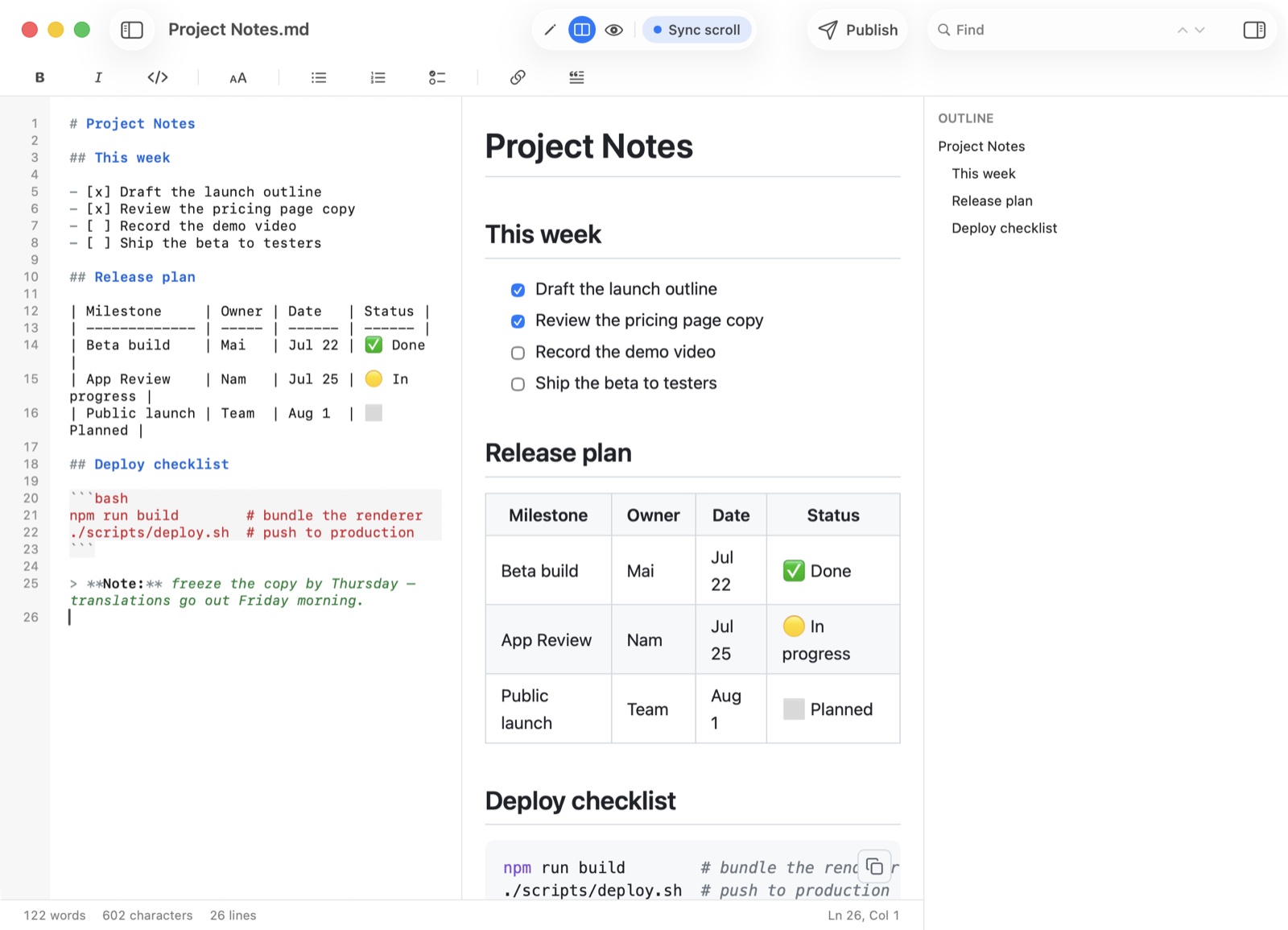
Why your Mac picked something else in the first place
A .md file is plain text, so a lot of apps claim it. I asked macOS on the Mac this post was written on which apps are registered to open one, and got 20 different apps: Xcode, TextEdit, Cursor, Sublime Text, Notes, Pages, Numbers, Word, Excel, four flavours of Chrome, Edge, Instruments, LibreOffice, R, and even MuseScore.
macOS picks one of them for you. It usually lands on whatever developer tool you installed most recently, which is why a file full of headings and tables opens as a wall of grey monospace. Change All is how you take the decision back.
What Change All actually covers
This is the part most guides skip. The default is stored against the file's type, not its extension, and the two are not the same list.
QuickMark registers itself as the editor for the Markdown type and lists five extensions in its bundle: .md, .markdown, .mdown, .mkd and .mkdn. So you would expect all five to follow along. They do not. Here is what macOS actually reported for a real file of each kind:
| File | Type macOS assigned | Covered by Change All on a .md |
|---|---|---|
notes.md | Markdown text file | Yes |
notes.markdown | Markdown text file | Yes |
notes.mdown | unregistered type | No |
notes.mkd | unregistered type | No |
notes.mkdn | unregistered type | No |
The three rare extensions never reach the Markdown type at all. macOS invents a throwaway type for them, QuickMark is not offered in the Open with list, and no amount of clicking Change All on a .md file will help. If you have a folder of .mkd files, rename them to .md. That is the fix, and it takes one pass in Finder.
Two extensions covering the real world is fine. .md and .markdown are what GitHub, static site generators and every note app write.
Plain text files are a separate decision
QuickMark also registers for plain text, so it shows up in the Open with list for a .txt file. It does not become the default there on its own, and on the test Mac TextEdit kept that slot.
You can hand .txt to QuickMark with the same Change All click, but think about it first. That one setting covers every plain text file on the disk: logs, config dumps, exported chat transcripts, a README with no extension. Markdown rendering on a log file is not an improvement. I leave .txt with TextEdit and change only .md.
The default app does not control the Space bar
This one surprises people, and it is worth knowing before you go hunting for a setting that does not exist. Quick Look, the preview that appears when you select a file and tap Space, runs through a completely separate mechanism: a small extension bundled inside the app, chosen by macOS per file type. Setting the default app changes nothing about it.
QuickMark's Quick Look extension claims the Markdown type only. So with QuickMark as your default for both .md and .txt, Space on a .md gives you a rendered document, and Space on a .txt still gives you the system's plain text preview. That is deliberate, not a gap.
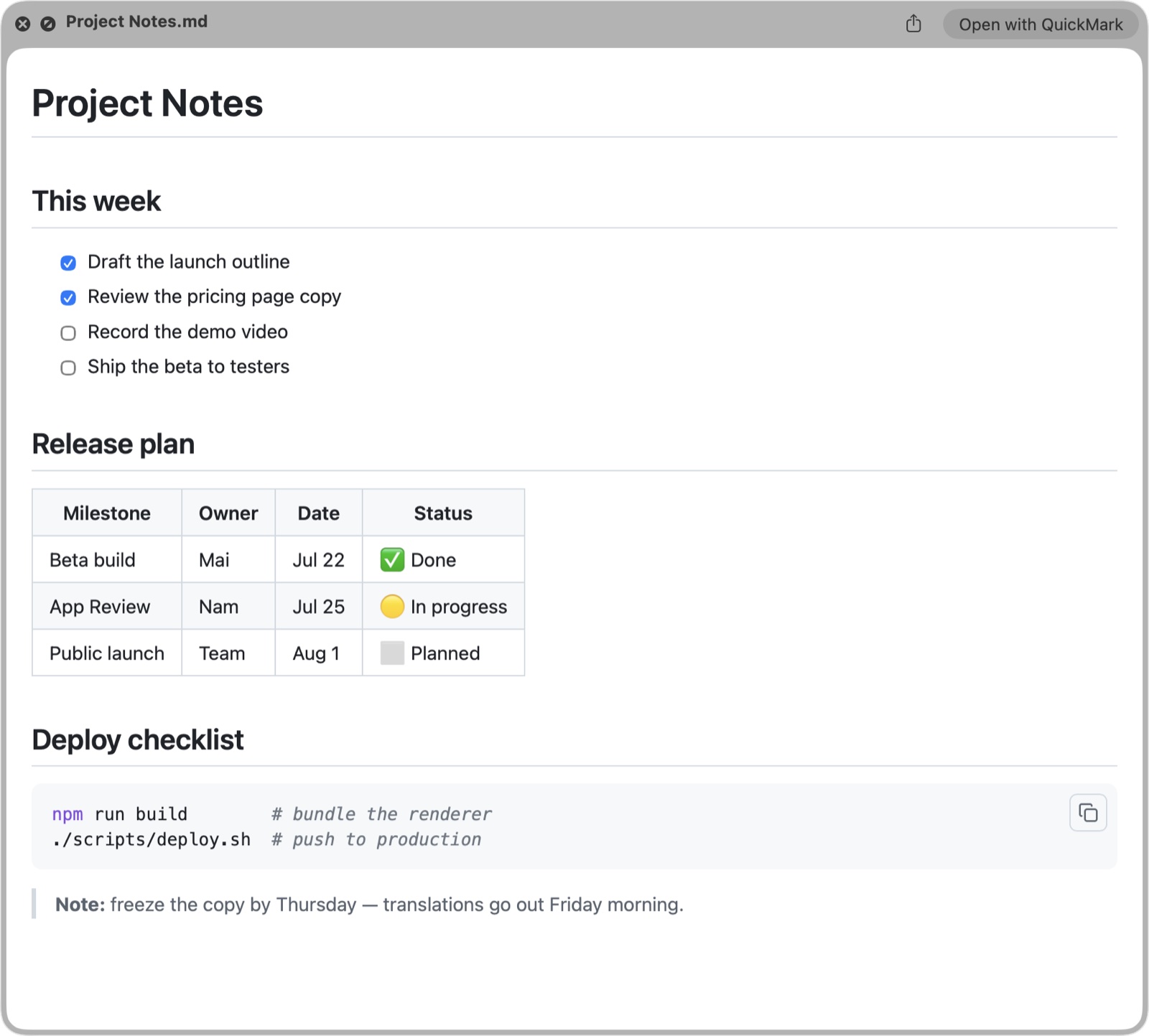
If Space gives you grey monospace instead of a rendered page, the default app is not the problem. macOS allows exactly one Quick Look extension per file type, and another Markdown app can outrank the one you want. Go to System Settings ▸ General ▸ Login Items & Extensions ▸ Quick Look and switch the competitor off. The full walkthrough is in how to preview Markdown on Mac.
What happens after you double-click
Two behaviours, both deliberate, both easy to misread as bugs:
- One window per file. Select four files in Finder and press ⌘O and you get four windows, not four tabs in one window. Files arriving from Finder are treated as separate pieces of work. If you want them stacked as tabs instead, open them from inside the app with ⌘T, which is covered in working across many files with tabs.
- Opening a file that is already open does not duplicate it. QuickMark checks whether the file is already showing somewhere, and if it is, it brings that window forward and focuses that tab. Double-clicking the same file five times leaves you with one copy of it, not five.
Do not confuse the two Get Info panels
QuickMark has its own File ▸ Get Info at ⌃⌘I, and it is not the Finder panel you need for this job. It shows the file's name, folder, kind, size, dates and text encoding, plus a statistics block: characters, words, lines, heading count and an estimated reading time. Useful. No Open with section, though.
Finder's Get Info is ⌘I with the file selected in Finder. If you are already in QuickMark, the short path is File ▸ Reveal in Finder, then ⌘I.
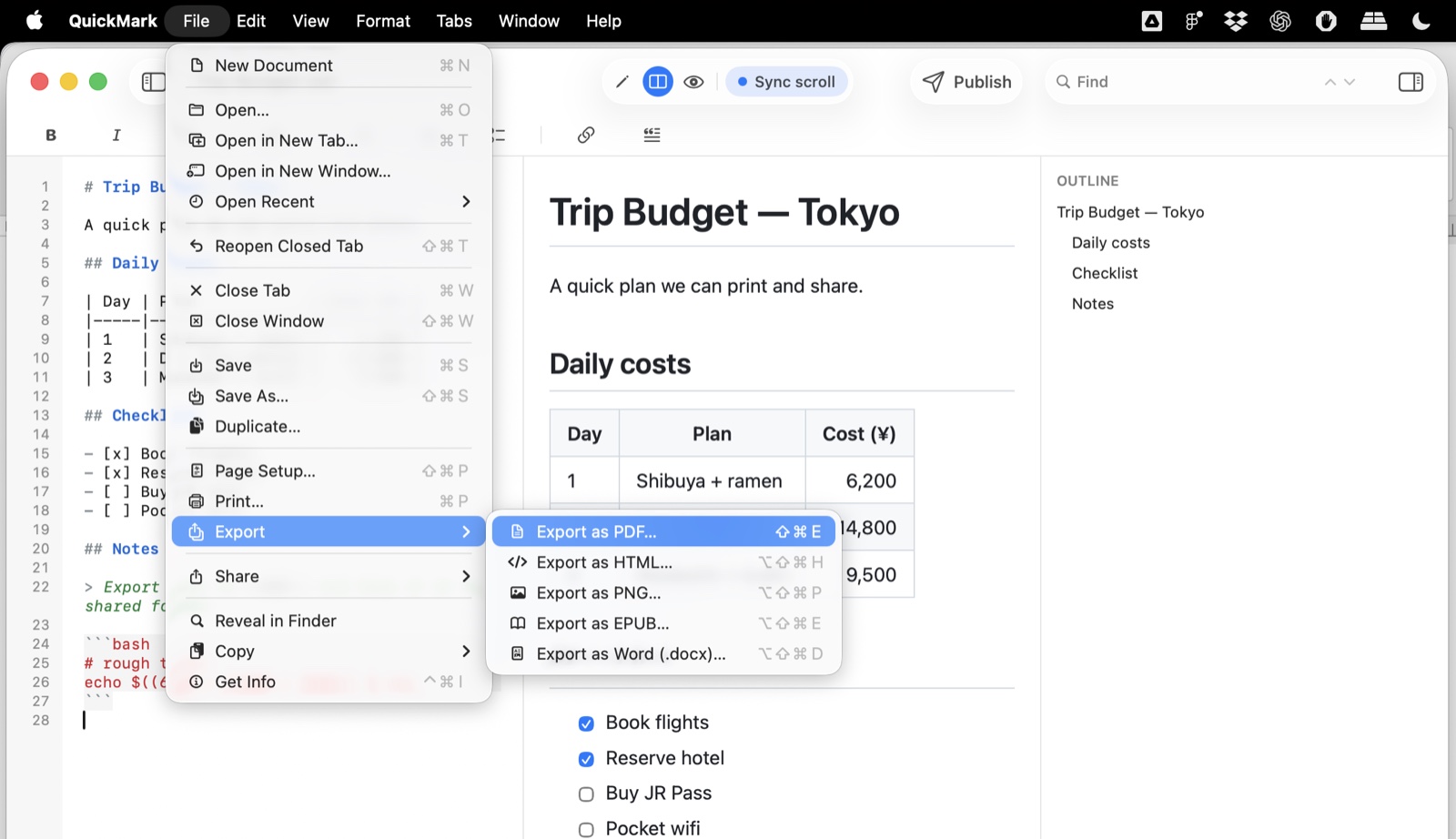
Both live near the bottom of the File menu, three rows apart, which is exactly how you end up in the wrong one. The rest of the menu map is in every keyboard shortcut in QuickMark for Mac.
There is no equivalent on iPhone and iPad
iOS has no default-app setting for file types. Tapping a .md file in the Files app opens Files' own built-in text preview, and no third-party app can outrank it. To get the rendered version you long-press the file and choose Open With, or you open it from inside QuickMark. Opening .md files on iPhone and iPad walks through both routes.
It is a real limitation and worth saying plainly. On a Mac you set this once and forget it. On iPhone it is a long-press, every time.
The 30 second version
- Click a
.mdfile in Finder. Press ⌘I. - Open Open with, choose QuickMark, click Change All…, confirm.
- Rename any
.mkdor.mdownfiles to.mdso they come along. - Leave
.txtalone unless you really want every text file rendered. - Press Space on a Markdown file to confirm: the button in the corner should read Open with QuickMark.

Get rendered Markdown previews everywhere
QuickMark is a free, native Markdown app for Mac, iPhone and iPad. Live preview, export and publish built in.