
How to Make a Checklist in Markdown
A Markdown checklist is a list item with a pair of square brackets in front of it. Write - [ ] task for something still to do and - [x] task for something finished. That is the whole syntax. Any editor that follows GitHub Flavored Markdown, QuickMark included, turns those brackets into real checkboxes.
- [x] Write the release notes
- [x] Update screenshots
- [ ] Test on a real device
- [ ] Submit for review- ☑︎ Write the release notes
- ☑︎ Update screenshots
- ☐ Test on a real device
- ☐ Submit for review
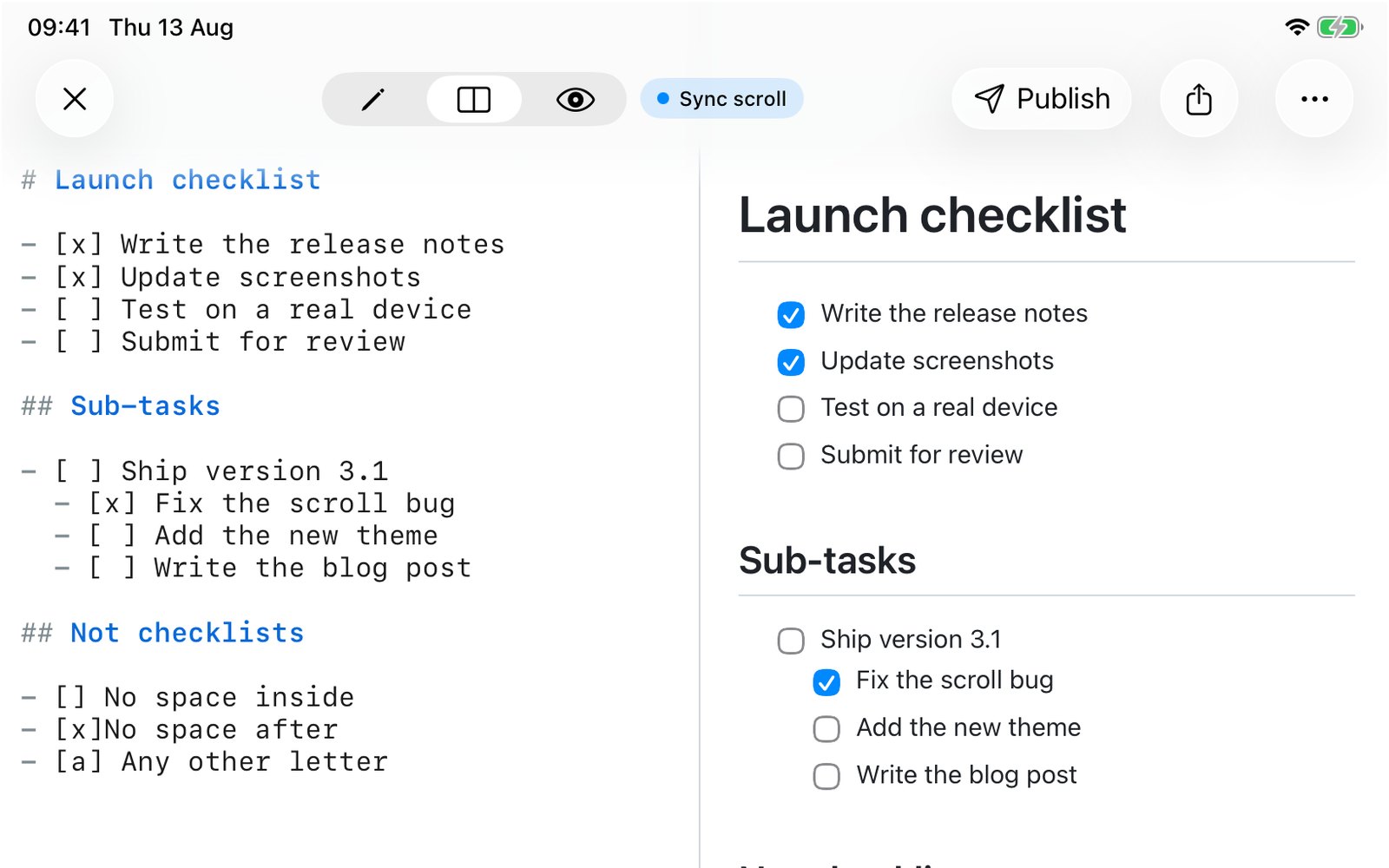
The three rules that decide whether it renders
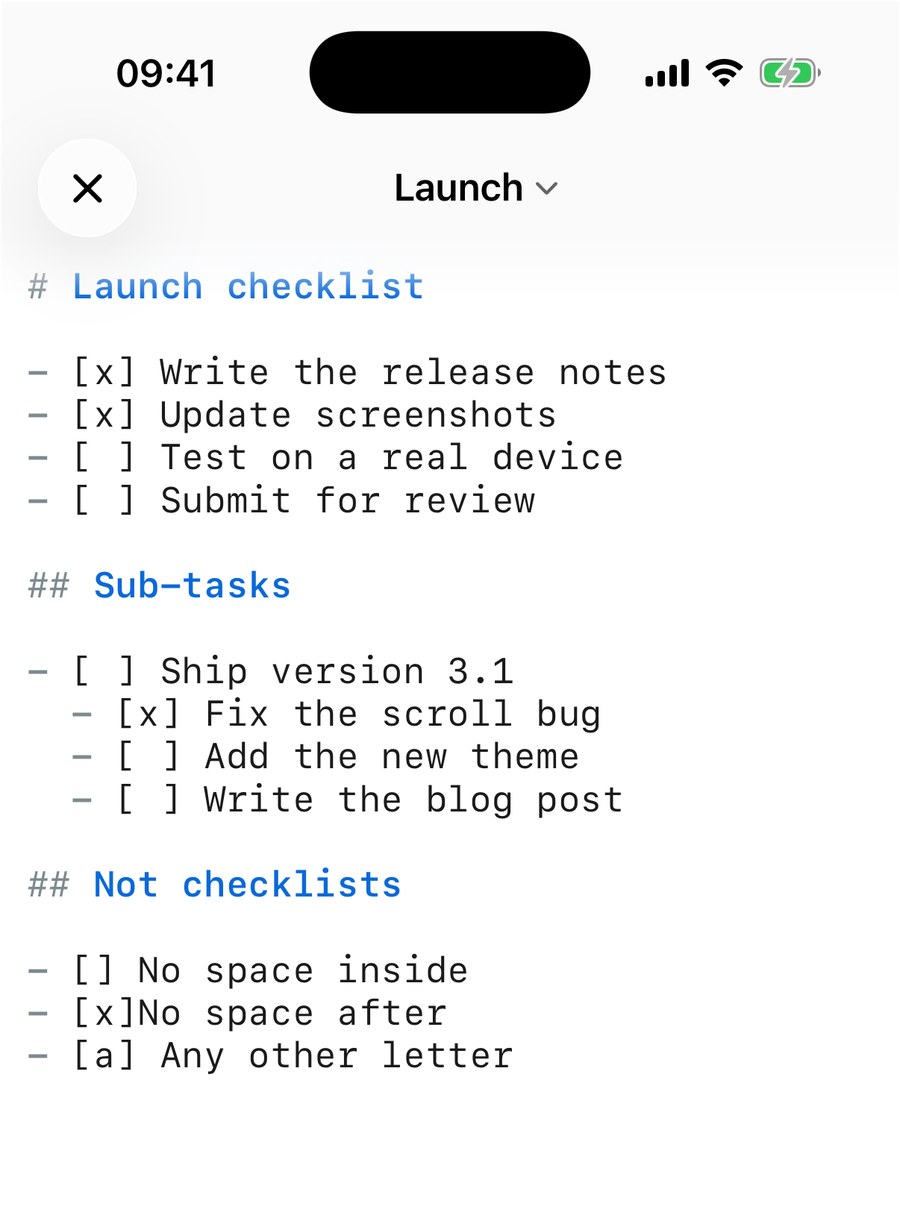
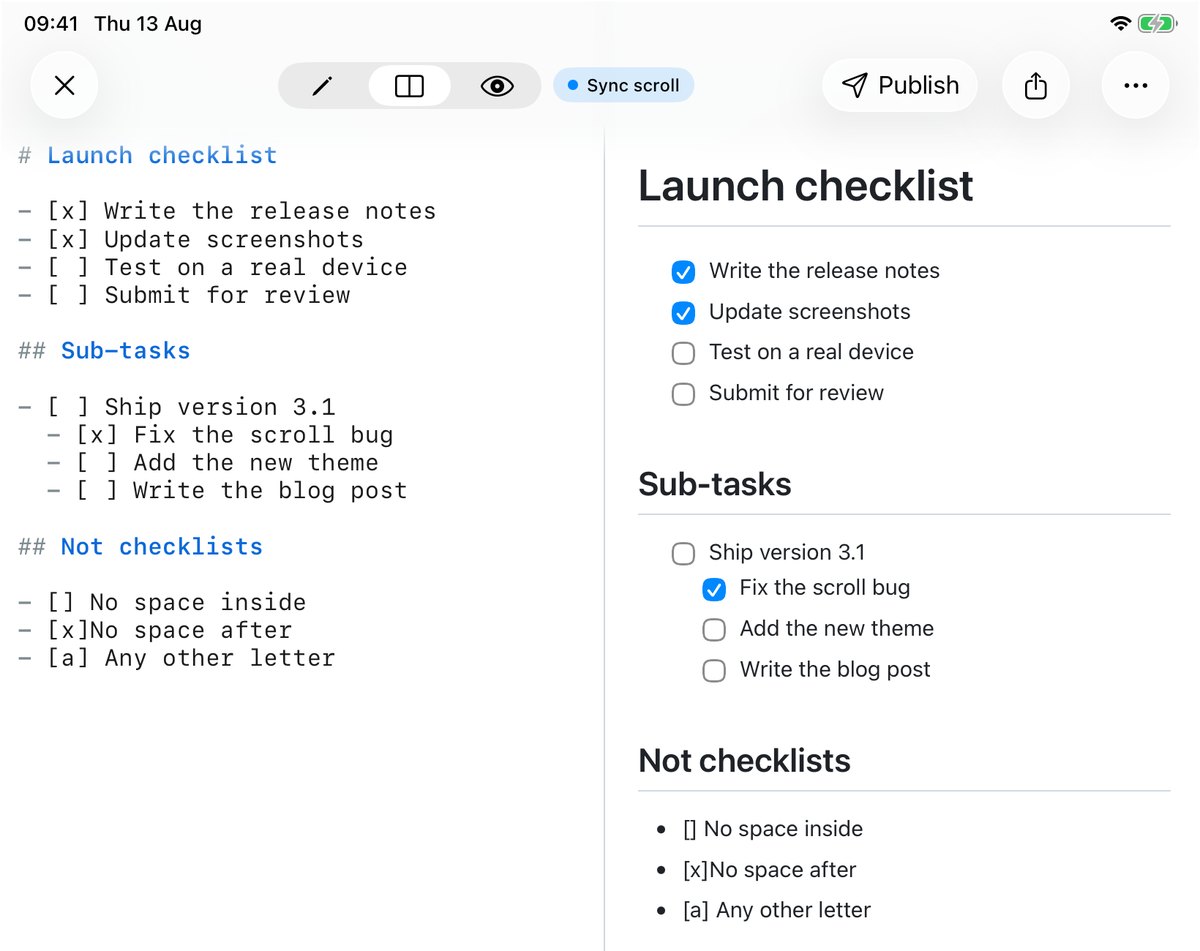
Most "my checklist is not working" cases come down to a missing space. I ran every variation through QuickMark's actual renderer and pinned the results, so here they are as rules rather than guesses.
1. The brackets need a space inside them. - [ ] works. - [] does not, and it renders as literal text: a bullet with [] sitting in it.
2. There has to be a space after the closing bracket. - [x] done works. - [x]done renders as a bullet reading [x]done.
3. Only x counts as checked, in either case. - [x] and - [X] both give you a ticked box. Anything else in the brackets, - [a] or - [-] or - [?], is not a task at all and comes out as plain text. This is worth flagging if you are coming from Obsidian, whose docs say you can put any character inside the brackets to mark an item complete. QuickMark does not do that, and neither does GitHub.
The bullet marker itself is flexible. -, * and + all work, and so does a numbered list: 1. [ ] task renders as a numbered item with a checkbox.
Sub-tasks
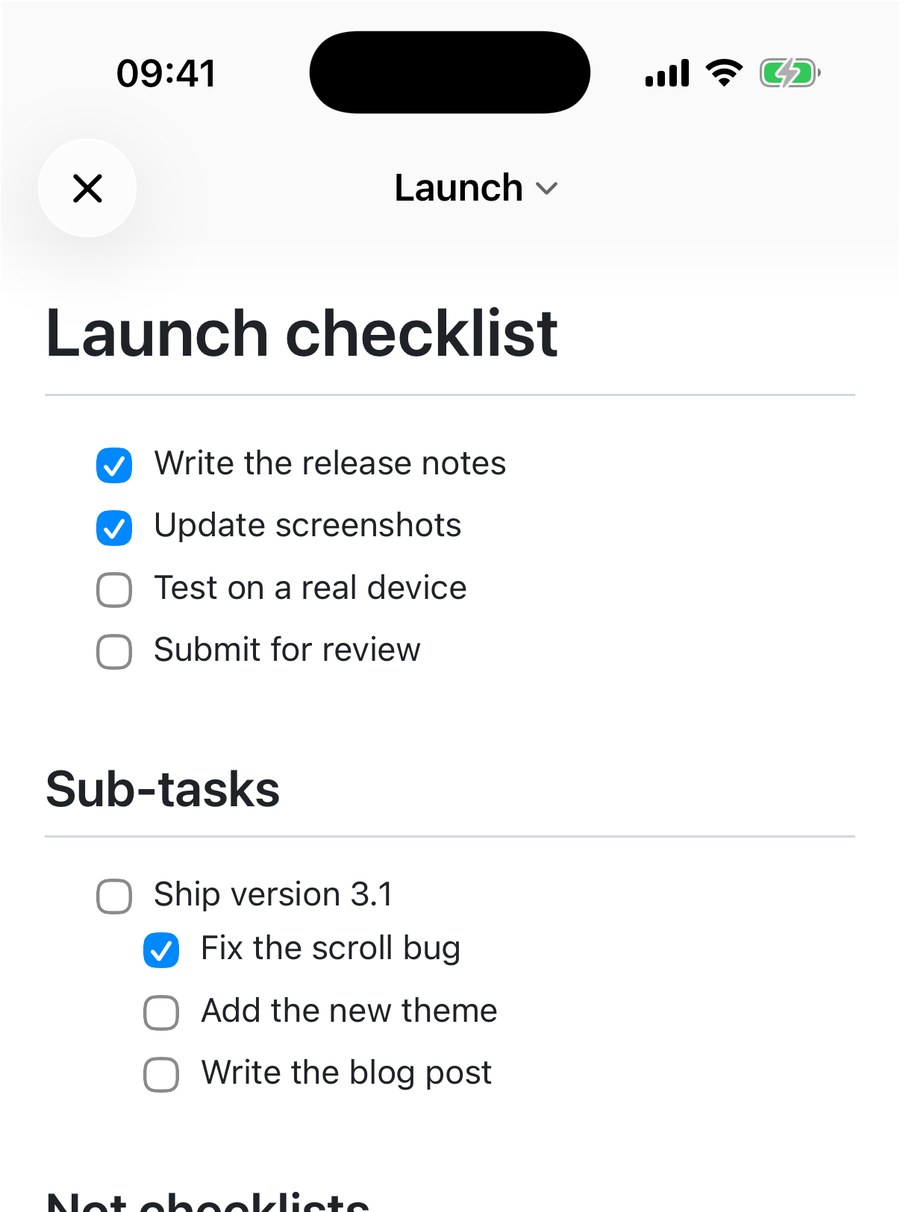
Indent a task by two spaces to nest it under the one above. Nesting is unlimited in principle, though past two levels a checklist stops being readable.
- [ ] Ship version 3.1
  - [x] Fix the scroll bug
  - [ ] Add the new theme
- [ ] Write the blog post- ☐ Ship version 3.1
- ☑︎ Fix the scroll bug
- ☐ Add the new theme
- ☐ Write the blog post
Ticking a child does nothing to the parent. Markdown has no idea these items are related, so the parent stays unchecked until you check it yourself. Nothing counts your progress for you either. GitHub shows a "2 of 4" tally on task lists inside issues; that tally is a GitHub feature, not part of Markdown, and QuickMark does not show one.
Items take normal inline formatting: - [ ] Ship **v3.1** before `Friday` renders with the bold and the code span intact, and links inside a task work the same way. A checklist inside a blockquote also renders as a checklist.
Ticking a box means editing the text
This is the part that surprises people, so it is worth being blunt about. In QuickMark, the preview is a rendered view of your file, and it is one-directional. The only thing the preview ever sends back to the app is your scroll position, so it cannot rewrite your document. A checkbox is checked because the text says [x], full stop.
To tick something off, you edit the line: switch to the editor and change [ ] to [x]. The preview updates as you type.
This is a real difference from a couple of apps you might be comparing against. Obsidian's documentation says you can toggle a task in Reading view by selecting the checkbox. GitHub lets you click checkboxes in an issue and commits the change for you. If clicking a box in a preview is how you want to work, those handle it and QuickMark does not.
What QuickMark gives you instead is a button that writes the syntax. There is a Checklist key in the formatting bar, the checkbox icon in the list group. Put the cursor on a line, or select several lines, and it prefixes each one with - [ ] . It is smart enough not to double up: a line that is already a bullet becomes a task instead of getting a second marker, and a line that is already a task is left alone. On iPhone and iPad the same key sits in the bar above the keyboard, between the numbered list and the inline code keys.
One gap to know about on the Mac: Checklist exists on the formatting bar but has no entry in the Format menu and no keyboard shortcut, while its neighbours do (⇧⌘8 for a bullet list, ⇧⌘7 for numbered). If you are keyboard-driven, typing the six characters is currently faster than reaching for the button.
If you would rather not start from a blank file at all, the template picker has a Task List template with Today, Later, Waiting On and Done sections already laid out. On iPhone and iPad it is the "Start from a Template" row on the home screen.
What survives an export
Checkboxes are a rendering of your text, so what happens on export depends on the format. I checked the Word path against the actual generated document rather than guessing: exporting to .docx drops the checkbox entirely. Each task becomes an ordinary Word bullet, and because the marker is thrown away, a finished task and an unfinished one come out looking identical. If you need someone to see what is done and what is not, send them a PDF, or keep it in Markdown.
That is a genuine limitation and not one worth burying. The fix would be to write a ☑ or ☐ character at the front of the item so the state survives the trip into Word. More on the rest of that path in converting Markdown to Word.
The short version
- [ ] taskand- [x] task. Space inside the brackets, space after them.- Uppercase
[X]works. Any other character does not make a task at all. - Two spaces to nest a sub-task. Parents and children are independent, and nothing counts your progress.
- The preview never edits your file. Check things off in the text, or press the Checklist key to write the syntax for you.
- Word export loses the boxes. PDF and Markdown keep them.
Related reading: the Markdown cheat sheet if you want every syntax on one page, and how to make a table for the other block that trips people up on spacing.
Get rendered Markdown previews everywhere
QuickMark is a free, native Markdown app for Mac, iPhone and iPad. Live preview, export and publish built in.