
How to Write Code Blocks with Syntax Highlighting
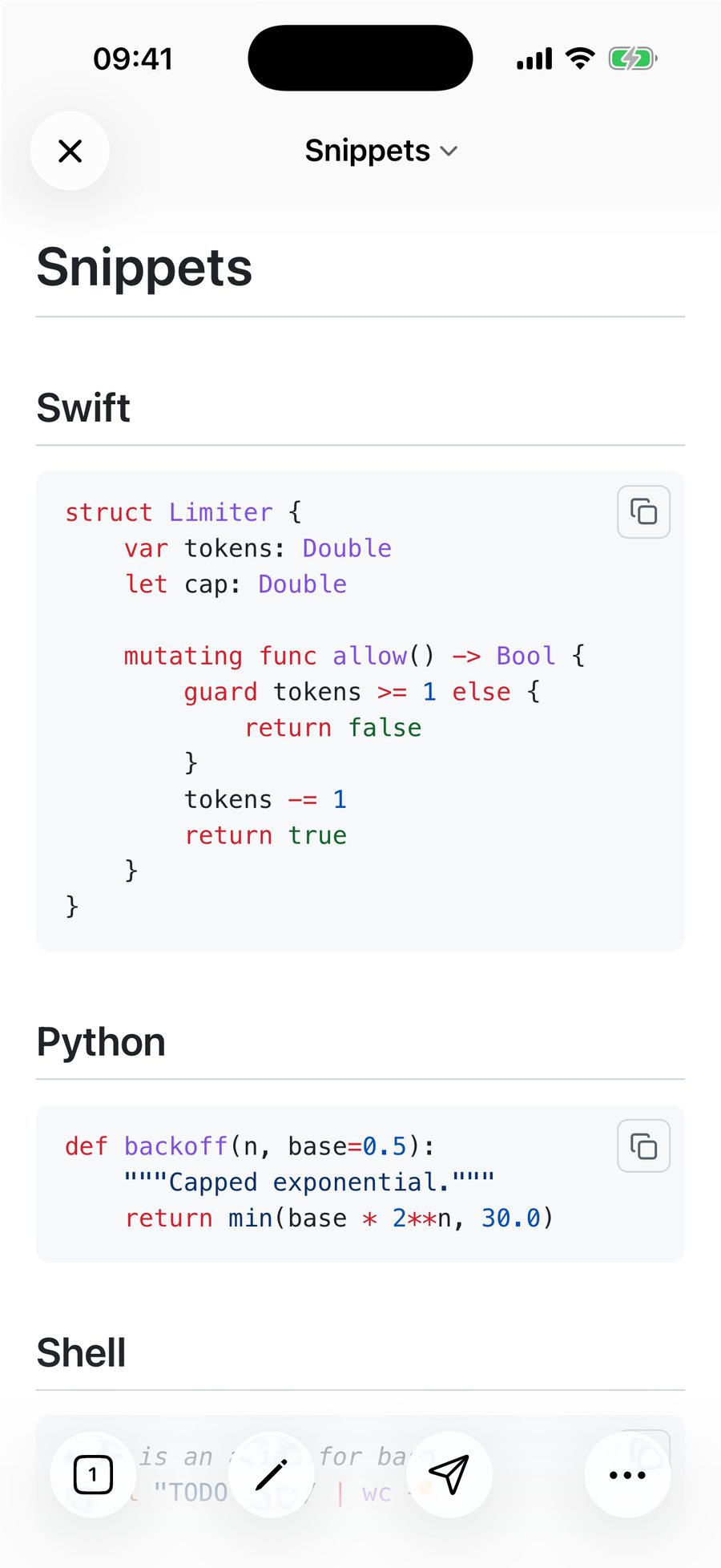
To write a code block in Markdown, wrap the code in three backticks and put the language name after the opening set. That is the whole syntax. The language name is what turns a grey box into coloured code, and it is the part people leave off.
```python
def greet(name):
    return f"Hello, {name}"
```def greet(name):
return f"Hello, {name}"The block above is shown plain here, because this page is a static site. In a Markdown app the same fence comes out coloured, which is the whole point of naming the language.
Inline code, for when a block is too much
Single backticks mark code inside a sentence. Use it for filenames, flags, function names, anything you want set apart from prose without breaking the paragraph.
Run `npm test` before you push.Run npm test before you push.
Which language names actually work
A fence label only colours the code if the renderer has a grammar for it. QuickMark ships more than thirty, chosen to cover what people actually put in READMEs and notes:
bash, c, cpp, csharp, css, diff, docker, elixir, go, graphql, haskell, java, javascript, json, jsx, kotlin, lua, makefile, markdown, markup, nginx, objectivec, php, python, ruby, rust, scss, sql, swift, toml, tsx, typescript, yaml.
The short names work too
This is the part that trips people up. You type ```sh out of habit, nothing highlights, and you assume shell is not supported. It is; the grammar is just registered under a different name. These aliases all resolve:
| You can write | It highlights as |
|---|---|
sh, shell, zsh, shellscript | bash |
py | python |
js | javascript |
ts | typescript |
rb | ruby |
cs | csharp |
md | markdown |
html, xml, vue, svelte | markup |
dockerfile | docker |
objc, objective-c, objective-cpp | objectivec |
What happens if you get the name wrong
Nothing bad. An unrecognised label falls back to a plain, uncoloured code block. No error, no red text, no broken layout. So ```gibberish renders exactly like a fence with no label at all, and you can fix the label later without anything else breaking.
Worth knowing, because it means a silent lack of colour is the symptom of a wrong label, not of a broken document.
Putting backticks inside a code block
If the code you are showing contains three backticks of its own, a three-backtick fence ends early and the rest of your block spills out as prose. The fix is to use more backticks on the outside than appear on the inside. Four wrap three, five wrap four.
````markdown
```js
console.log("nested")
```
```````js
console.log("nested")
```The older four-space style
Markdown also treats any block indented by four spaces as code. It works, and you will meet it in older documents, but it cannot carry a language name, so it never gets coloured. Fenced blocks won for a reason. Use backticks unless you are editing something that already uses indentation.
Two things that make code blocks pleasant to read
A copy button on every block. QuickMark adds one to each code block, in the corner, so lifting a command out of a README is a tap rather than a careful drag. Diagrams are skipped, since copying a flowchart as text helps nobody.
Thirty-seven code themes. Highlighting is only useful if the colours suit you, so the syntax theme is separate from the reading theme. Pick a light one for daylight documents and a dark one for terminal-flavoured notes, and switch whenever you like; the change is instant, with no re-render.
If you want the rest of the syntax on one page, there is the Markdown cheat sheet, and how to make a table covers the other block that people get slightly wrong.
Want to check a fence label without installing anything? Paste your Markdown into the live preview in your browser and see whether it colours.
Get rendered Markdown previews everywhere
QuickMark is a free, native Markdown app for Mac, iPhone and iPad. Live preview, export and publish built in.