
How to Open .md Files on iPhone & iPad
There are two ways to open a .md file on iPhone or iPad. From inside QuickMark: Home → Open from Files…, then pick the file. Or from the Files app: long-press the file → Open With → QuickMark. Both open the real file in place, so your edits save back to it. Nothing gets imported or duplicated.
The reason iOS makes this feel harder than it is: a plain tap in Files often lands you in Apple's built-in text preview, which shows the raw # and ** characters instead of a rendered document. That preview is not an app you can replace. You just have to know where the other door is.
Option 1: open from inside the app
This is the reliable route, and the one to use if a tap in Files ever behaves in a way you did not expect. Open QuickMark and the Home screen offers three actions. The middle one is the file picker.
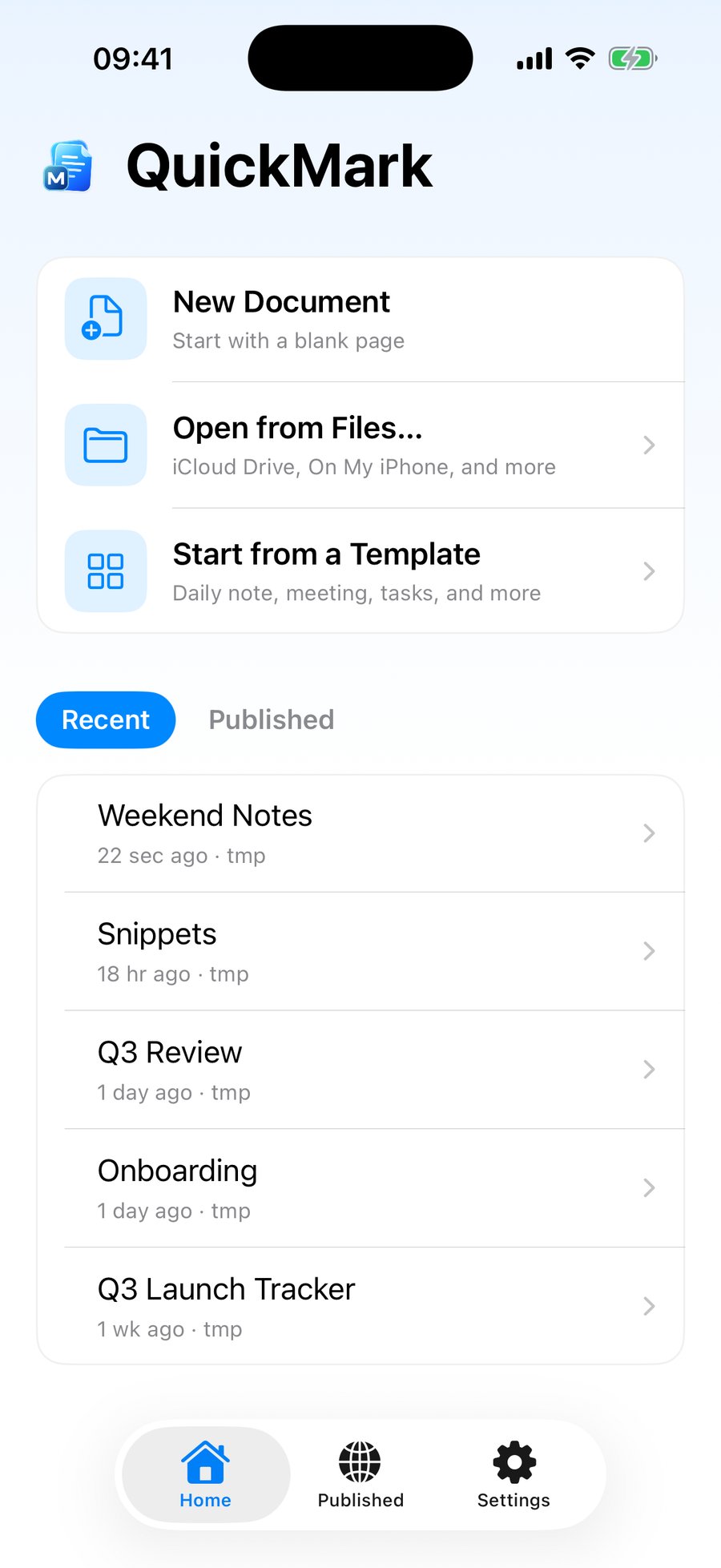
The picker accepts Markdown files and plain text files. In practice that covers .md, .markdown, .mdown, .mkd, .mkdn and .txt. If a file you want is greyed out in the picker, its extension is something else and renaming it to .md is the fix.
Everything you open lands in the Recent list below those three actions. The Home card shows the five most recent; "View More…" opens the full list, which keeps the last 30. Those entries are stored as security-scoped bookmarks, not paths, so they survive the file being renamed or moved. If a file is deleted, the row disappears the next time you return to Home rather than sitting there dead.
Option 2: open from the Files app
Find the file in Files, press and hold it, and the context menu includes Open With. Tap the chevron and QuickMark is there.
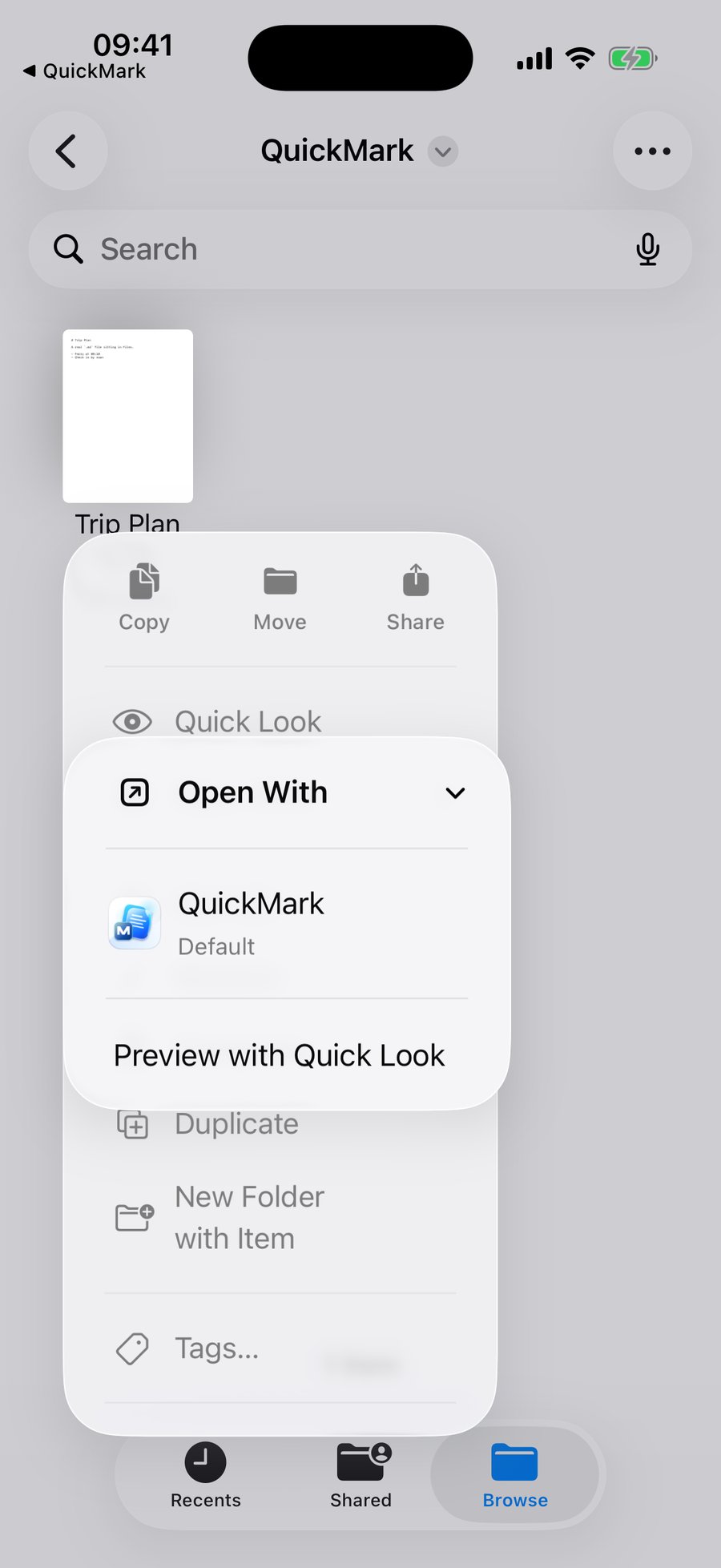
QuickMark registers itself as the owner of the Markdown file type, so on a device where it is the only Markdown app installed, iOS marks it Default and a plain tap opens it directly. That is what happened in the capture below: tapped the file in Files, and the document came up rendered, with a "◀ Files" chip in the corner to go back.
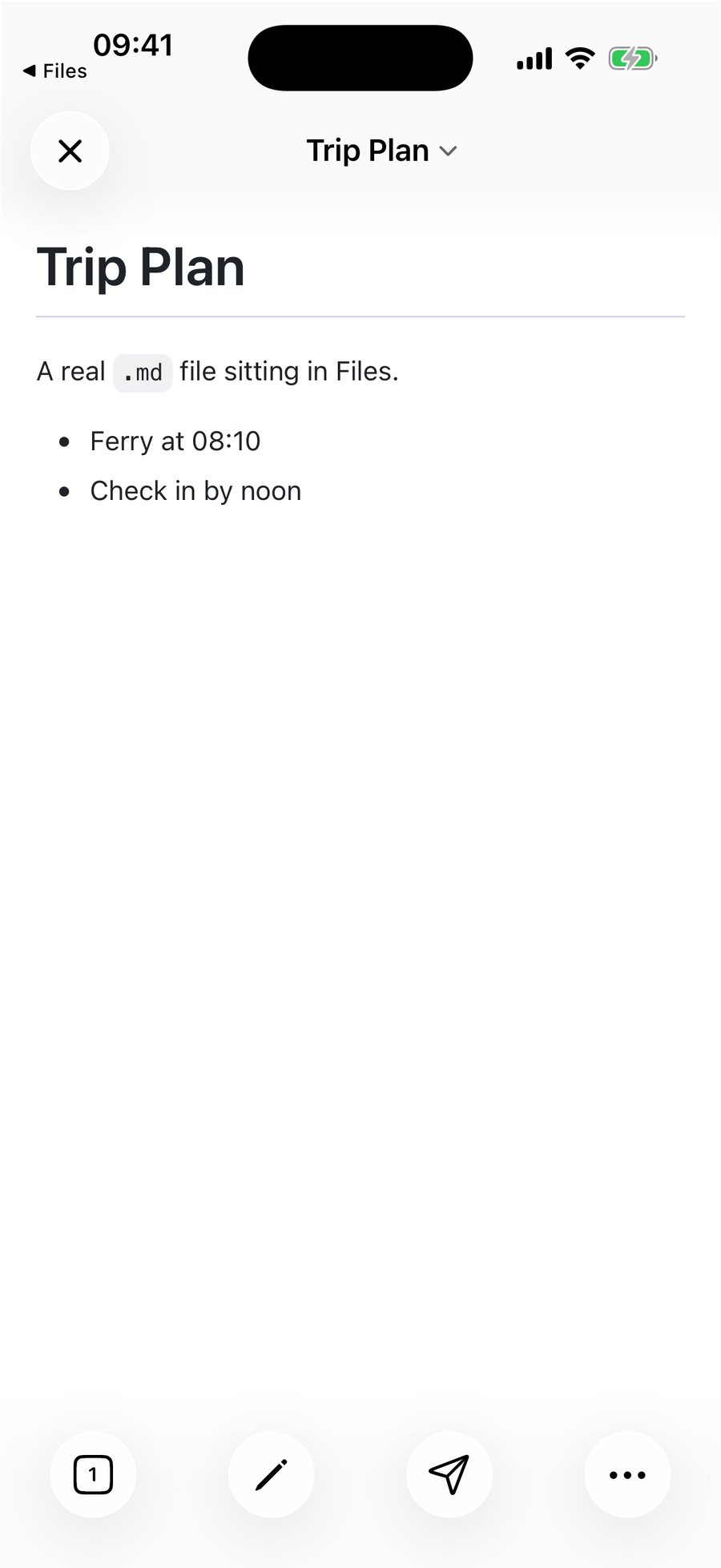
Be honest about the caveat: if you have several apps that claim .md, iOS decides which one wins, and you do not get a settings screen to override it the way macOS has "Always Open With". When a tap gives you the plain-text preview instead, long-press and use Open With. It takes one extra second and it always works.
The file stays where it is
QuickMark opens documents in place. There is no import step, no copy in an app-private folder, no second version of your file drifting out of sync. Open a note from iCloud Drive on your iPad, edit it, and the same file updates for every other device and app pointed at it. Edits are written back roughly half a second after you stop typing, so there is no Save button to remember.
This also means the Recent list is a list of files on your disk, not documents living inside the app. Deleting a file in Files really deletes it.
QuickMark gets its own folder in Files
If you would rather keep notes with the app instead of scattered across cloud folders, Files has a QuickMark folder under Browse → On My iPhone. Anything you save there behaves like any other file: you can move it, rename it, tag it, or copy it to iCloud Drive later.
Choose what a file opens into
By default a file you open comes up rendered, which is the right choice most of the time: you usually open a note to read it. If you mostly open files to edit them, change it in Settings → Preview → When opening a file.
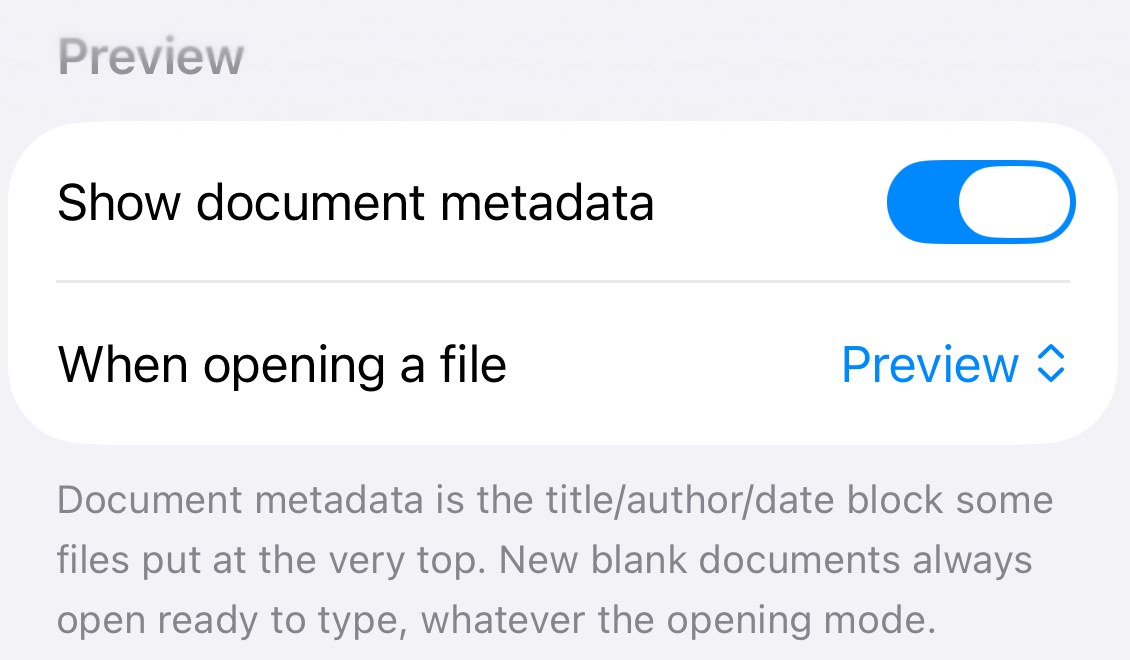
One exception, deliberately: a brand-new blank document always opens ready to type, whatever this setting says. Opening an empty page in read mode would be silly.
Getting text into a file in the first place
The share extension is called Save to QuickMark and it appears in the share sheet for selected text and web links. Share an article from Safari, or a passage you have selected in another app, and it becomes a .md file you save wherever you like. It is not a way to open an existing file. For that, use Open With.
Two things iPhone and iPad do not have
Worth saying plainly, since the Mac version is a different app in these respects.
There is no press-Space Quick Look preview on iOS. That is a Mac feature, covered in how to preview Markdown on Mac. And there is no folder browser: the Mac app can list every Markdown file sitting next to the one you have open, while on iPhone and iPad you go through the Files picker each time. The Recent list is what softens that.
Once the file is open
Everything a Markdown file can contain renders: tables, task lists, footnotes, math, Mermaid diagrams and fenced code with syntax highlighting. If you are still learning the syntax, the Markdown cheat sheet has every rule on one page, and there are focused guides for tables and code blocks. When you need the document out of Markdown and into something else, export to PDF works the same on iPhone as it does on the Mac.
Get rendered Markdown previews everywhere
QuickMark is a free, native Markdown app for Mac, iPhone and iPad. Live preview, export and publish built in.