
How to Publish a Markdown Doc as a Web Link
To turn a Markdown file into a web link, open it in QuickMark and press the paper-plane Publish button: on Mac it sits in the window toolbar, on iPhone in the bottom bar, on iPad in the top bar. You get a panel to set the title and look, then one tap produces a https://quickmarkmd.com/s/… address that anyone can open in a browser. No account, no export, no file to attach.
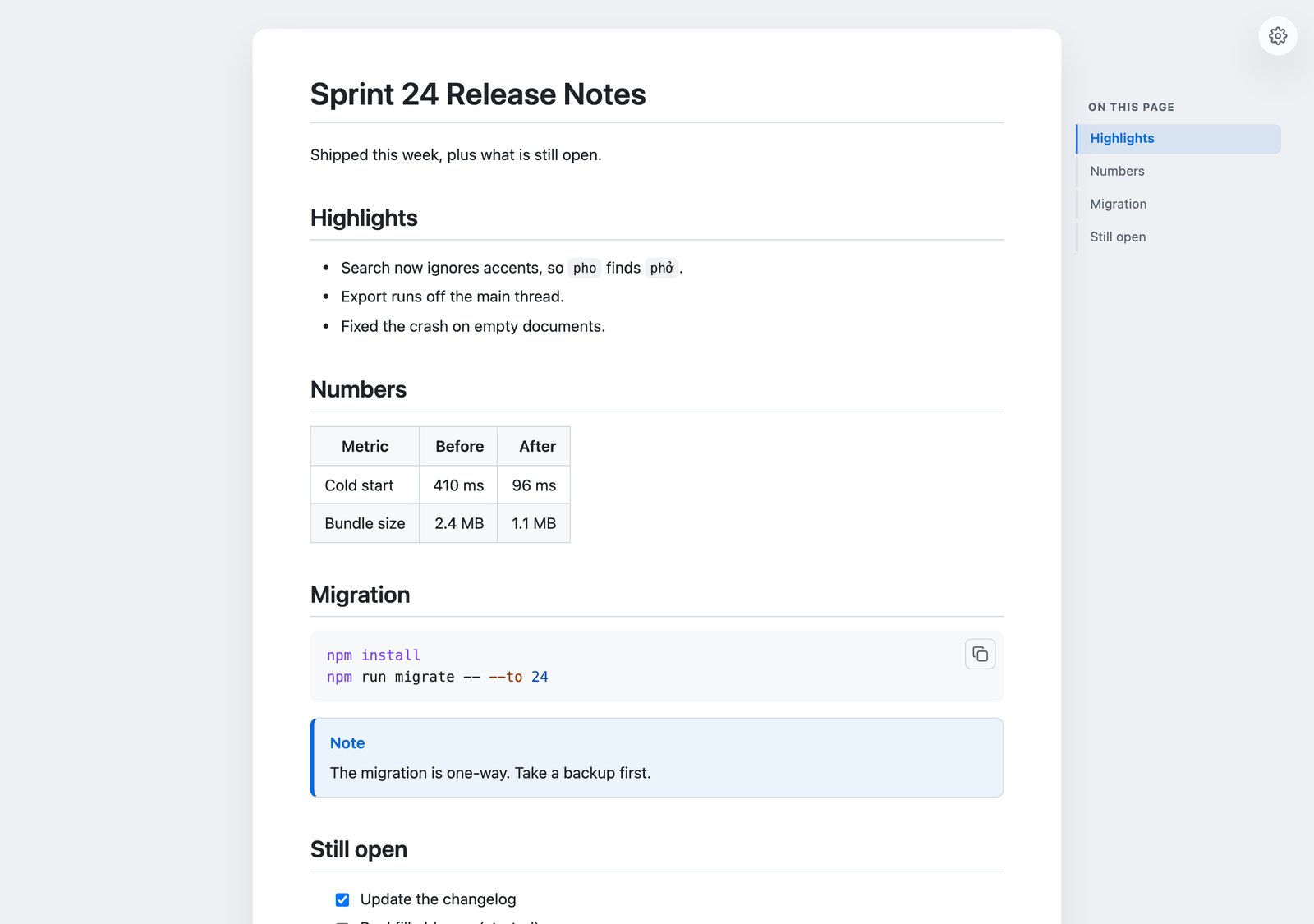
Why not just send the file?
Because the person on the other end usually cannot read it. A .md file lands in email as an attachment nobody wants to download, opens in Notepad as a wall of hashes and pipes, or gets silently mangled by a chat client. Your table becomes a row of vertical bars.
The other options are worse in their own way. Exporting a PDF freezes the document, so every fix means sending a new file. Pasting into a doc tool loses part of the formatting. A link stays a link: you edit, publish again, and the same address shows the new version.
What you choose before publishing
Publishing is not blind. The button opens a panel first, and the settings under Options are the ones that actually change what a reader sees.
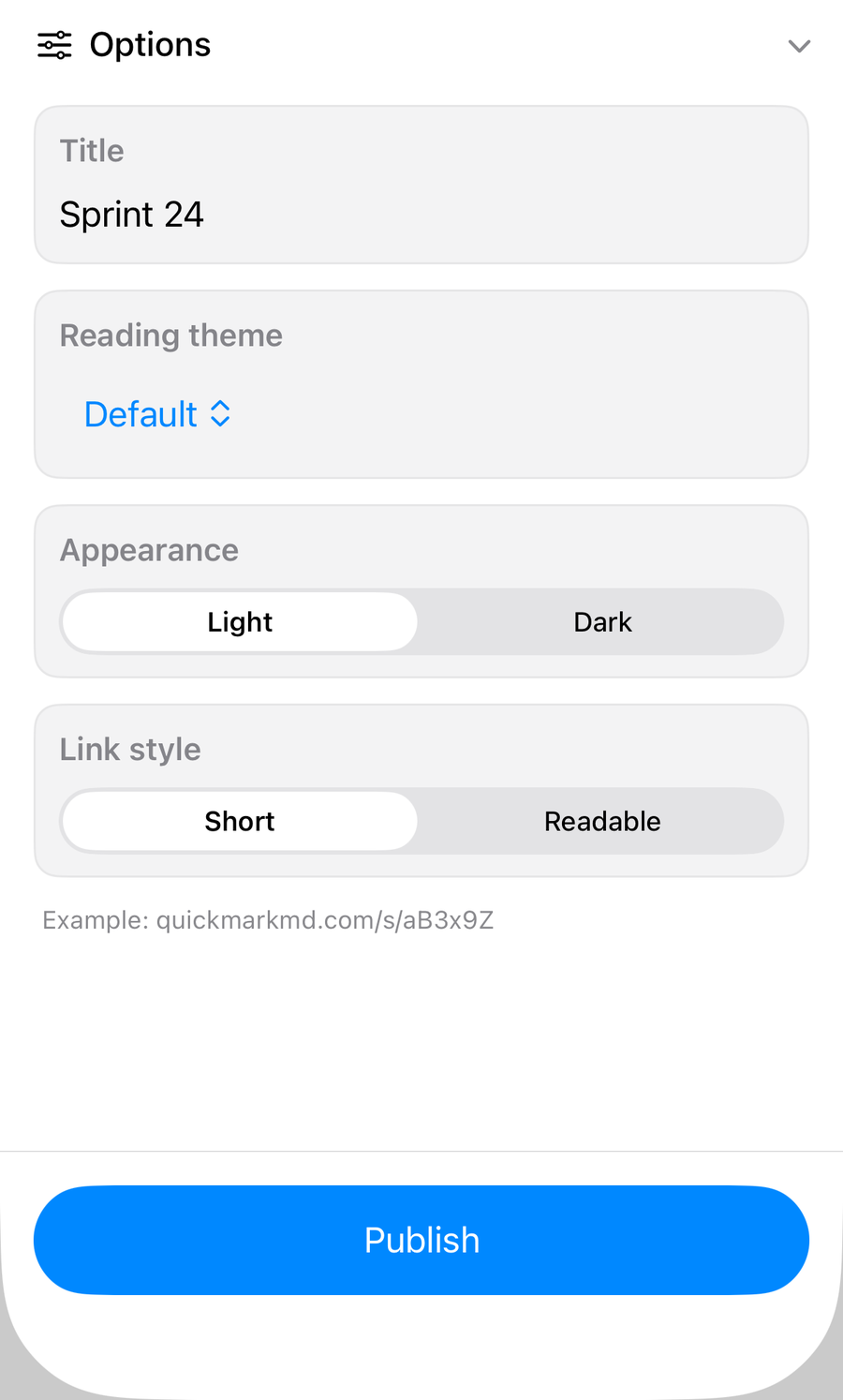
- Title. Prefilled from the first
#heading in your document. It becomes the browser tab title and the card title when the link is pasted into a chat app. - Reading theme. Default, Docs, Notion, Essay, Terminal or Minimal. The page is drawn by the same renderer the app uses, so what you saw in the preview pane is what gets served.
- Appearance. Light or dark, as the page's starting point.
- Link style. Short gives you something like
/s/aB3x9Z. Readable builds the address from the title and adds a random suffix, so my test document became/s/sprint-24-release-notes-QRzDy. The suffix is not decoration: it keeps links unguessable, which is why you cannot type your own custom slug.
Link style only applies to a brand-new page. Once a document has a link, that address is fixed.
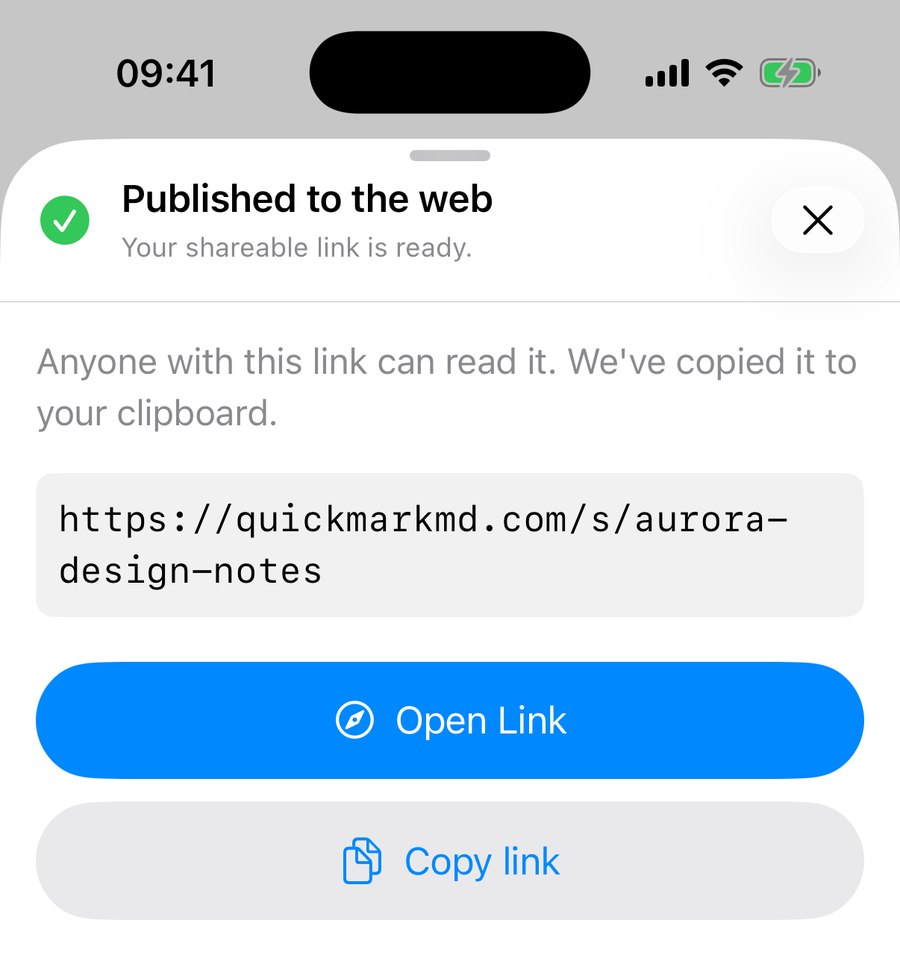
What the reader gets
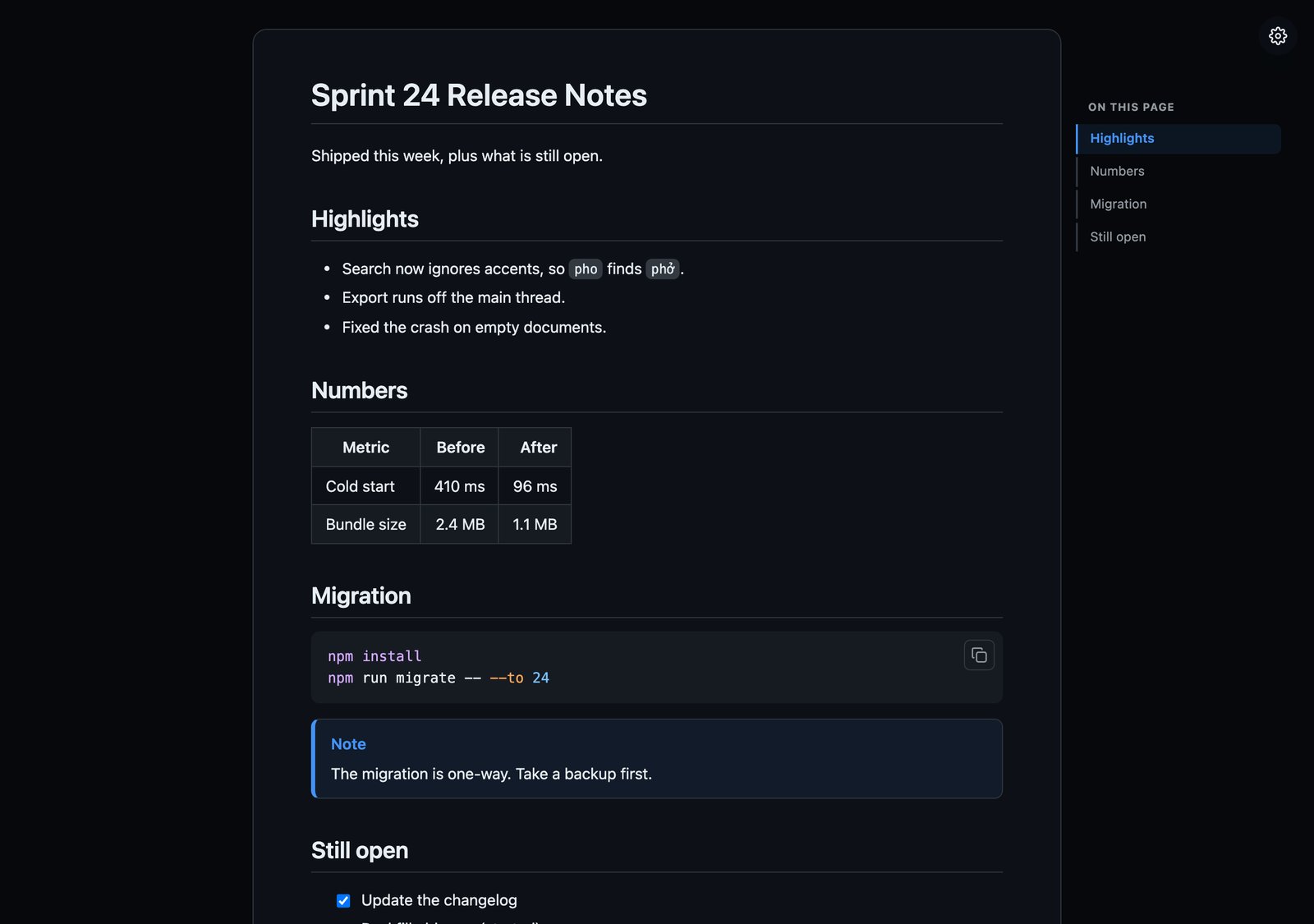
I measured the page above rather than describing it. The response is 40,762 bytes of HTML, of which the document body is 1,883 bytes. Almost everything else is the stylesheet, sent inline so the page paints in one round trip.
The whole document is in that HTML already, written by the server. Nothing is assembled by JavaScript, so the page reads fine with scripts blocked. In the body I could count one real <table>, coloured <span class="token …"> markup for the shell commands, and two task-list checkboxes with the tick state preserved. That last one is worth calling out: when you paste the same document into an email as rich text, checkbox state is the first thing to die.
The reader also gets controls of their own, behind the ⚙ button in the corner.
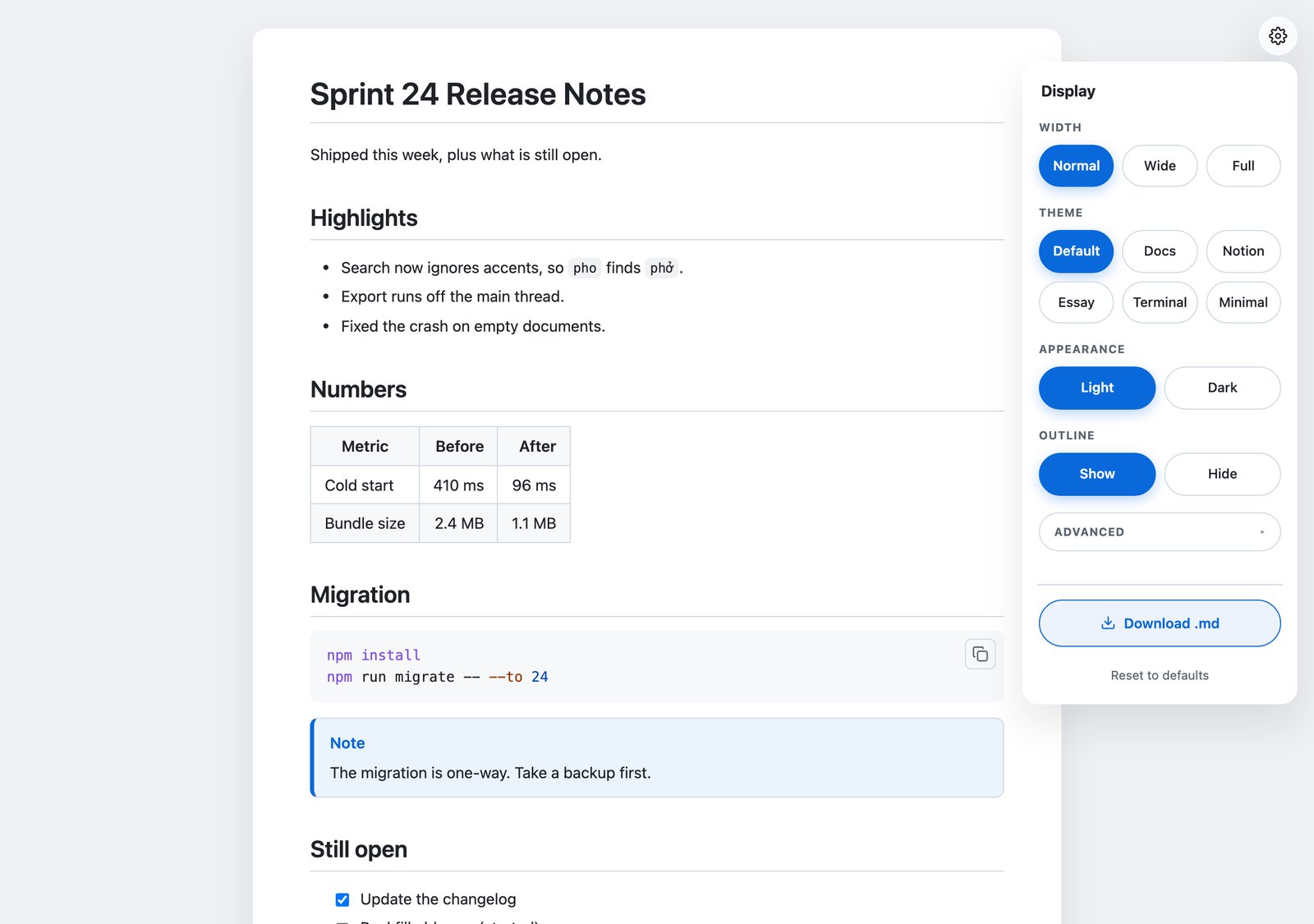
So the theme you picked is a starting point, not a lock. I clicked Dark on my own published page and the whole thing flipped, code colours included.
The raw file is a link too
Add .md to any published address and you get the Markdown source back with a text/markdown content type. My 542-byte source came back as 594 bytes. The extra 52 bytes are a small block the server writes into the file:
---
publishedId: sprint-24-release-notes-QRzDy
---
That marker is how the app recognises its own page later. It lives in the file, not in a database on one machine, so renaming the document, moving it to another folder or syncing it to a second device does not break the connection. QuickMark hides the marker in its own preview and on the published page, so readers never see it.
Editing after you publish
Publish the same document again and it updates in place. I verified this against the live service: the address came back identical after an edit, only the last-updated timestamp moved. Pages are served with a one-minute cache, so a change is live for everyone within about a minute.
Unpublishing is in the same panel, at the bottom, and takes the page down. To see everything you have live, Mac has Window ▸ Published Pages and iPhone and iPad have a Published tab on the home screen, both with open, copy and unpublish on each row. Links can expire; the panel states the terms before you publish and each row in that list carries its own countdown.
Who can see it, and who can change it
Be clear on this before you paste a link into a group chat: anyone holding the address can read the page. There is no password and no per-reader access list. The protection is that the address is unguessable, which is exactly why the app will not let you pick a tidy custom slug that someone else could try.
Search engines are handled, though. Every published page carries <meta name="robots" content="noindex">, and both the page and its raw .md are served with an x-robots-tag: noindex header. I checked the live response headers. Your meeting notes are not going to turn up in someone's Google results.
Changing a page is a different matter from reading it. Publishing is tied to your device, so I tested what happens when someone else tries. Sending an update for my page from a different device identity came back 403 not your document, a request with no app credentials came back 401, and a near-miss guess at the address returned a plain 404. If you sign in, the same pages become manageable from any of your devices instead of only the one that published them.
Where it falls short
Three honest limits, because they will bite someone.
- Local images do not travel. An image referenced by a path on your own disk has nothing to point at once the document is on the web. Use an image that already has a URL.
- The page is not a standalone file. Unlike the HTML export, which packs everything into one file you can email, a published page fetches its maths stylesheet and its small viewer script from quickmarkmd.com. That is what pays for the reader controls and the outline. If you need something that works from a USB stick, export HTML instead.
- No password, and no editing by the reader. It is a published document, not a shared workspace. People read; you edit.
When to reach for it
Release notes for a small team. A meeting agenda you will amend twice before the meeting. A README for something not on GitHub yet. Anything where the answer to "can you send it over?" should be a link rather than a file that starts a version-numbering problem.
If the file is not on your computer yet, opening a .md file on iPhone or iPad is the step before this one.
Get rendered Markdown previews everywhere
QuickMark is a free, native Markdown app for Mac, iPhone and iPad. Live preview, export and publish built in.