
How to Create Diagrams with Mermaid in Markdown
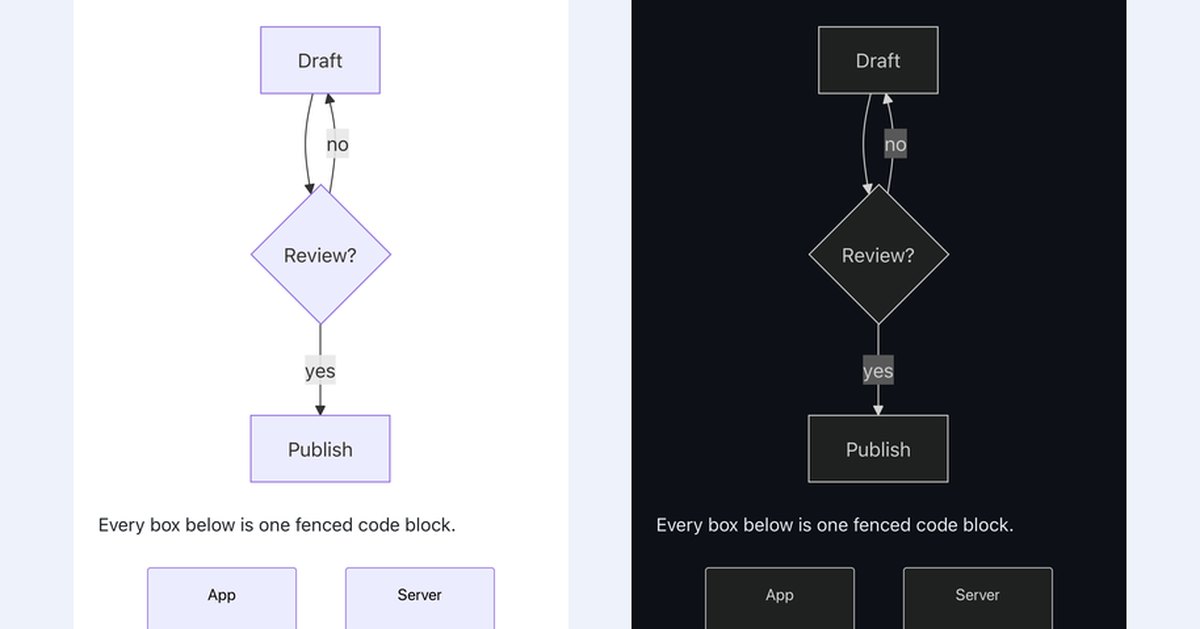
Open a fenced code block, write mermaid as the language, put the diagram description inside, and the preview draws it. That is the whole feature. No plugin to install, no menu item, no export step, no round trip to a drawing app.
```mermaid
flowchart TD
  A[Draft] --> B{Review?}
  B -->|yes| C[Publish]
  B -->|no| A
```A drawn flowchart: a box labelled Draft, an arrow down into a diamond labelled Review?, then two labelled branches, one to a Publish box and one looping back to Draft.
The source stays plain text in your .md file, so it diffs, greps and merges like any other paragraph. The picture is generated on the way to the screen. Everything below was measured against the renderer QuickMark actually ships, not recalled from documentation. The engine is Mermaid 11.14.0.
Getting the fence right
The word after the backticks has to be exactly mermaid. I ran the variants through the renderer to see which ones are accepted:
| Opening fence | Result |
|---|---|
```mermaid | Diagram |
```Mermaid / ```MERMAID | Diagram, case does not matter |
``` mermaid | Diagram, spaces are trimmed |
~~~mermaid | Diagram, tilde fences work too |
````mermaid | Diagram, longer fences work too |
```mermaid theme=dark | Code block, not a diagram |
That last row is the one that catches people. Anything after the word turns the fence back into an ordinary highlighted code block, silently. If you want to change the theme or the layout engine, the settings go inside the fence as an init directive on the first line, and that does work:
```mermaid
%%{init: {'theme':'forest'}}%%
flowchart LR
  A --> B
```
Diagrams also render where you would expect them to nest: inside a list item and inside a blockquote, as long as the fence is indented with the block it belongs to. And the keyword is the same one GitHub uses, so a file that draws here draws in a repository README too.
What you can draw
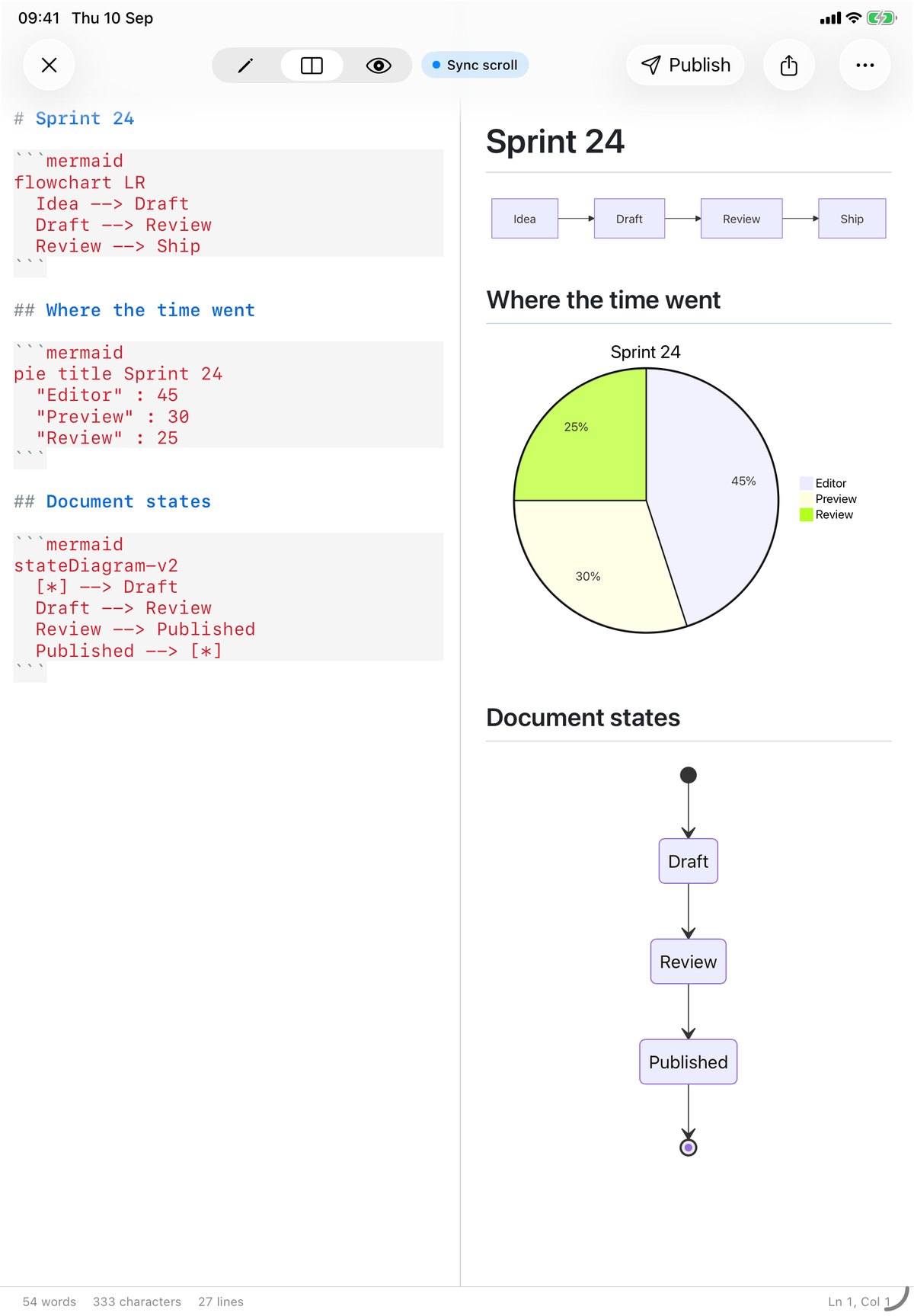
I ran one small example of every diagram type Mermaid 11 advertises through the shipped renderer and recorded which ones came back as a drawing. Twenty-three did:
- The everyday four:
flowchart(and the oldergraphkeyword),sequenceDiagram,classDiagram,stateDiagram-v2. - Planning and data:
gantt,pie,timeline,journey,quadrantChart,xychart-beta,sankey-beta,radar-beta,treemap-beta,kanban. - Software and systems:
erDiagram,gitGraph,C4Context,requirementDiagram,architecture-beta,block-beta,packet-beta,mindmap.
One did not: zenuml comes back as a render error, because it lives in a separate Mermaid package that is not bundled. That is the only gap I found in the list.
A few smaller things I checked while I was in there. %% comments are stripped as they should be. Subgraphs work. Labels take Markdown inside backticks, so A["`**bold** label`"] renders bold. Non-ASCII labels are fine: a box labelled Ghi chú and a box labelled 日本語 both drew correctly, which is not something to take for granted with a layout engine measuring text.
When the syntax is wrong
A broken diagram does not take the page down with it. The block is replaced in place by the parser's own complaint, with the line number, and the rest of the document renders normally around it. A flowchart with a dangling arrow reports a parse error on line 3; a fence that opens with a word Mermaid does not recognise reports that no diagram type matched. You fix the line and the picture comes back on the next keystroke.
An empty flowchart TD with no nodes is not an error, incidentally. It draws an empty canvas.
It only costs you when you use it
Mermaid is a large library, and a Markdown app that loaded it on every document would feel slow opening a shopping list. QuickMark imports it lazily: the code is fetched the first time a document actually contains a mermaid block, and never otherwise.
The split goes further than that. In the shipped bundle the Mermaid core is one 601 KB chunk and each diagram type is its own file beside it, twenty-nine of them. Drawing a flowchart pulls the 60 KB flowchart chunk; the 149 KB architecture chunk stays on disk unless you draw an architecture diagram. A note with no diagram in it pays none of this.
The same bundle ships everywhere, so diagrams draw in the same five places the rest of the renderer does: the Mac app, the Quick Look preview on Mac, the iPhone and iPad app, a document you publish as a web link, and the free paste-and-preview page on this site.
Diagrams and the theme
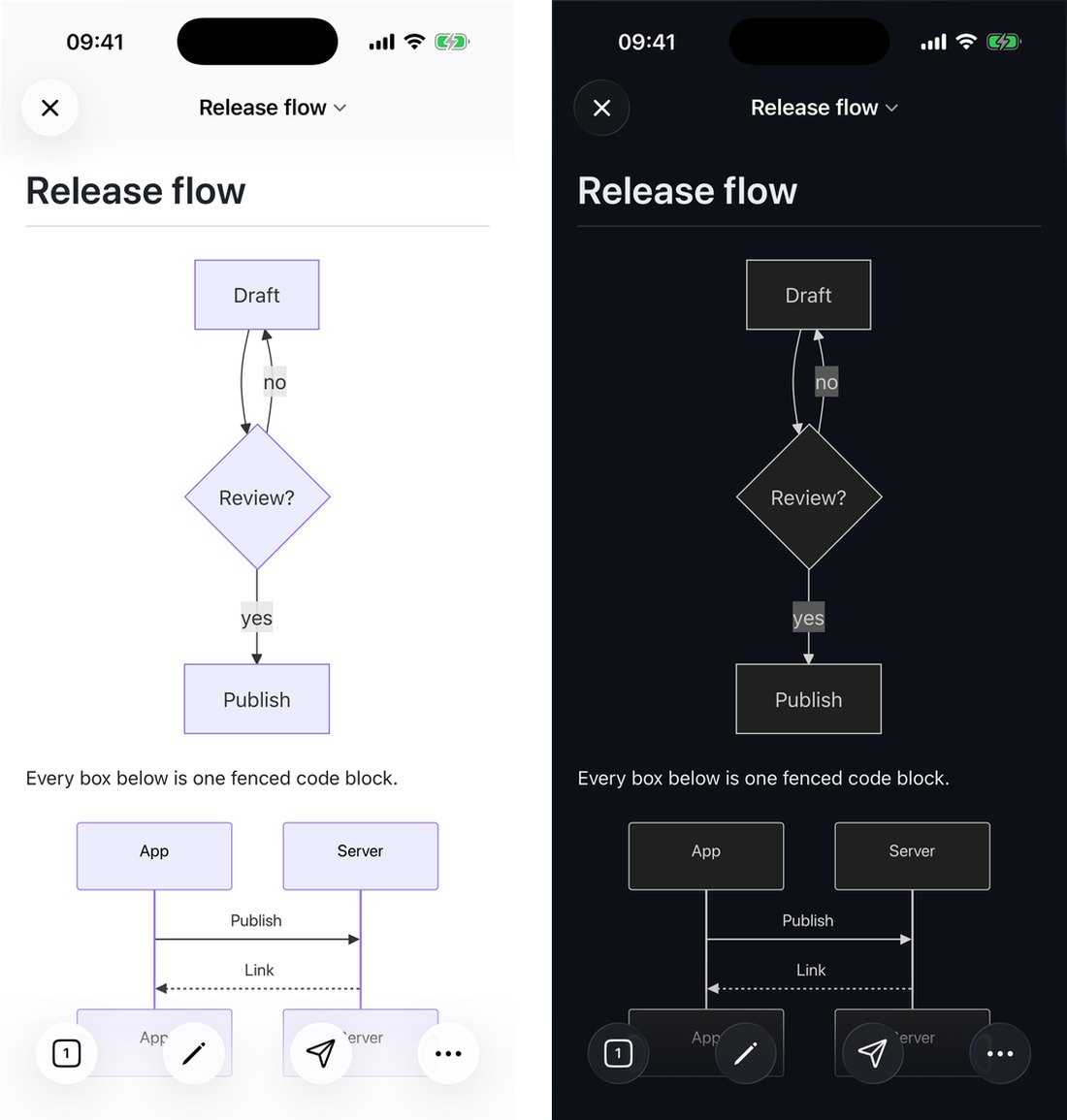
This is worth a paragraph because of how Mermaid works. It does not colour a diagram with CSS variables that can be flipped afterwards; it writes concrete colours into the picture as it draws. So when the app changes theme it re-initialises Mermaid and draws the diagram again from your source. The dark version is a genuinely different picture, with its own contrast decisions, not the light one with a filter over it.
The practical consequence is small but real: a diagram that looks right in one theme is worth a glance in the other, because you are looking at two separate renderings. The six reading themes sit on top of that and change the prose around the diagram.
What happens when the document leaves the app
Diagrams behave differently in each export format, and the differences are worth knowing before you send something to somebody.
PDF keeps the diagram as a drawing. The export prints the rendered page, so the flowchart lands as vector shapes and real text on the page, sharp at any zoom, not a screenshot of one. A one-page note with a flowchart in it came out at 12,877 bytes.
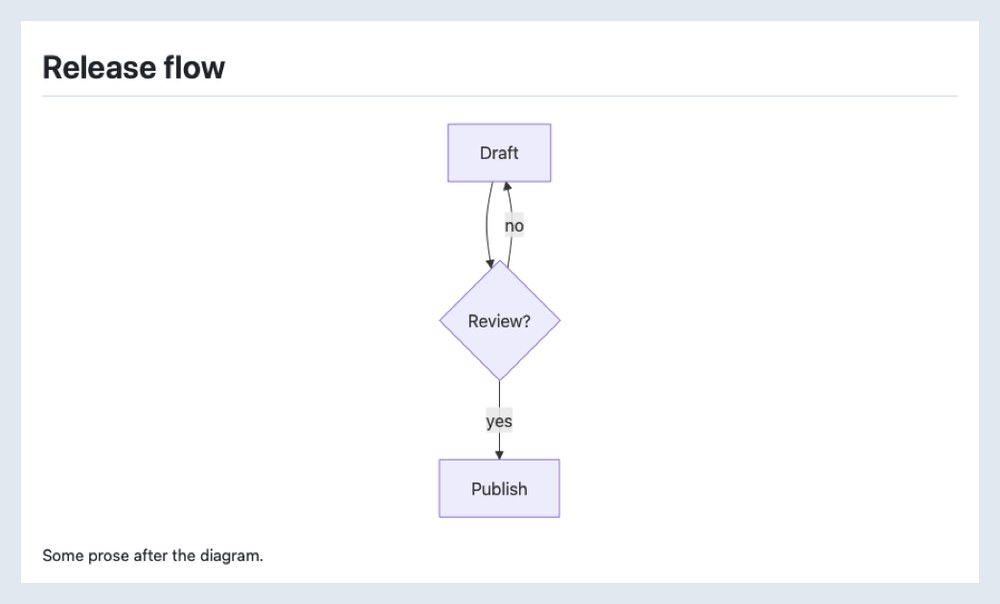
HTML embeds the diagram directly in the file as inline SVG. I exported the note above and read the result: the diagram is 13,562 bytes of SVG sitting in the page, the file contains zero <script> tags, and the SVG references nothing outside itself. Open that file on a machine with no internet and the flowchart is still there. The whole export was 66,623 bytes against 46,698 for the same note with the diagram taken out, so the picture cost about 20 KB. See the HTML export post for what else is in that file.
Word is the one to think about. A .docx has no way to hold a Mermaid diagram, so the export rasterises what the preview drew, at double resolution, and places it as a centred picture. It looks right and it prints right. It is a picture, though, so nobody on the other end can edit the boxes, and your source is not in the file. If they need to change the diagram, send them the .md.
Published web links draw the diagram in the reader's browser, the same way the app does. The rest of a published page is rendered on the server and reads fine with JavaScript switched off, but a diagram is the exception: with scripts blocked, a visitor sees the diagram source in a code block instead of the picture. In an ordinary browser it just draws.
A note on the source you paste in
Mermaid can attach links and click handlers to nodes. In your own documents QuickMark allows that, because it is your file and you wrote it. The preview page on this site is different: anyone can paste anything into it, so it runs Mermaid in its strict mode, which sanitises the generated drawing and turns off click handlers. Same diagrams, narrower permissions, because the source is not yours.
Worth knowing
- There is no insert-diagram button and no diagram editor. You type the fence. If that is a dealbreaker, it is better to know now than after installing.
- The keyword must stand alone on the fence line.
```mermaid theme=darkis a code block. zenumlis the one advertised diagram type that is not available.- Word export turns the diagram into a picture. Every other format keeps it as a drawing or as source.
- Copy-on-hover skips diagram blocks deliberately, so hovering a picture does not offer to copy it as text.
The reason to write diagrams this way is not that the syntax is elegant, because it is not, particularly. It is that the diagram lives in the document. It travels with the text, it survives a rename, it shows up in a diff when somebody changes an arrow, and it is still there in six months when the drawing app you would otherwise have used has changed its file format.
Get rendered Markdown previews everywhere
QuickMark is a free, native Markdown app for Mac, iPhone and iPad. Live preview, export and publish built in.