
How to Open .md Files in Google Drive
Google Drive cannot render a Markdown file. Double-click a .md and you get the raw text: pound signs where the headings should be, pipes and dashes where the table should be, backticks around the code. To read the file the way it was written, right-click it, choose Open with, and pick QuickMark. The file opens in a new tab, rendered, in about a second. The first time you do this you connect QuickMark to Drive once; after that it is a permanent entry in the menu.
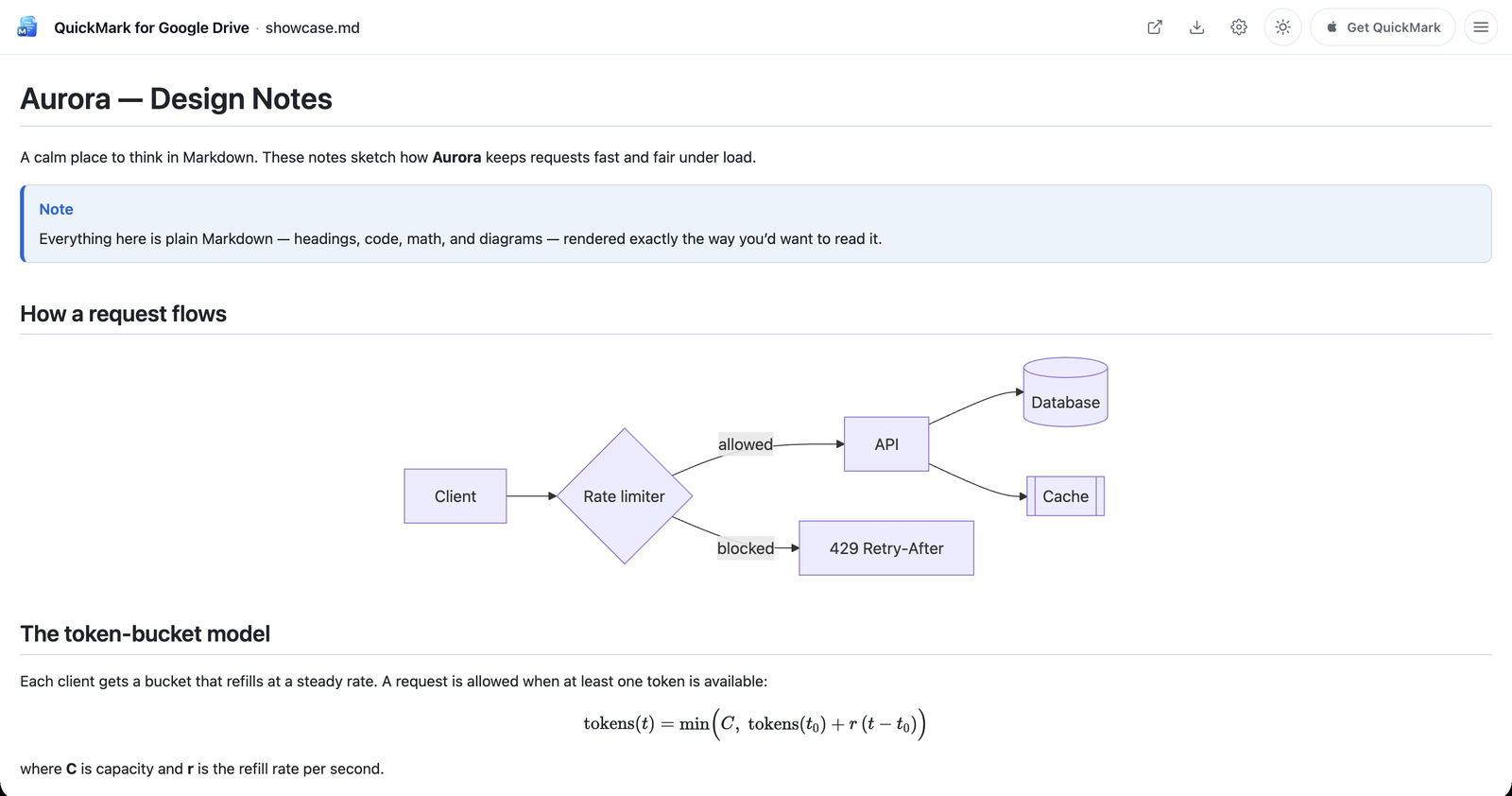
.md file Drive shows as plain text, opened with QuickMark: headings, a callout, a Mermaid flowchart, a formula and a table, all rendered.Why Drive shows you raw text
Drive knows how to preview its own formats and a handful of common ones: PDFs, images, Office files, video. Markdown is not on that list. A .md file is stored as plain text, so the built-in preview does the only thing it can do with plain text and prints it. There is no setting to change this. What Drive does offer is a hook for other apps: the Open with menu, where anything you have connected can register itself for a file type. That is where QuickMark plugs in.
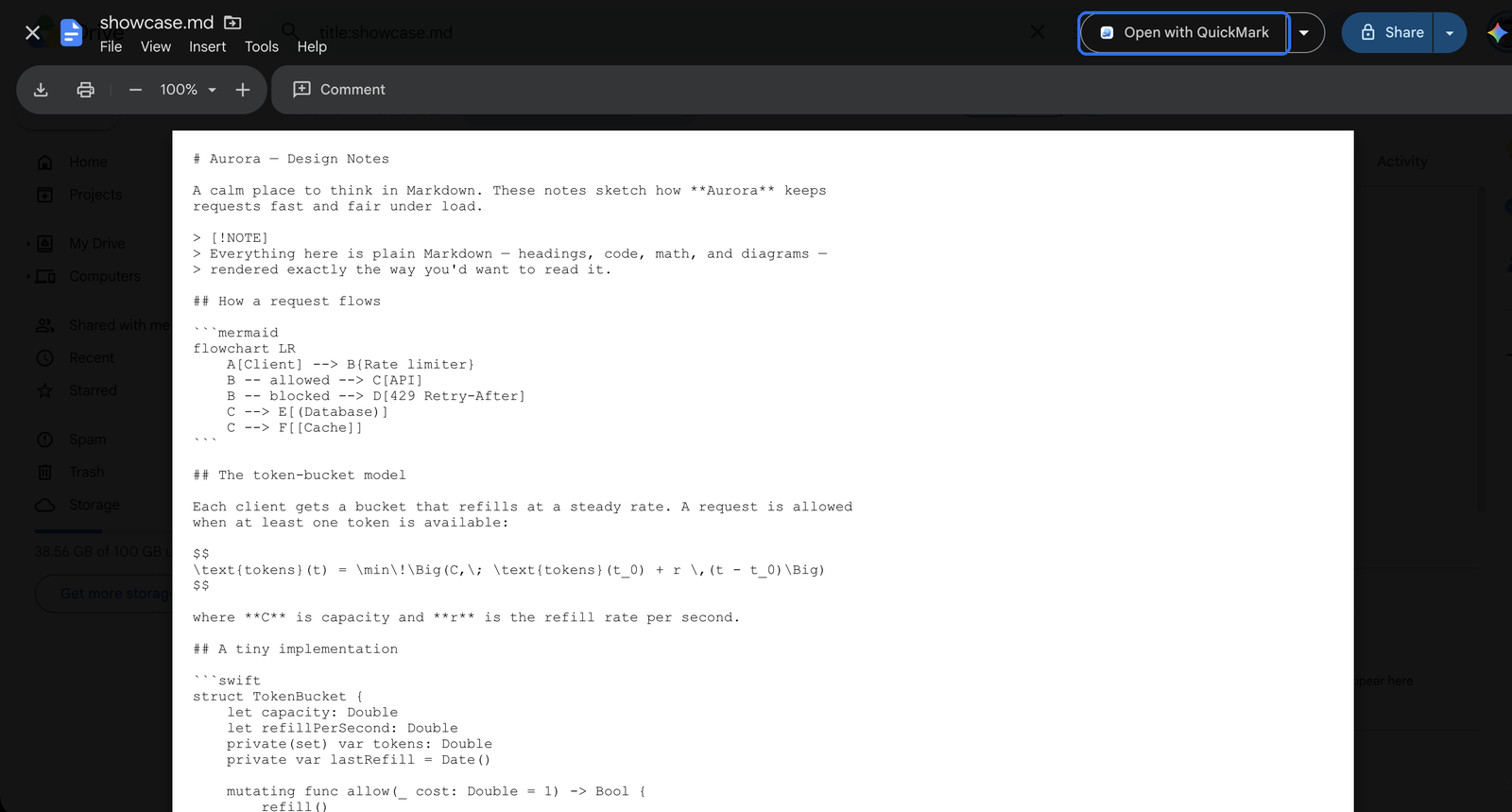
#, | and backtick is still there.Connect QuickMark to Drive (one time)
Go to quickmarkmd.com/drive and click Connect Google Drive. Google asks you to allow two things: to let QuickMark see files you open with it, and to add QuickMark to Drive. Approve, and you are done. If you already had Drive open in another tab, reload it once so the menu picks up the new entry.
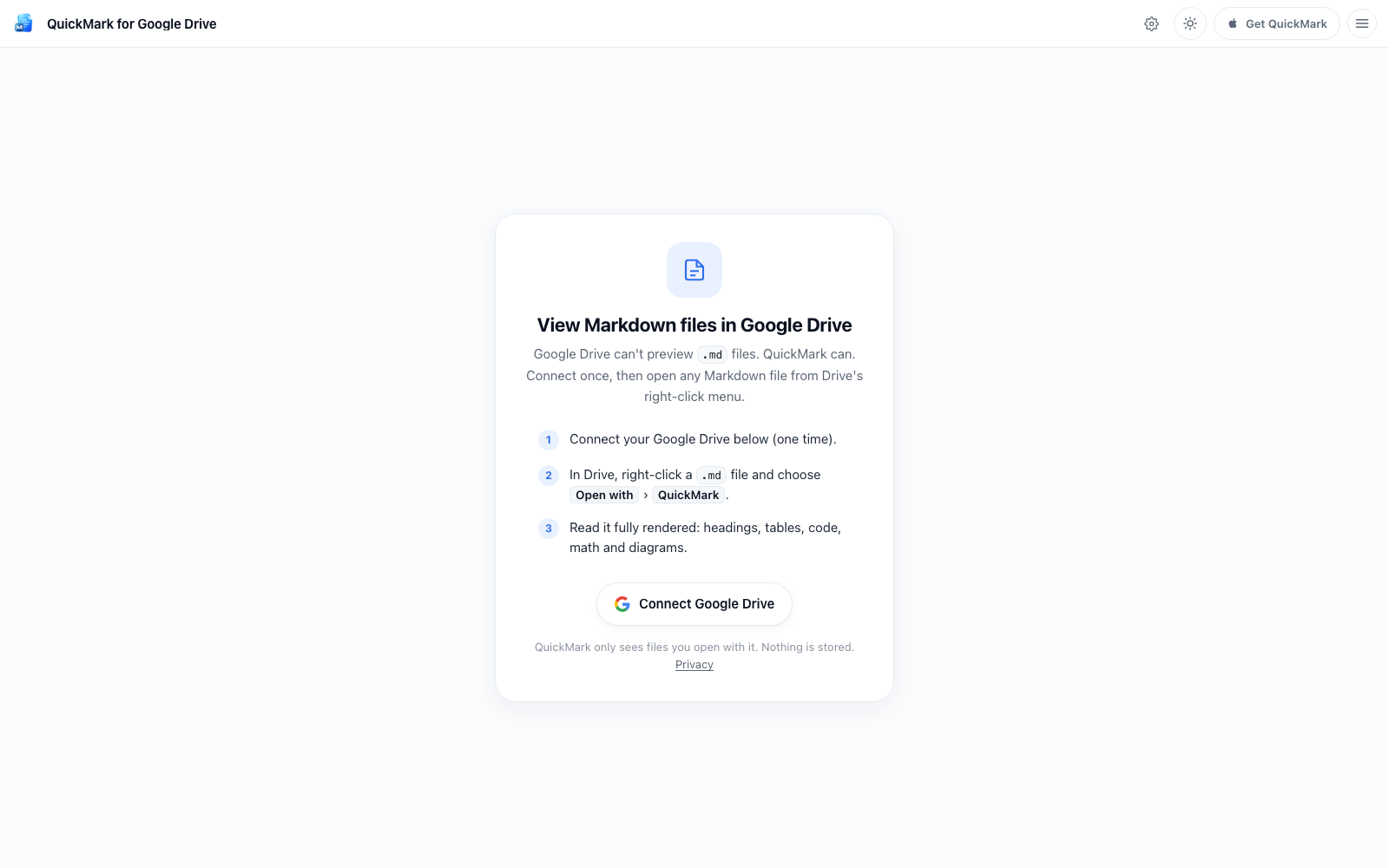
The permission QuickMark asks for is the narrowest one Drive has. It covers only the files you choose to open with QuickMark, not your Drive as a whole, not folders, not other files. You can revoke it any time from your Google account permissions.
Open a Markdown file
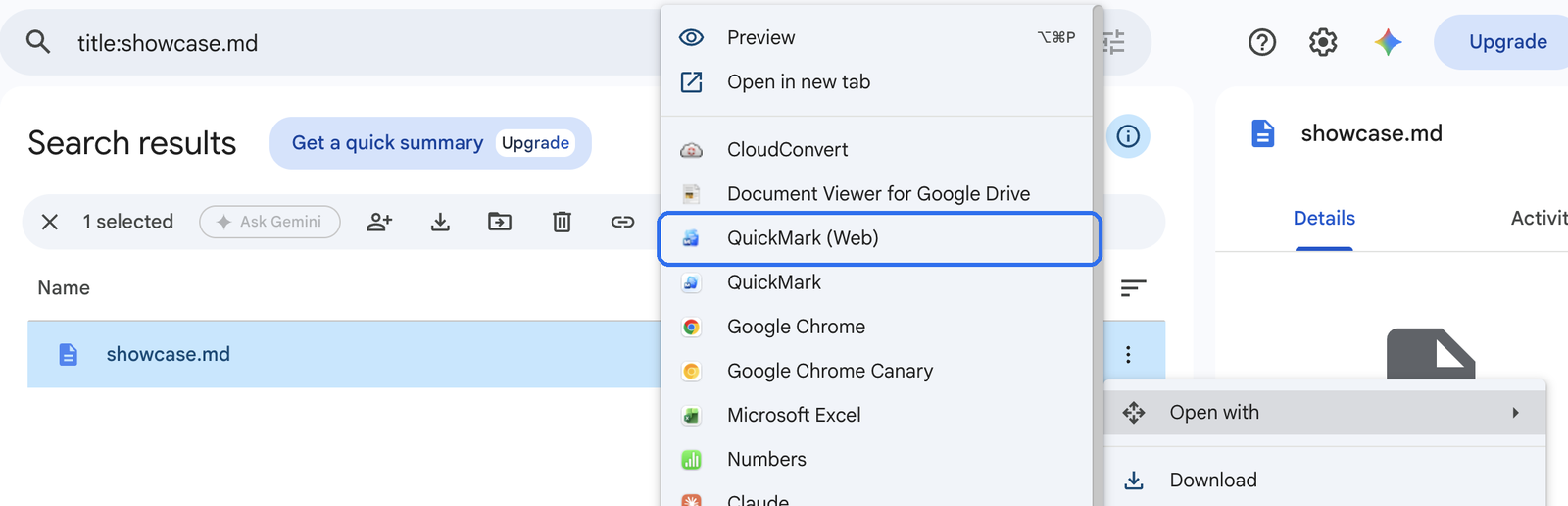
In Drive, right-click the .md file, hover Open with, and choose QuickMark (Web). The same menu is behind the three-dot button at the end of the file's row, and on the toolbar when a file is selected.
The file opens in a new tab. QuickMark fetches it straight from Drive into your browser and renders it there. Nothing is copied to a server, nothing is stored, and the file in Drive is untouched. This is a viewer, not an editor, so there is no way to change the file from this tab. That is deliberate: it means opening a file can never save something back by accident.
What renders
Everything the QuickMark apps render, because it is the same engine: GitHub-flavored Markdown with headings, lists, task lists, blockquotes and footnotes; tables; fenced code with syntax highlighting for over 30 languages; math written in LaTeX; Mermaid diagrams; callouts. Relative images inside the file are the one thing that does not resolve, since the viewer only has access to the one file you opened, not the folder around it. Images with full https:// URLs load normally.
If you are new to the syntax, the Markdown cheat sheet covers every rule on one page, and there are focused guides for tables, code blocks and Mermaid diagrams.
Reading options and download
The gear icon in the top bar switches light or dark appearance, one of six reading themes, and the code color theme. The choices are remembered in your browser. The download icon saves the original .md to your computer, and the arrow icon jumps back to the file in Drive. The viewer works in a phone browser as well, so a Markdown file shared to you on Drive is readable from the Drive app on iPhone or Android by opening it in the browser.
Shared drives and files shared with you
Open with works the same on files in shared drives and on files someone shared with you, as long as your account can view them. If Drive says you do not have access, QuickMark cannot see the file either; ask the owner for view permission and try again.
If you also use the Mac or iPhone app
Drive for desktop syncs your files into Finder, and there the Mac app takes over: press Space on any .md for a rendered Quick Look, or open it in QuickMark to edit. The guide to previewing Markdown on Mac walks through that. On iPhone and iPad, the Drive app's Open in hands the file to QuickMark for editing; see how to open .md files on iPhone and iPad. The web viewer is for the moment when you are in Drive in a browser and just need to read.
Get rendered Markdown previews everywhere
QuickMark is a free, native Markdown app for Mac, iPhone and iPad. Live preview, export and publish built in.