
Blockquotes and Callouts in Markdown
A blockquote is a line that starts with >. A callout is a blockquote whose first line is a type in square brackets with an exclamation mark, like > [!NOTE]. That is the whole syntax. What follows is the part the one-line answer leaves out: which small spacing mistakes turn a callout back into a grey quote, which of the 27 type names get a colour, how GitHub and Obsidian differ from each other on the same syntax, and what a callout still looks like after you export the file.
![QuickMark on iPad in split view. Left: Markdown source with a plain blockquote, a nested quote, and callouts marked [!NOTE], [!TIP] Custom title and [!WARNING]. Right: the rendered page with a grey quote bar, a blue Note box, a green box titled Custom title and an amber Warning box containing a bullet list](/blog/img/markdown-blockquotes-callouts/hero.jpg)
Plain blockquotes
Put > and a space in front of a line. Put another > in front of that to nest one quote inside another.
> A plain blockquote.
>
> > A quote inside a quote.A plain blockquote.
A quote inside a quote.
The empty > line in the middle matters, and it is the first of several rules that are easier to see than to describe. I ran each of these through QuickMark's own renderer before writing them down:
| You write | You get |
|---|---|
> one>> two | One quote holding two paragraphs. |
> one> two | Two separate quotes. A truly blank line ends a quote. |
> onetwo | One quote reading "one two". The second line has no > but still joins the quote. |
>no space | Still a quote. The space after > is optional. |
> quote | A code block showing a literal >. Four spaces of indent win over the quote marker. |
The third row catches people most often. Markdown lets a line with no marker carry on the paragraph above it, so a sentence you meant to write after the quote ends up inside it. If a quote is swallowing the next line, the fix is a blank line after the quote, not more > characters.
Anything that works in a document works inside a quote as well: headings, lists, code blocks with syntax highlighting, even another callout.
Callouts: one line turns a quote into a box
Write the type on the first line of the quote, in square brackets with an exclamation mark. Anything after it on the same line becomes the title. Leave it off and the type name is the title.
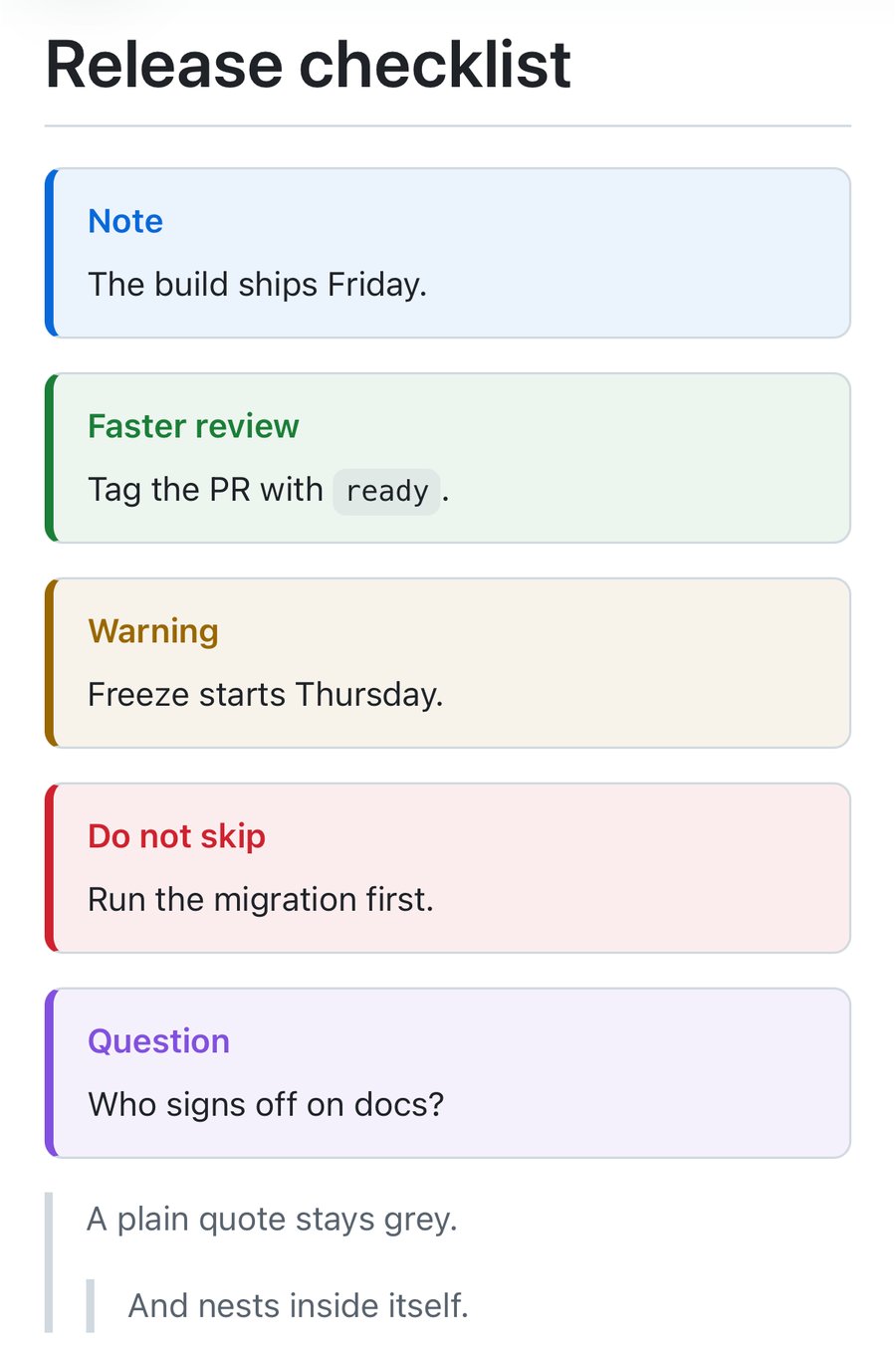
> [!NOTE]
> The build ships Friday.

> [!TIP] Faster review
> Tag the PR with `ready`.Note
The build ships Friday.
Faster review
Tag the PR withready.
The type is not case-sensitive, so [!note] and [!NOTE] are the same thing. A title can be the whole callout, too: > [!WARNING] Heads up on its own renders a box with just that heading and no empty paragraph under it.
The five mistakes that silently undo a callout
None of these show an error. The callout just renders as an ordinary grey quote with the bracket text printed in it, which is easy to miss in a long file.
| You write | Callout? | Why |
|---|---|---|
> [!NOTE]Title | No | The title needs a space before it. |
> [! NOTE] | No | No space is allowed inside the brackets. |
> Hello> [!NOTE] | No | The marker only counts on the first line of the quote. |
> [!1st] | No | A type has to start with a letter. |
> [!NOTE] | No | Four spaces of indent make it a code block, as with plain quotes. |
>[!NOTE] | Yes | No space after > is fine. |
> [!my-type] | Yes | Letters, digits, hyphens and underscores are all allowed after the first letter. |
Which types get which colour
QuickMark knows 27 type names, exactly the list Obsidian documents: 13 types plus their aliases. They fall into five colour families. A few names only get a special title and stay grey, and so does any type the app has never heard of.
| Colour | Types |
|---|---|
| Blue | note, info, todo |
| Green | tip, hint, success, check, done |
| Amber | warning, caution, attention, important |
| Red | danger, error, bug, failure, fail, missing |
| Purple | question, help, faq, example |
| Grey | abstract, summary, tldr, quote, cite, and any unknown type |
Default titles are mostly the type name with a capital letter, with a few exceptions worth knowing: tldr shows as "TL;DR", todo as "To-do", hint as "Tip", check as "Success", cite as "Quote". An unknown type keeps its own name, so [!RECIPE] becomes a grey box titled "Recipe". The iPad screenshot below shows one.
Each family has its own shade in dark mode, and the reading themes restyle callouts to match (the Docs theme turns them into rounded cards, for example). More on that in the reading themes post.
GitHub, Obsidian and QuickMark read the same line differently
The > [!TYPE] syntax started in Obsidian, and GitHub later adopted a narrower version of it that it calls alerts. A file that looks right in one place can look different in another, so here is what each one's own documentation says, next to what I measured in QuickMark.
| GitHub | Obsidian | QuickMark | |
|---|---|---|---|
| Types | 5 | 13 + aliases | 27 names, 5 colours |
| Custom title | Not listed | Yes | Yes |
| Nesting | No | Yes | Yes |
| Folding | Not listed | Yes | Always open |
| Icons | Yes | Yes | No |
| Unknown type | Not listed | Looks like note | Grey |
GitHub's five are NOTE, TIP, IMPORTANT, WARNING and CAUTION, and its docs say alerts "cannot be nested within other elements". "Not listed" means their documentation does not mention it, not that it is proven absent. In QuickMark a callout nests inside another callout and inside a list item, and an unknown type is grey and titled with its own name.
Two differences are worth spelling out because they are not bugs, just different choices.
Folding. Obsidian really collapses a [!TIP]- callout until you click it. QuickMark reads the - and + so they never leak into the title, but it renders every callout expanded. If you rely on folded callouts to hide long content, Obsidian does that job better today. The upside is that nothing is ever hidden in a PDF or a printed page.
Colours. Obsidian treats important as another name for tip, so it gets the tip colour there. QuickMark groups important with the amber warnings instead, so the same line is amber here. The text in your file is the same either way; only the tint changes, so a GitHub README still looks like GitHub on GitHub.
If your notes live in an Obsidian vault, callouts are one of the things that carry over cleanly when you open the same files in QuickMark. The wider comparison is in QuickMark vs Obsidian.
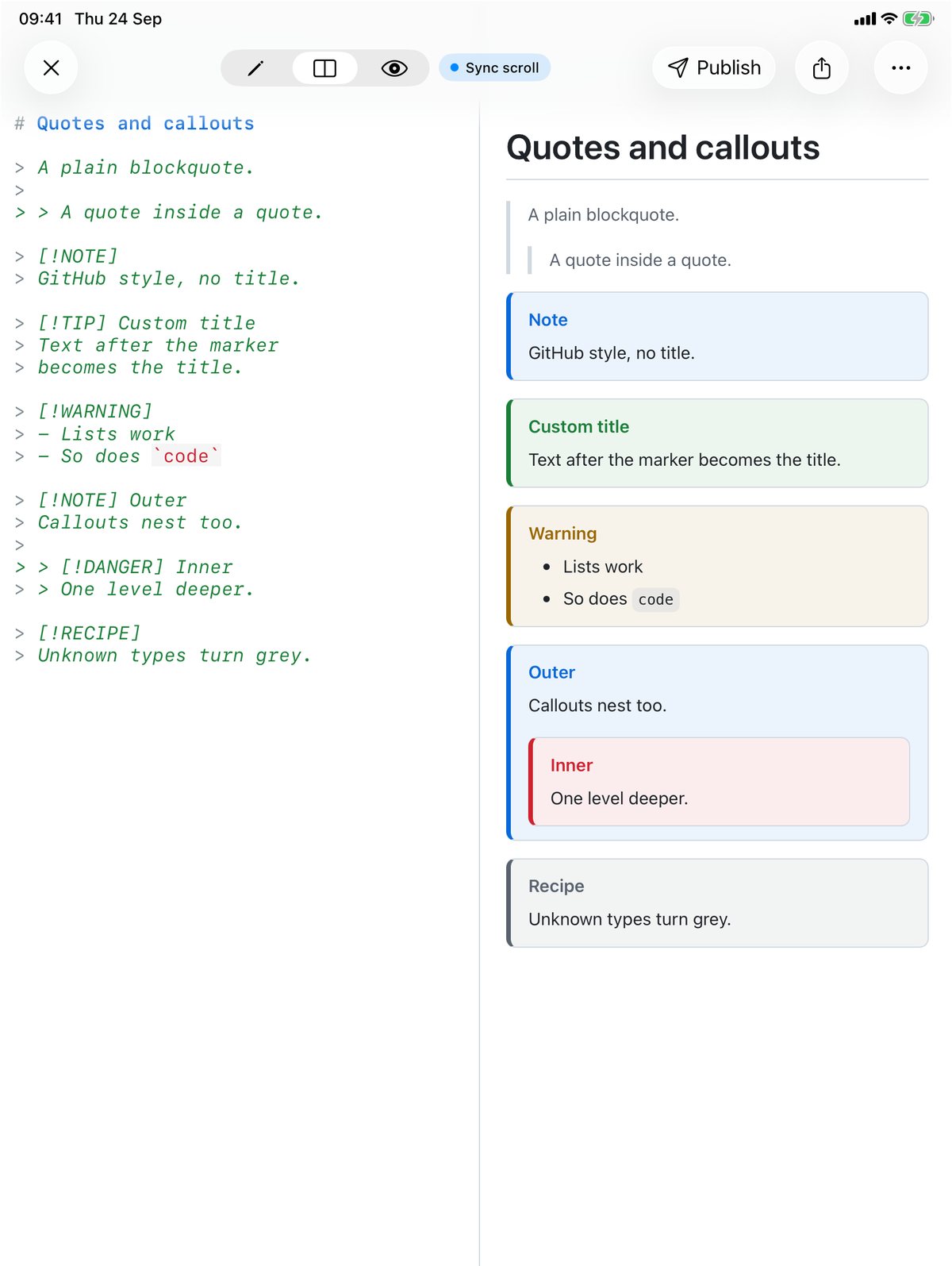
[!RECIPE] type falling back to grey. iPad (A16) simulator.Typing them faster
On the Mac, select some lines and choose Format ▸ Quote (⇧⌘"). It adds > to the start of every selected line, and skips lines that already have one, so pressing it twice does not produce a nested quote. On iPhone and iPad the same action is the quote key on the formatting bar above the keyboard. Neither writes the [!TYPE] part for you. Type that on the first line yourself.
For the rest of the syntax on one page, see the Markdown cheat sheet.
What happens to a callout when you export
PDF, PNG, HTML and EPUB are all made from the rendered preview, so callouts keep their coloured bar, tinted background and title. The HTML and EPUB files carry the stylesheet inside them, so the colours survive wherever the file is opened.
Word is the exception. I exported a callout and read the .docx it produced: the title arrives as an ordinary paragraph, and the body as indented paragraphs with bold and italics intact. There is no coloured box and no bar in Word. Plain blockquotes come out the same way, indented. If the look of a callout matters in the final document, export to PDF instead. The full list of what Word keeps and loses is in Markdown to Word.
Get rendered Markdown previews everywhere
QuickMark is a free, native Markdown app for Mac, iPhone and iPad. Live preview, export and publish built in.