
Save Anything to Markdown from Any App (iOS)
On iPhone and iPad, QuickMark installs a share extension. Anywhere iOS shows the share sheet, you can send a text selection or a web link straight into a new .md file: tap Share, tap QuickMark, choose where the file goes, tap Save. Three taps, and the clipping is a real Markdown file on your disk instead of a note trapped inside another app.
This post is written from a real run, not from the feature list. Every filename, byte count and screenshot below came out of an actual capture session on an iPhone simulator, and where the extension falls short I say so.
Where it shows up
Open a page in Safari, tap the … button, then Share. QuickMark sits in the app row next to Reminders and News.
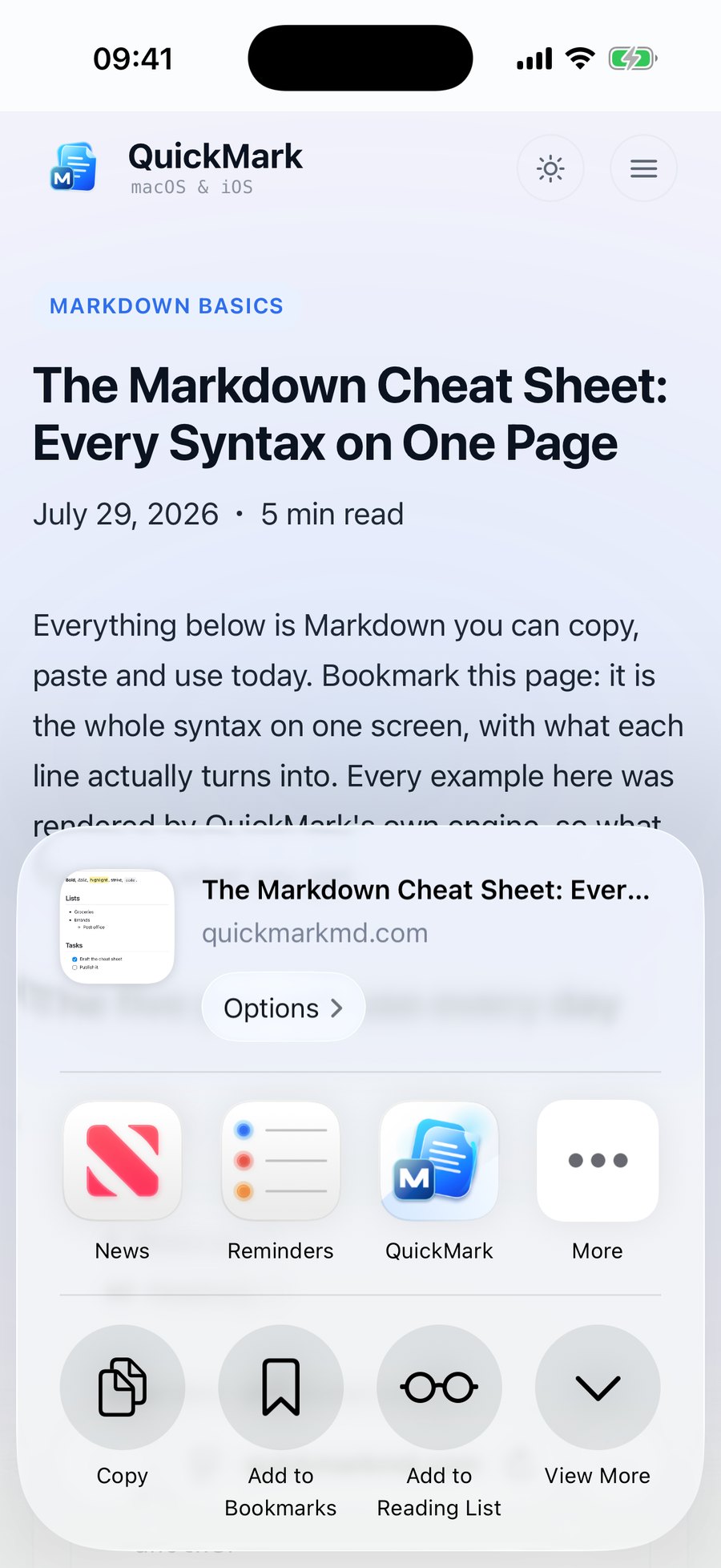
The same row appears when you select text and share it. In Safari, press and hold a paragraph, drag the handles to widen the selection, then Share… from the selection menu. Any app that offers a standard share sheet works the same way: Mail, Notes, Messages, a browser, an RSS reader.
You pick where the file goes
Tapping QuickMark does not silently swallow the clipping. It writes a temporary .md and hands you the system save panel, so the file lands wherever you want it: iCloud Drive, On My iPhone, a Dropbox or Working Copy folder, anywhere that publishes a file provider.
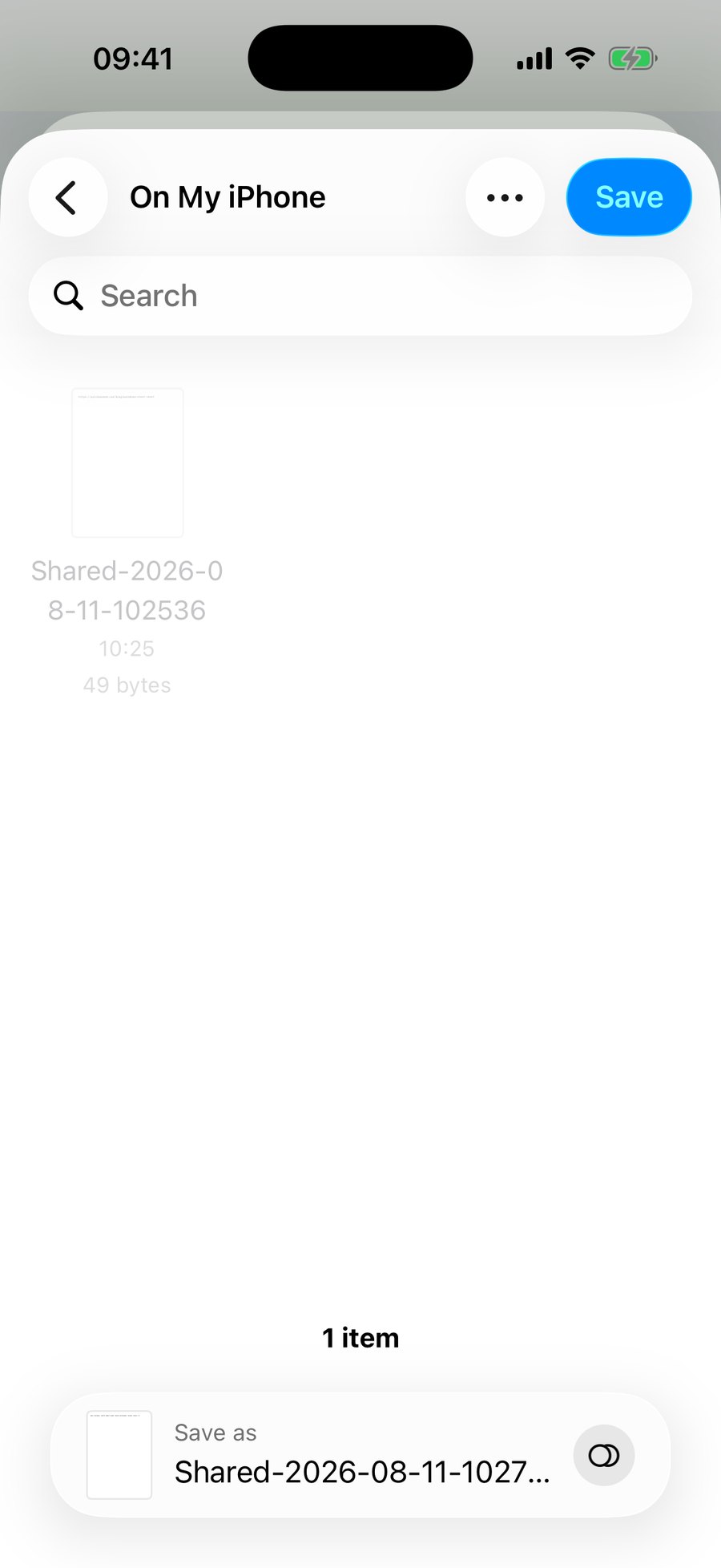
The prefilled name is Shared- plus the moment you shared, to the second. My two test clippings came out as Shared-2026-08-11-102536.md and Shared-2026-08-11-102709.md. That guarantees no collisions and tells you nothing about the content, so rename it in the field while you are there.
What actually ends up in the file
This is the part worth knowing before you rely on it. The extension saves the text it is handed, verbatim, with nothing added.
Sharing the web page above produced a 49-byte file containing one line:
https://quickmarkmd.com/blog/markdown-cheat-sheetNot the page title. Not the article text. Not a Markdown link like [The Markdown Cheat Sheet](https://…). Just the URL. Sharing a text selection is the same story: my selection came out as a 54-byte file holding exactly the words I highlighted, with no heading, no quote marks and no note of where it came from.
One thing does happen for free. QuickMark's renderer auto-links a bare URL, so a saved link is clickable the moment you open the file.
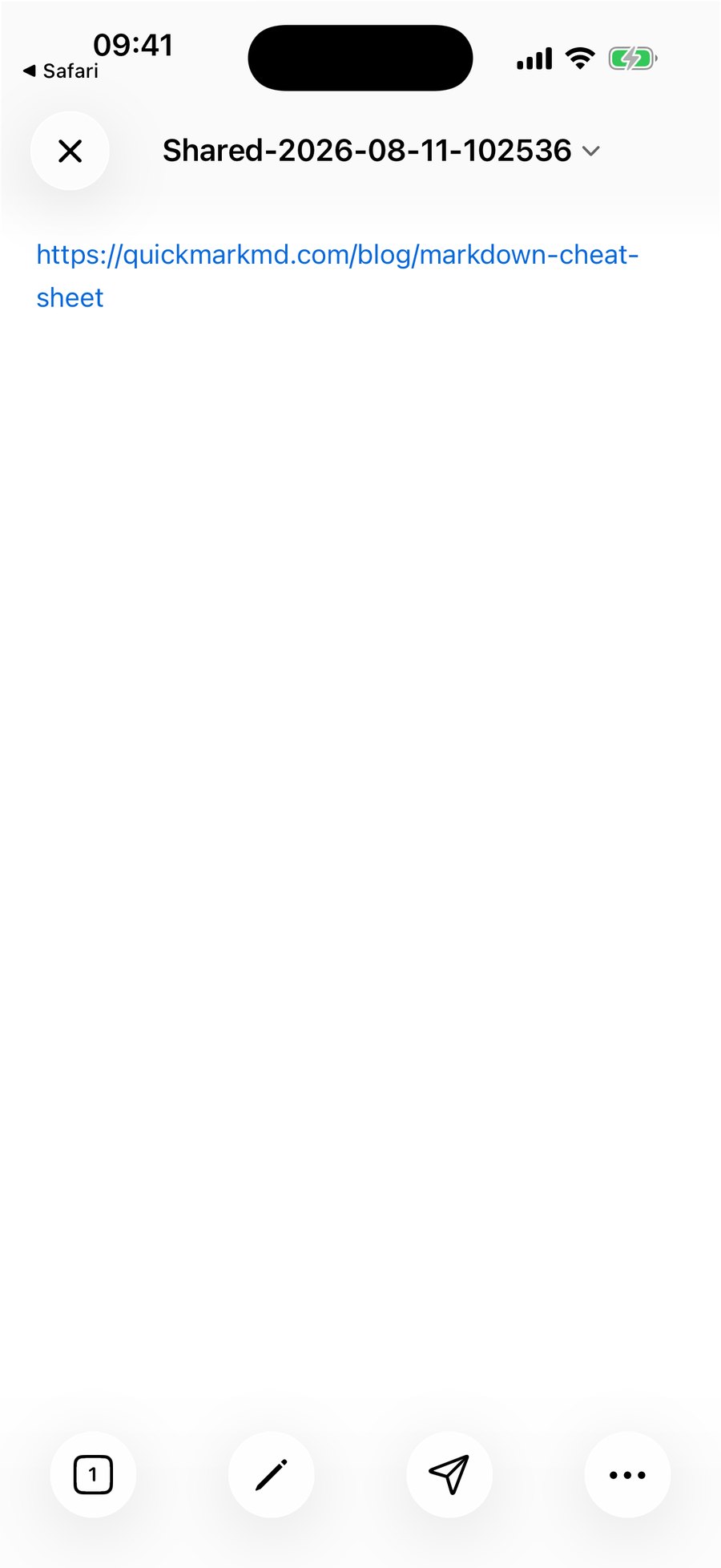
https:// URL renders as a link with no extra syntax.That auto-linking is deliberately conservative: a URL with a scheme becomes a link, while a bare example.com or a filename like package.json stays plain text. Fuzzy matching is switched off precisely so file names in your notes do not turn blue. There is a regression suite pinning that behaviour, and it passes today: 79 tests in the renderer's parser suite.
What it will not take
The extension accepts text and a single web link. That is the whole list. Share a photo and QuickMark is not offered.
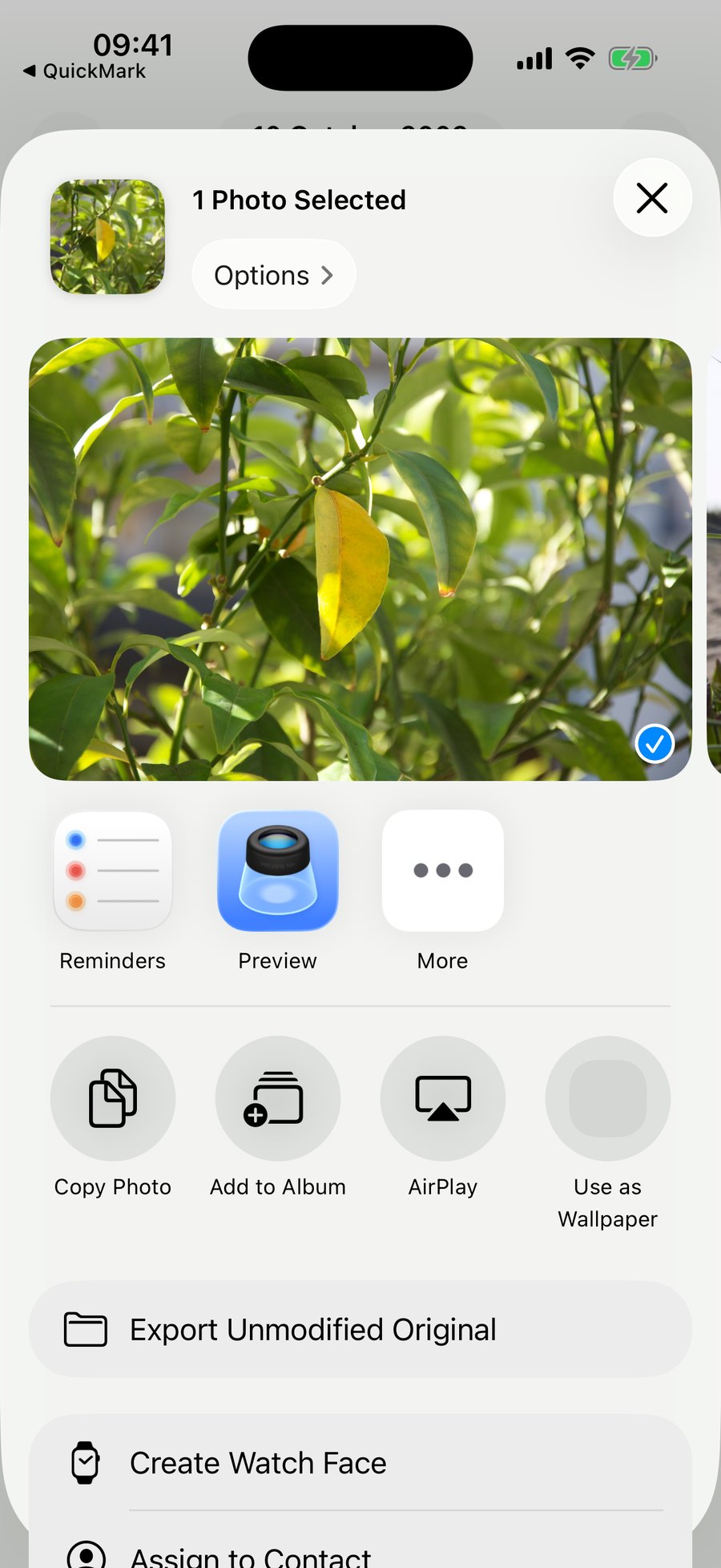
So there is no "clip this PDF", no image import, no page-to-Markdown conversion of an article's body. If you want a web article as readable Markdown, the extension is not the tool. It is a fast way to get a link or a quote out of an app and into a plain file you own.
Two more limits worth stating plainly:
- The file does not open itself. After Save, you are back in the app you shared from. Opening the clipping is a separate step, from QuickMark's Home screen or from Files.
- There is no "append to an existing note". Every share creates a new file. Collecting several clippings into one document means opening them and pasting.
And this is an iPhone and iPad feature. The Mac app ships a Quick Look extension instead, so pressing Space on a Markdown file in Finder renders it, but there is no macOS share-menu equivalent of "Save to QuickMark".
A workflow that fits it
Because a clipping is just a file, it drops into whatever you already do. What works well:
- Save links into one folder during the week, then open them in QuickMark and turn the good ones into a reading list with real headings.
- Quote-clip from Mail or a browser into an iCloud Drive folder, so the same file is on your Mac before you sit down.
- Save straight into a Git working folder if you keep notes in a repo, since the save panel reaches any file provider.
Once the clipping is open, everything else in the app applies: rendered preview, split view with synced scrolling on iPad, and publishing a finished note as a web link. Related reading: How to open .md files on iPhone and iPad, editing Markdown on iPad with split view, and the Markdown cheat sheet for turning a raw clipping into something readable.
Get rendered Markdown previews everywhere
QuickMark is a free, native Markdown app for Mac, iPhone and iPad. Live preview, export and publish built in.