
How to Convert Markdown to EPUB
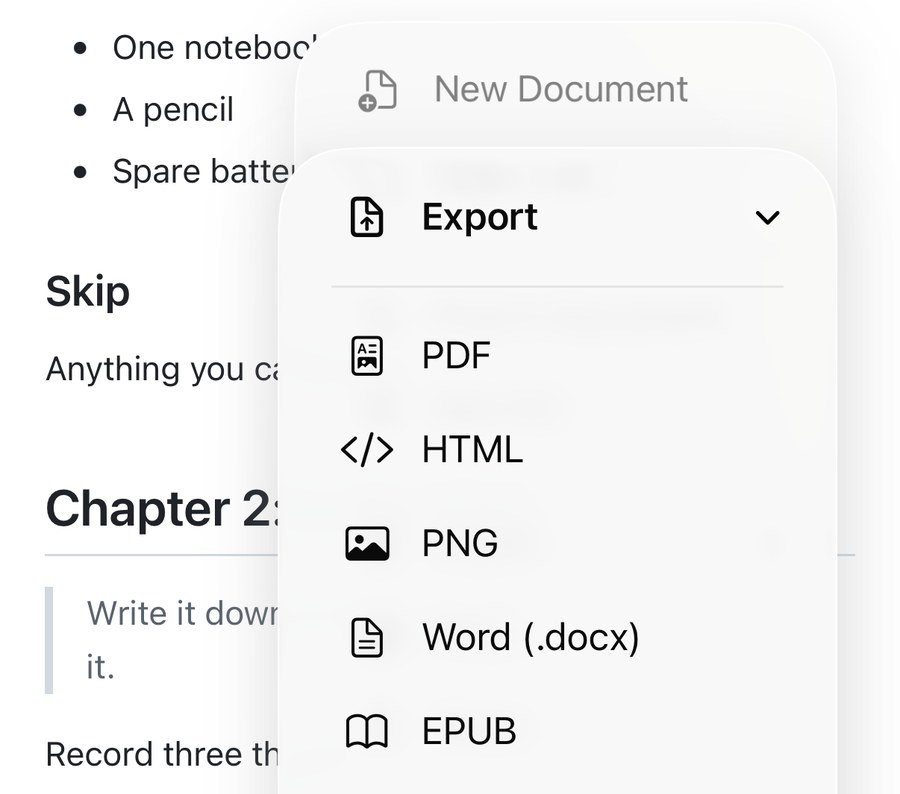
To turn a Markdown file into an EPUB e-book on a Mac, open it in QuickMark and choose File ▸ Export ▸ Export as EPUB…, or press ⌥⇧⌘E. On iPhone and iPad it is … ▸ Export ▸ EPUB, then Save to Files or AirDrop. What you get is a valid EPUB 3 book with a table of contents built from your headings, ready for Apple Books.
Why bother turning notes into a book
Reading a long document in a text editor is work. Reading it in Apple Books is not: you get pagination, adjustable type size, the Contents drawer, bookmarks, highlights, and the position syncing across your devices. A 40-page handbook you wrote in Markdown becomes something you can actually read on a train.
EPUB is also the format that survives. It is a zip of XHTML files with an open spec, so a book you export today opens in Books, Calibre, Kobo or anything else a decade from now.
What is actually inside the file
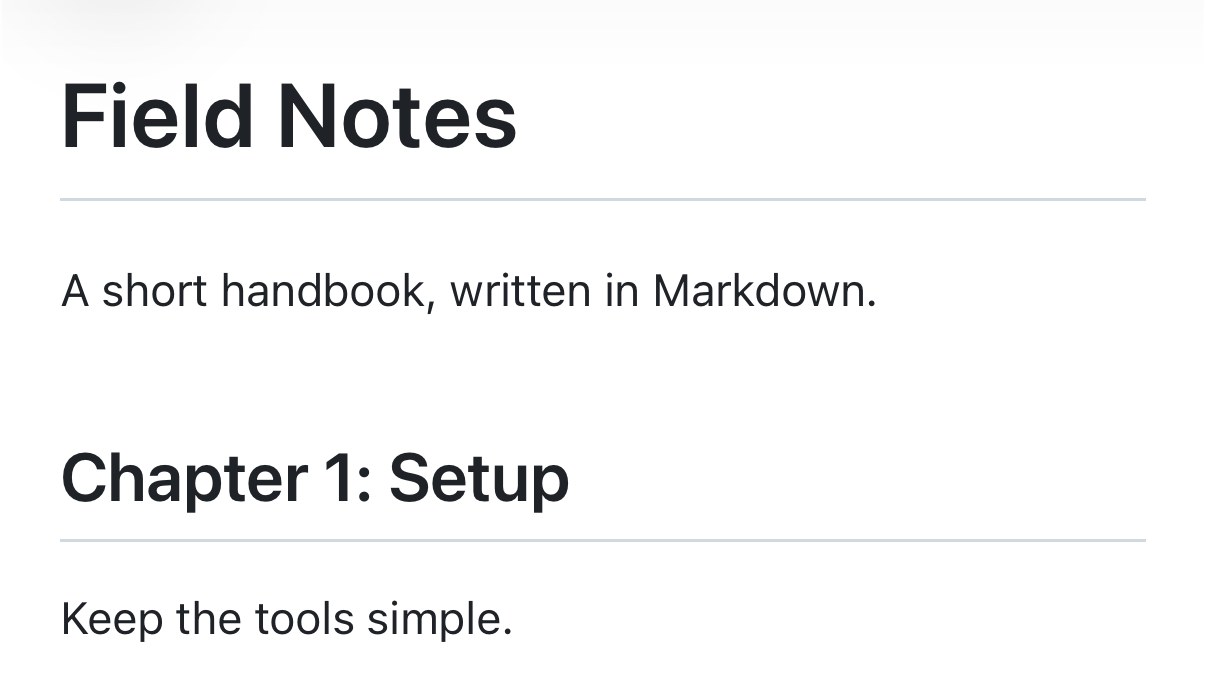
I exported the document above on an iPhone and unzipped the result. Here is every byte of it:
mimetype                    20 bytes
META-INF/container.xml     251 bytes
OEBPS/content.opf          749 bytes
OEBPS/nav.xhtml            677 bytes
OEBPS/chapter1.xhtml    46,899 bytes
                        ─────────────
total on disk           49,162 bytes
Five files, and the whole book is 49 KB. Three details in there are worth calling out.
mimetype comes first and is stored uncompressed. That is not an accident, it is what the EPUB spec demands so a reader can identify the file by peeking at the first bytes. I checked the archive: first entry, compression method 0, contents application/epub+zip. All four XML files parse as well-formed XML.
The chapter is 46,899 bytes, but your words are 1,477 of them. The other 45 KB is the stylesheet, inlined so the book carries its own look. Same trade as HTML export: a one-page note and a fifty-page report are not far apart in size, because the floor is the CSS.
The copy-to-clipboard buttons are stripped. The hover buttons on code blocks are app furniture, not content, so they never reach the book. (The PNG export does bake them in, which is the opposite choice and the right one for a screenshot.)
The table of contents builds itself
This is the part that makes an exported note feel like a real book. QuickMark reads the H1, H2 and H3 headings out of the rendered document and writes them into nav.xhtml as a properly nested list, which is what fills the Contents drawer in Apple Books. From my three-chapter demo:
Field Notes
  Chapter 1: Setup
    Bring
    Skip
  Chapter 2: In the field
  Chapter 3: Back home
The nesting is real nesting, not indentation: Books draws expand and collapse arrows on entries that have children. Every entry links to its anchor inside the chapter, so tapping "Skip" jumps there.
Two things to know. Headings stop at H3, on purpose, so a reference document with deep sub-sub-sections does not turn the drawer into a wall. And a document with no headings at all still gets a one-line contents entry rather than an empty drawer.
Doing it on Mac
All five file formats live in one submenu under File ▸ Export. EPUB is the fourth, at ⌥⇧⌘E.
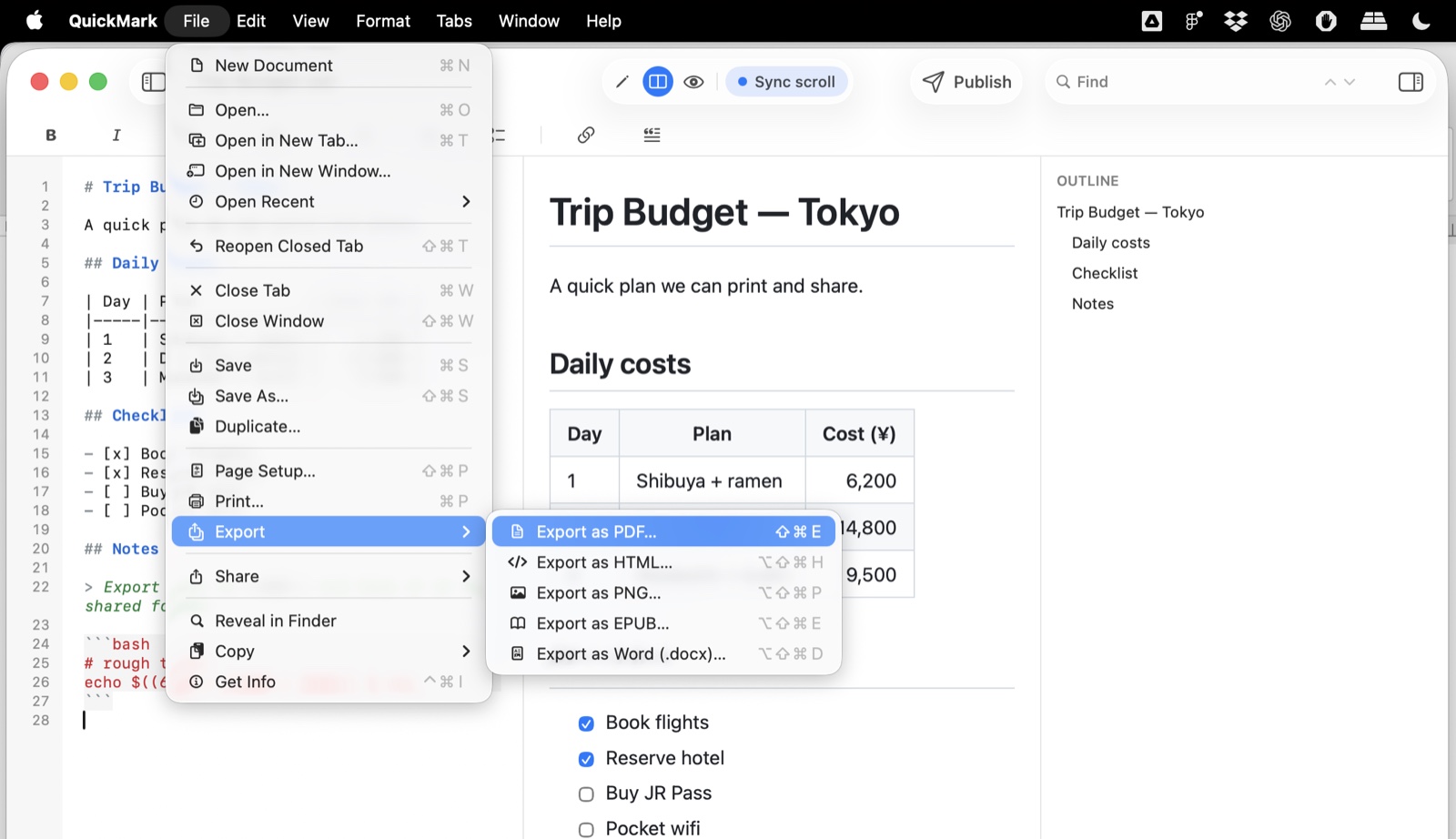
You get an ordinary save panel, so you pick the folder and the name. Double-clicking the saved .epub opens it in Books and adds it to your library.
Doing it on iPhone and iPad
On iPhone the export menu is inside the … button in the bottom toolbar. On iPad it has its own button in the top bar. Same list either way.
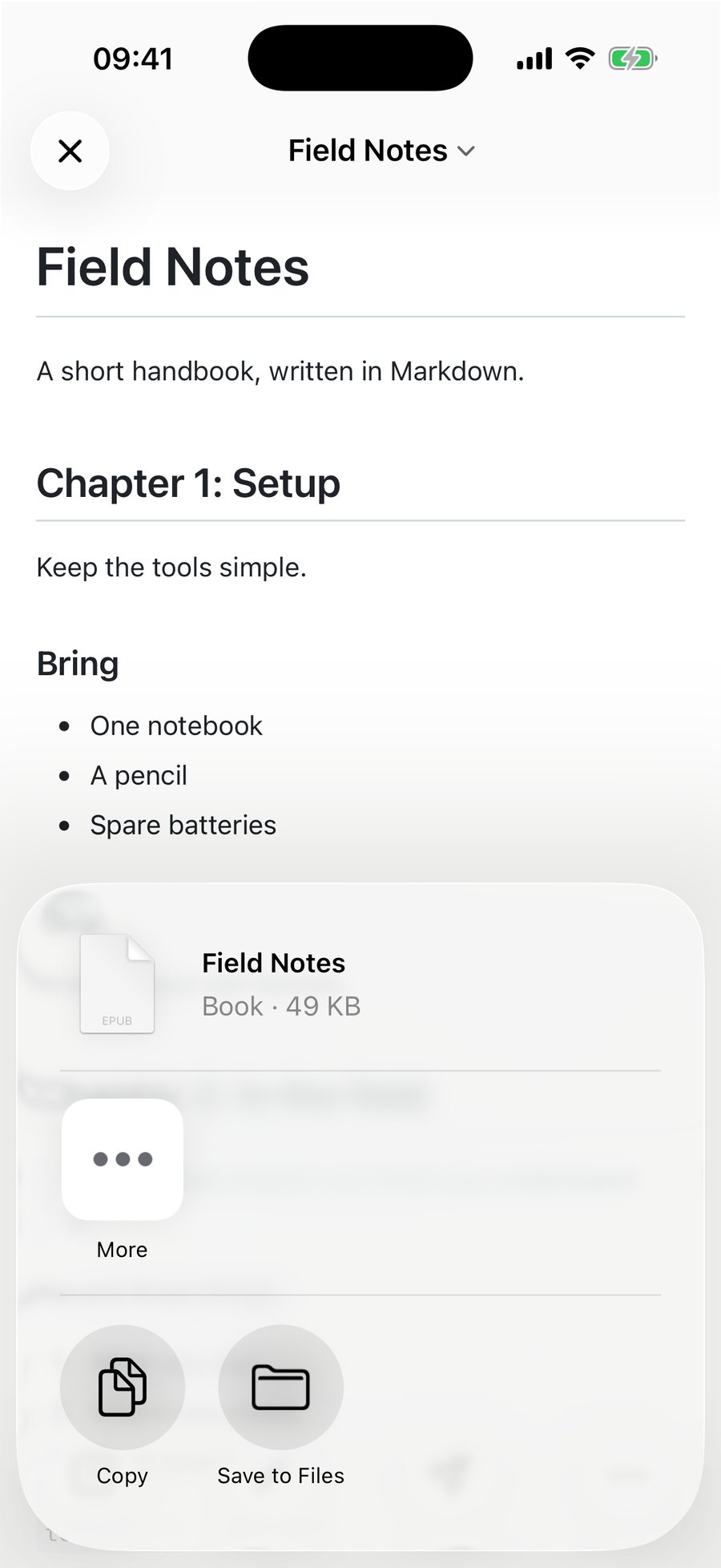
iOS has no save panel, so the finished book goes to the share sheet. It arrives named after your document, typed as a Book, with its size shown before you send it anywhere.
Books always opens it light
An exported book is always the light theme, even if you were reading in dark mode when you exported. That is deliberate, and getting it to stick took more than pinning a white background: when the OS is in Dark Mode, Apple Books re-colours EPUB text to its own night palette while leaving an author's background alone, which produces white text on white paper. The export carries Apple's opt-out marker so Books honours the original colours instead.
If you prefer to read at night, switch themes in Books itself. That is a deliberate choice by you, and Books will respect it.
Four limits, stated plainly
- One chapter, not one chapter per heading. The whole document becomes a single chapter file. Page-turning and the Contents drawer work fine; what you do not get is Books treating each H1 as a separate chapter in the progress bar.
- Images are linked, not packaged. I exported a document containing a remote image and unzipped it: still five files, and the
<img>still points at the originalhttps://address. Read the book offline and that picture is a blank box. Text, tables, code and lists are all self-contained; images are the exception. - Maths ships without its fonts. The KaTeX stylesheet is inlined, including
@font-facerules, but the font files themselves are not in the archive. Formulas still appear; the glyph shapes and spacing are whatever your reader substitutes. - The metadata is fixed. The book title comes from your first H1 (falling back to the filename), which is the useful part. The author is always "QuickMark User", the language is always English, and there is no cover image. There is no dialog to change any of that before exporting.
None of these stop a handbook, a set of study notes or a long draft from reading well in Books. They would matter if you were publishing to a store, and that is a fair thing to want; it is just not what this export is for today.
What travels well
Headings, paragraphs, bold and italic, links, ordered and unordered lists, task lists, blockquotes, tables and fenced code blocks with their syntax colours all arrive intact and as real text, so the reader's own search and text-size controls work on them. If you are choosing between formats: EPUB for reading, PDF for printing or sending something with fixed pages, Word for someone who will edit it.
Get rendered Markdown previews everywhere
QuickMark is a free, native Markdown app for Mac, iPhone and iPad. Live preview, export and publish built in.