How to Write Documentation in Markdown (Folders, Links, Anchors)
To write documentation in Markdown, put one topic per .md file in a docs/ folder, start each file with a single # Title, split it with ## headings, and connect the pages with relative links like [Configuration](configuration.md). Tag every code block with its language, use > [!NOTE] callouts for warnings, and keep the headings you link to short and plain, because the anchor that #section points at is generated from the heading text and every renderer generates it a little differently.
That last part is where most docs break, so this post puts numbers on it. I ran 18 real-world doc headings through QuickMark's renderer and through GitHub's slug rules and compared the anchors. Seven of them came out different. Details below, along with what happens when you click a link to another page in each app.
Lay out the folder first
Small projects get away with one long README.md. Once it passes a few screens, split it. A layout that works almost everywhere:
my-project/
  README.md              # what it is, install in 3 lines, link to docs/
  docs/
    01-getting-started.md
    02-configuration.md
    03-deploying.md
    04-troubleshooting.md
    images/
      architecture.png
Three habits that pay off later:
- Number the files. Folders sort alphabetically everywhere: in Finder, on GitHub, in any file browser. A two-digit prefix gives you reading order for free.
- Lowercase, hyphens, no spaces.
getting-started.mdworks in every link without escaping.Getting Started.mdneedsGetting%20Started.mdor angle brackets in every link that points at it. - Keep images next to the docs. A relative path like
images/architecture.pngkeeps working when someone clones the repo or zips the folder. Links to a hosted image break when the host goes away.
The README stays short on purpose. How to write a good README covers what belongs in it.
A page template you can copy
# Getting started

Set up the Acme CLI in about five minutes.

[TOC]

## Install

> [!NOTE]
> Needs Node 20 or later.

```bash
npm install -g acme-cli
acme --version
```

## Configure

| Option | Default |
| --- | --- |
| `port` | `8080` |
| `debug` | `false` |

Every option: [Configuration](configuration.md).

## Run it

```bash
acme start --port 8080
```

> [!WARNING]
> `acme reset` deletes the local cache.

## Next steps

- [Deploying](deploying.md)
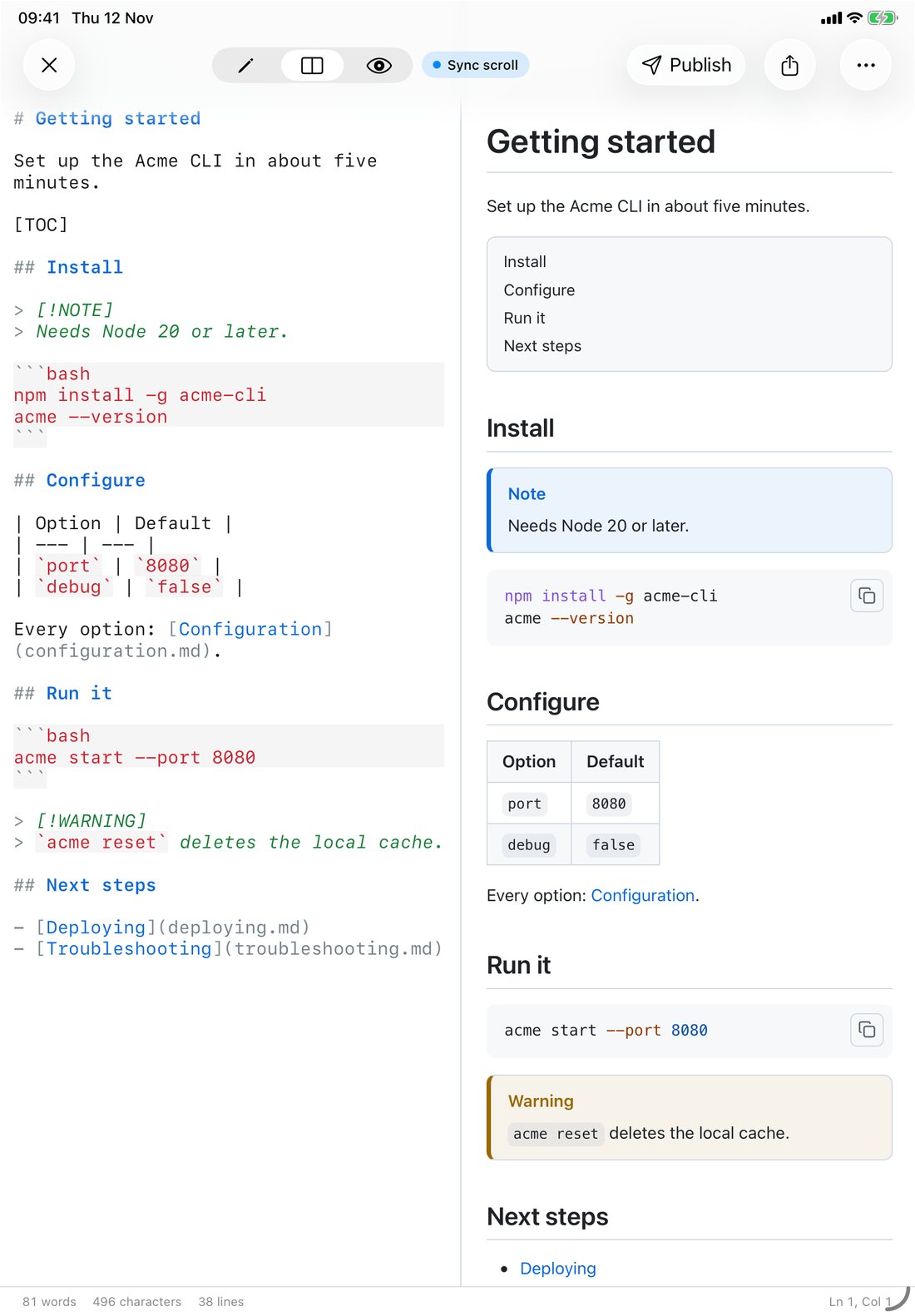
- [Troubleshooting](troubleshooting.md)The page in the screenshot above: a title, a one-line summary, a generated table of contents, a blue Note box, highlighted shell commands with a copy button, an options table, a Warning box and links to the next pages.
One # per file, then ## for sections and ### only when a section really has parts. The first sentence says what the page gets you. If a reader lands here from search, that line tells them whether they're in the right place. The headings post has more on structure.
Heading anchors: where docs links quietly break
Every heading gets an ID made from its text, and [ports](configuration.md#ports) jumps to it. Nobody writes the ID down. It's computed: lowercase the text, drop punctuation, turn spaces into hyphens. The trouble is that "drop punctuation" means different things to different renderers.
I took 18 headings of the kind you find in real docs and generated their anchors two ways: with QuickMark's renderer (the same code that runs in the app) and with github-slugger 2.0.0, the library other tools use to reproduce GitHub's rules. GitHub's own documentation describes the same rules: lowercase, spaces to hyphens, other punctuation removed, and -1, -2 appended to duplicates.
| Heading | QuickMark | GitHub rules | |
|---|---|---|---|
| Getting Started | getting-started | getting-started | Same |
| Step 2: Run it | step-2-run-it | step-2-run-it | Same |
| What's new in v2.0? | whats-new-in-v20 | whats-new-in-v20 | Same |
--verbose flag | --verbose-flag | --verbose-flag | Same |
| FAQ | faq | faq | Same |
| Example (three times) | example, example-1, example-2 | example, example-1, example-2 | Same |
| Node.js 20+ | nodejs-20 | nodejs-20 | Same |
| C++ build | c-build | c-build | Same |
| Setup (macOS) | setup-macos | setup-macos | Same |
| Install & configure | install-configure | install--configure | Differs |
| API / Reference | api-reference | api--reference | Differs |
| snake_case options | snakecase-options | snake_case-options | Differs |
| Done ✅ | done | done- | Differs |
| Café setup | caf-setup | café-setup | Differs |
| Übersicht | bersicht | übersicht | Differs |
| 安装 | (no anchor) | 安装 | Differs |
Eleven of 18 match. The seven that don't fall into two groups:
- Punctuation between spaces. GitHub removes the
&or/but keeps both spaces, so you get a double hyphen. QuickMark collapses them into one. An emoji at the end leaves GitHub with a trailing hyphen. Underscores survive on GitHub and are dropped in QuickMark. - Letters outside a to z. GitHub keeps accented and non-Latin letters. QuickMark keeps only a to z, 0 to 9 and hyphens, so
Caféloses its é and a heading written entirely in Chinese gets no anchor at all. GitLab's documentation shows it keeping Korean characters, like GitHub.
The practical rule: the headings you link to should be plain words separated by single spaces. "Install and configure" instead of "Install & configure". "API reference" instead of "API / Reference". Then the anchor is the same on GitHub, GitLab, QuickMark and most static site generators, and your links survive a move to a different host. If your docs aren't in English, check each anchor in the place where readers will actually open the docs.
And when you rename a heading, search the folder for its old anchor. GitHub's docs say it plainly: the anchor changes and every link to it has to change too.
Linking between pages
Use relative links that include the .md extension:
[Configuration](configuration.md)
[Ports](configuration.md#ports)
[Back to the README](../README.md)
GitHub follows these and rewrites them for whichever branch you're viewing. What happens elsewhere depends on the app, so here's exactly what QuickMark does, read from its code:
| Link | QuickMark on Mac | QuickMark on iPhone and iPad |
|---|---|---|
[x](#ports) in the same file | Scrolls to the heading | Scrolls to the heading |
[x](configuration.md) | Opens the file in a new tab, or switches to it if it's already open | Nothing happens |
[x](configuration.md#ports) | Opens the file at the top; the #ports part is not followed | Nothing happens |
[[configuration]] wiki link | Jumps to a heading named "configuration" in the same file | Same as Mac |
https://… | Opens in your browser | Opens in your browser |
Two notes on the Mac column. Only Markdown and text targets open (.md, .markdown, .txt and a few rarer extensions); a link to a PDF or an image file is left alone. And because Mac apps from the App Store are sandboxed, the first time a link points outside the folders QuickMark can read, it asks you to grant access to the folder once.
So QuickMark is a good way to read and check a docs folder on a Mac, but it isn't a docs website. Section links across files and cross-file links on iPhone and iPad are things GitHub and static site generators do and QuickMark doesn't. More on link syntax in links and images.
Tables of contents
Long pages need one. There are two ways to get it, and they don't overlap.
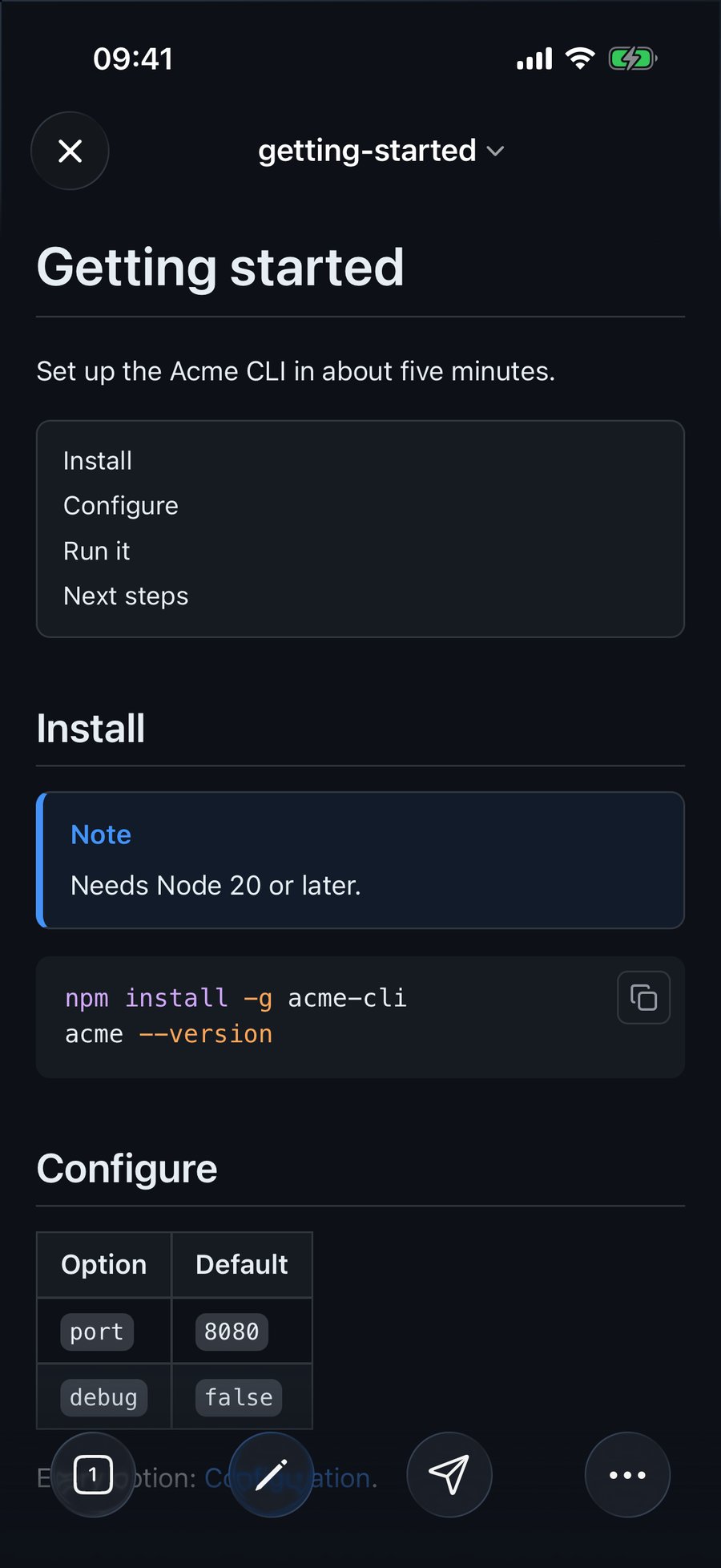
[TOC] line becomes a clickable list of the page's sections. QuickMark on an iPhone 17 Pro simulator.- A marker in the file. A line that is exactly
[TOC]or[[_TOC_]]becomes a nested list of the page's##to######headings. QuickMark renders both forms on Mac, iPhone and iPad, and on pages you publish to the web. GitLab's documentation lists both forms too. - A button in the viewer. GitHub doesn't render either marker. I sent both through GitHub's own Markdown API:
[TOC]came back as the literal text, and[[_TOC_]]came back as[[TOC]]with TOC in italics. Instead, GitHub builds an outline from the headings and puts it behind the Outline icon in the file header.
If your docs live on GitHub, leave the marker out, or readers see a stray [TOC]. If they live on GitLab or get read in a Markdown app, the marker is worth adding. On a Mac, QuickMark's Outline sidebar shows the headings of whatever file is open, so you get a table of contents either way.
Callouts for warnings and tips
A plain blockquote is easy to skim past. A callout isn't:
> [!WARNING]
> `acme reset` deletes the local cache.
GitHub renders five types: NOTE, TIP, IMPORTANT, WARNING and CAUTION. Stick to those five in docs that will be read on GitHub. QuickMark renders the same five plus Obsidian-style types like INFO, DANGER, BUG and EXAMPLE, but GitHub shows those extra ones as an ordinary quote with [!INFO] printed as text (I checked through its API). Use callouts sparingly: one or two per page. A page where every paragraph is a Note has no notes. The callouts post goes through the types.
Code blocks: always say the language
Write ```bash, not just ```. The tag turns on highlighting, and it tells the reader whether a line goes in a terminal, a config file or a script. In QuickMark, bash, sh, shell and zsh all highlight the same way, and so do the usual docs languages: JSON, YAML, TOML, Dockerfile, SQL, Python, JavaScript, TypeScript, Go, Rust, Swift and others, 34 in all.
A few tags that show up in docs aren't among them. I tested console, http, ini, hcl and powershell: QuickMark shows those blocks as clean plain monospace without colours, while GitHub highlights all five. The block still reads fine, so keep the tag that describes the content. The code blocks post has more on language tags.
For terminal commands, leave out the $ prompt unless the block also shows output. People copy the whole block, and a pasted $ npm install fails.
Diagrams belong in the file too
An architecture diagram exported as a PNG goes stale the day someone changes the system. A Mermaid block lives next to the text and changes in the same commit:
```mermaid
graph LR
  CLI --> API --> Database
```
GitHub renders Mermaid, and so does QuickMark on every platform. The Mermaid post covers the diagram types worth using.
Reading a docs folder in QuickMark
On a Mac, File ▸ Open Folder… (⇧⌘O) opens the whole docs/ folder in one window. The Folder Files panel on the left shows the folder's Markdown files as a tree, the Outline sidebar lists the headings of the page you're on, and relative links open their target in a new tab. Edit in one pane and watch the preview in the other. Folder Files and Outline are Mac only.
On iPad, split view shows source and preview side by side with synced scrolling, which is how the first screenshot was taken. On iPhone you switch between editing and preview. Both open files from the Files app into tabs, but there's no folder panel, and both render callouts, tables, [TOC], Mermaid and highlighted code the same way the Mac does.
Checklist before you commit
- One
# Titleper file, and a first sentence that says what the page is for. - Files named in lowercase with hyphens, numbered if order matters.
- Linked headings are plain words with single spaces: no
&,/, emoji or underscores. - Every link to another page is relative and ends in
.md. - Every code block has a language tag. Commands have no
$unless output follows. - Callouts limited to the five GitHub types if the docs are read on GitHub.
[TOC]only where the viewer renders it.- After renaming a heading, search the folder for the old anchor.
Get rendered Markdown previews everywhere
QuickMark is a free, native Markdown app for Mac, iPhone and iPad. Live preview, export and publish built in.