How to Highlight Text in Markdown (==text== or the mark Tag)
To highlight text in Markdown, wrap it in double equals signs: ==like this==. QuickMark, Obsidian, Bear, iA Writer and Typora (once you switch it on) all turn that into a yellow marker. It is not part of standard Markdown, though, and GitHub prints the equals signs as typed. If the file has to look right on GitHub too, use the HTML tag instead: <mark>like this</mark>.
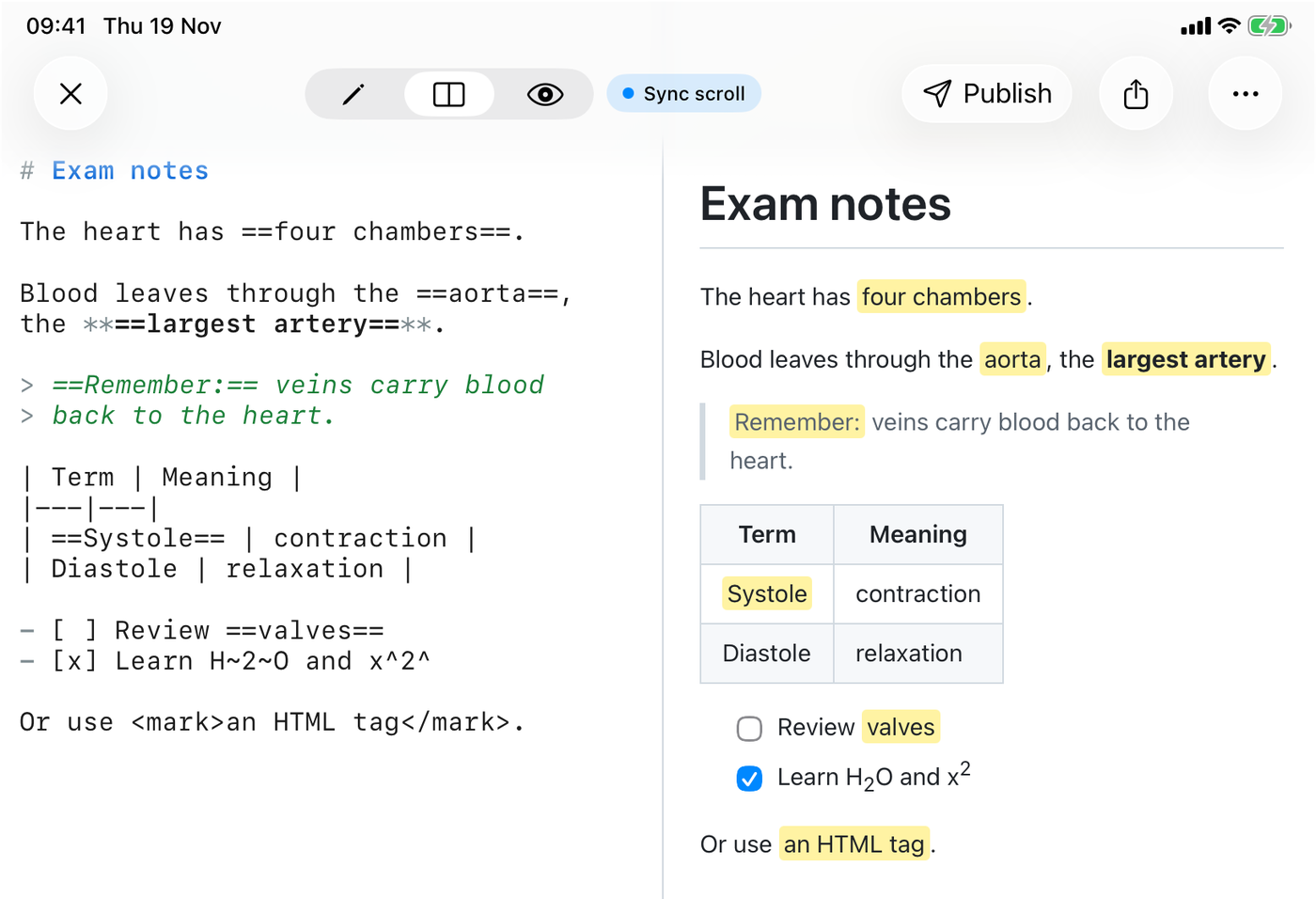
==text== on the left, except the last one, which is the HTML tag. Captured in QuickMark on an iPad (A16) simulator while writing this post.I wanted the rules below to be measured, not repeated from other tutorials. So I ran 31 small inputs through QuickMark's renderer (the same code behind the app, Quick Look on the Mac and published pages) and sent the same 31 to GitHub's Markdown API. QuickMark highlighted 20 of them. GitHub highlighted 3, and all three were the HTML tag.
The double equals sign
The heart has ==four chambers==.

Blood leaves through the ==aorta==,
the **==largest artery==**.The heart has four chambers.
Blood leaves through the aorta, the largest artery.
Two equals signs on each side, no space between the signs and the words. That last part matters more than it looks:
| Input | QuickMark |
|---|---|
==highlighted== | Highlighted |
== spaced == | Not highlighted, printed as typed |
== x== or ==x == | Not highlighted |
a == b == c | Not highlighted, so comparisons in prose are safe |
a==b==c (inside a word) | Highlights the b |
===triple=== | Highlights triple, one = left on each side |
=single= | Not highlighted |
==unclosed | Not highlighted |
\==escaped== | Not highlighted, the backslash disappears |
`==in code==` | Not highlighted, code is always literal |
The space rule is the useful one. It is why if a == b in a sentence never turns yellow by accident: a highlight has to hug its words.
It mixes with everything else
A highlight can sit inside other formatting or hold it. All of these rendered as expected in QuickMark:
**==bold highlight==**and==**bold inside**==*==italic==*,~~==struck==~~==`code` inside==and==[a link](https://example.com)==- A highlight in a heading, a quote, a table cell and a checklist item
- A highlight that wraps across two lines of the source
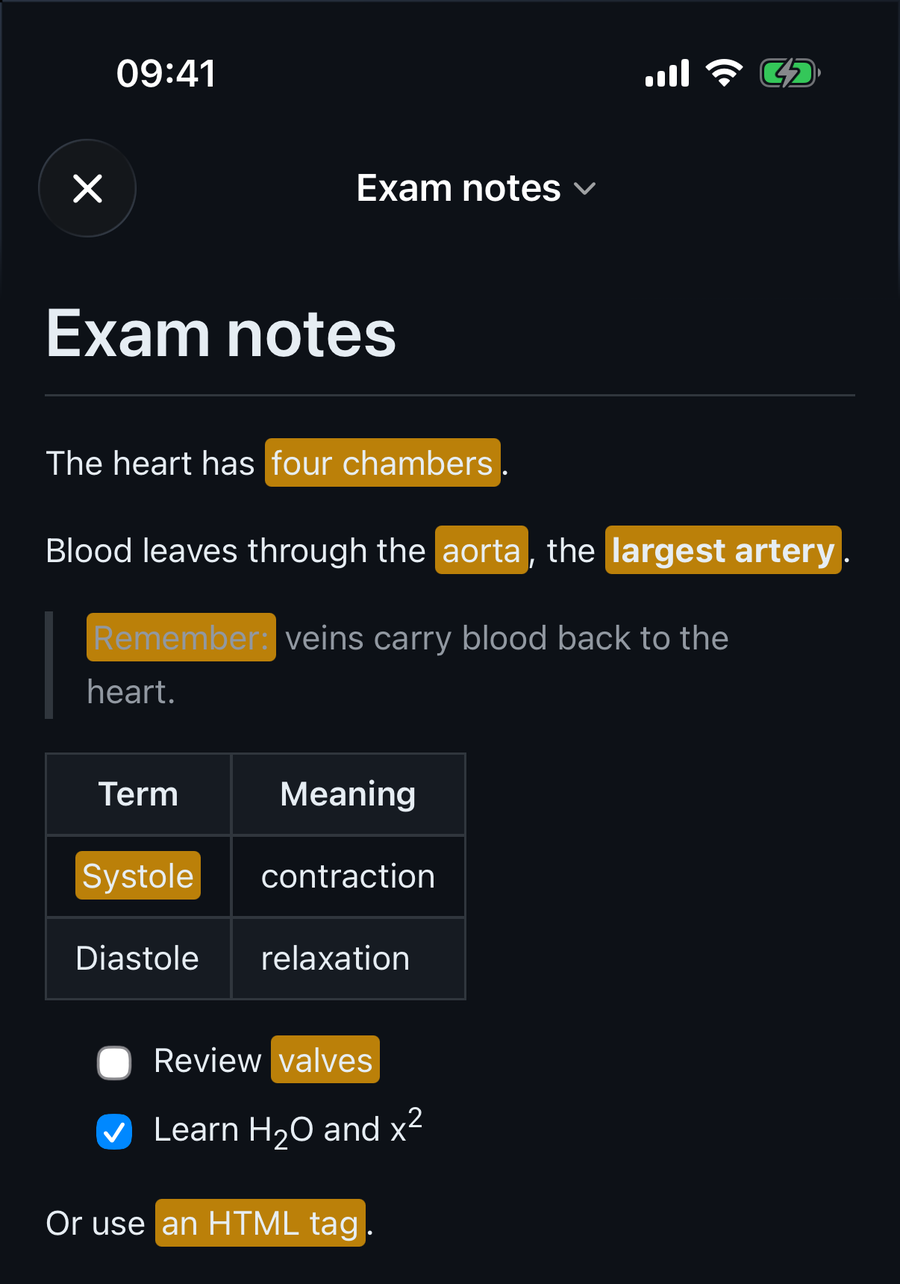
The heading case has one detail worth knowing: # ==Summary== still gets the anchor #summary, so links to it keep working. (More on anchors in the headings guide.)
The HTML tag: the one GitHub accepts
Or use <mark>an HTML tag</mark>.Or use an HTML tag.
<mark> is a normal HTML element, so any renderer that allows HTML in Markdown shows it. GitHub does: in a README, an issue or a pull request, <mark> works and == does not. It is uglier to type, but it is the portable choice.
Can you pick a color?
Not in a way that travels. People try three tricks, and I tested each one:
| Input | QuickMark | GitHub |
|---|---|---|
<mark style="background: lightgreen"> | Yellow: the style is removed | Yellow: the style is removed |
<span style="background: yellow"> | Plain text | Plain text |
<font color="red"> | The tag shows as text | Plain text, tag dropped |
$\colorbox{yellow}{text}$ | Colored box (math renderer) | Passed to GitHub's math renderer in the browser; I did not check the final pixels |
Both QuickMark and GitHub strip style attributes on purpose. A Markdown file can come from anywhere, and inline styles are one of the ways a pasted document can make itself look like something it isn't. The math trick does color the box in QuickMark, but the box is drawn by the math renderer, in its own font, and it never wraps onto a second line, so it suits a word or two at most. Math is covered in the math guide.
Obsidian has a real answer here. Its help page says highlights support six colors: put a color emoji right after the opening ==, as in ==🟢text==. That is an Obsidian feature. QuickMark shows the same line as a normal yellow highlight with the green circle inside it, and GitHub shows the equals signs and the emoji. Bear also has a five-color highlighter; how it writes the color into the Markdown file is not listed on their site.
Which apps support ==highlight==
| App | ==text== | Notes (from each app's own docs) |
|---|---|---|
| QuickMark | Yes, always on | Mac, iPhone, iPad, Quick Look and published pages. No toolbar button or shortcut for it, you type the signs. |
| Obsidian | Yes | Six colors with an emoji after the opening ==, or from the formatting menu. |
| Bear | Yes | Listed as "Highlighter", shortcut ⇧⌘M on Mac, five colors. |
| iA Writer | Yes | Listed in its Markdown guide. |
| Typora | Yes, off by default | Turn it on in the Markdown tab of Preferences. |
| GitHub | No | Use <mark>. |
Bear and Obsidian do this part better than QuickMark today: both give you a shortcut and colors. QuickMark's editor has buttons for bold, italic, links, lists and code, but not for highlight.
Does the highlight survive export?
In QuickMark, PDF, PNG, HTML, print and published web pages all come from the rendered page, so the yellow marker goes with them. Exports switch to the light theme, which means the highlight prints yellow even if you read in dark mode. If you publish a note to the web, the page uses the same stylesheet as the app (see publishing Markdown to the web).
While you are here: subscript and superscript
The same family of extensions gives you H~2~O for subscript and x^2^ for superscript. QuickMark renders both. GitHub does something surprising with the first one: single tildes mean strikethrough there, so H~2~O comes out as H2O, with the 2 crossed out. On GitHub, write H<sub>2</sub>O instead.
The short version
- Writing for yourself, in QuickMark, Obsidian, Bear or iA Writer:
==text==. - Writing for GitHub or anywhere you don't control:
<mark>text</mark>. - No spaces inside the equals signs, and no custom colors outside Obsidian and Bear.
For the rest of the syntax on one page, see the Markdown cheat sheet.
Get rendered Markdown previews everywhere
QuickMark is a free, native Markdown app for Mac, iPhone and iPad. Live preview, export and publish built in.